

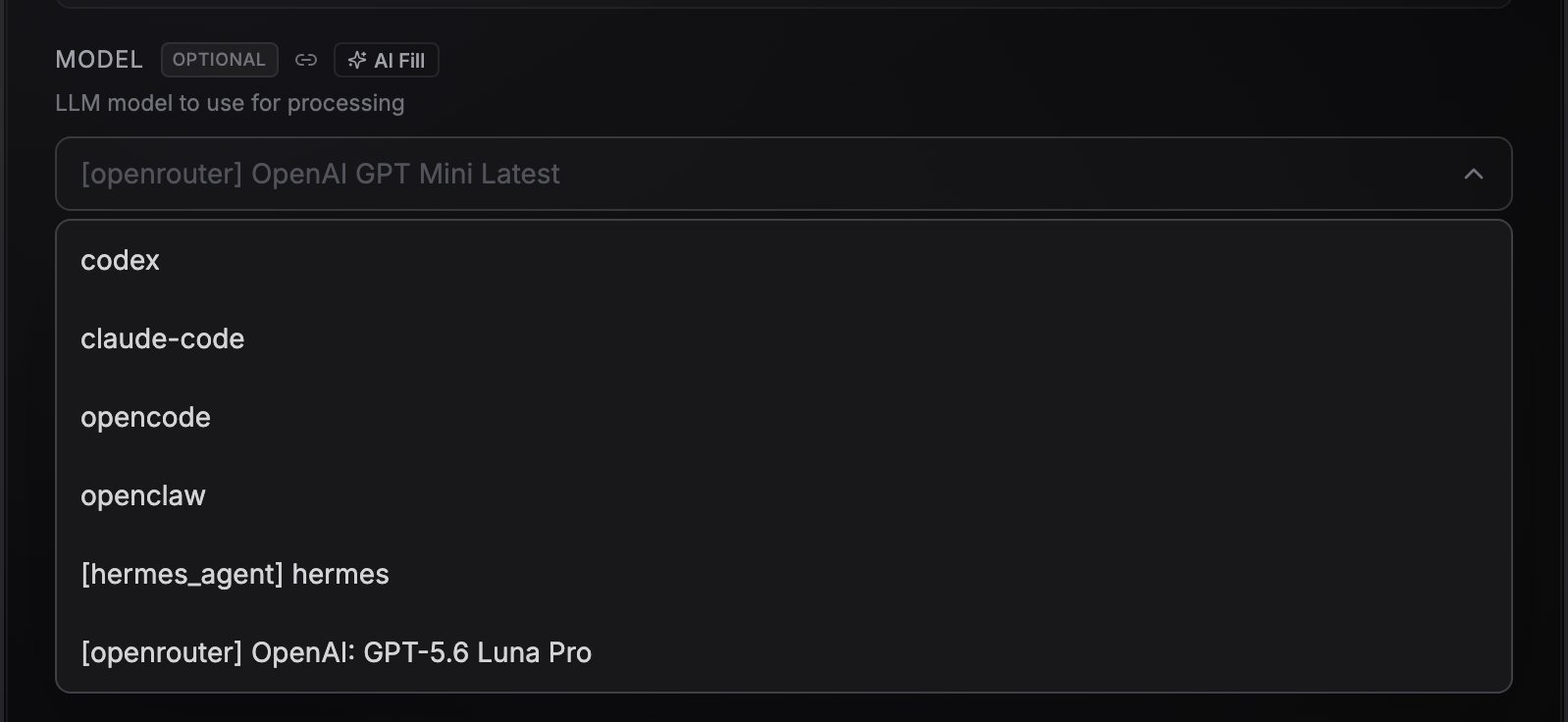
The model picker with the CLI agents pinned at the top
The six harnesses
The Codex dropdown lists the models the Codex CLI running in the sandbox offers in its own picker, in the order Codex ranks them, so new ones appear there as OpenAI ships them, with nothing to change on your side. Models OpenAI has hidden or retired are left out, and an agent already saved on a retired one keeps running.
The Claude Code dropdown lists every alias that CLI publishes, with the one it recommends first, and shows the model each alias currently points at, for example
opus (claude-opus-5-5).
The built-in LLM agent’s model runs in-process, and it starts a sandbox only when it actually runs a shell command. The five CLI agents each run in a cloud sandbox that stays warm between turns, so follow-up replies are fast and one agent can hold several conversations at once. A small indicator on the agent node shows how many sandboxes it is currently holding. Sandbox time on the CLI agents is billed at 0.05 credits per minute of uptime, even on your own key or subscription. See What costs credits.
A sandbox shuts down about a minute after the agent goes idle and starts again on your next message, and it never lives longer than four hours. A turn that stops producing output for 30 minutes is stopped as stalled, and the chat reports it as a lost turn you can send again. See Common errors.
Hermes and OpenClaw need models that support tool calling. Reasoning-only models like DeepSeek R1 will not work.
Reading the model list
Two tags in the picker tell you what a row actually is:
A Free tag is set only from the provider’s own published pricing, so it means the provider charges nothing. Sandbox time for the CLI agents is billed either way.
OpenCode Zen and Go models
Theopencode/ and opencode-go/ models run on the built-in LLM agent, in-process, so no sandbox time is billed for them. They are separate from the OpenCode CLI harness, which shares their icon but carries the CLI Agent tag.
Both catalogs use one OpenCode key. Connect it in the agent’s Credentials tab; NoClick checks the key when you save it. Zen’s free models then run at no cost to you, and paid ones are billed by OpenCode rather than in NoClick credits.
The CLI agents run on your own key
All five CLI agents need an API key or an AI subscription of your own, whichever sub-model you pick. NoClick credits fund the built-in LLM agent’s models and the sandbox time, not the CLI agents’ model usage. Connect the key or subscription in the agent node’s Credentials tab; until you do, the node is marked incomplete on the canvas and its config panel says credentials are required.The key has to match the model
An agent node can hold connected keys for several providers at once. The one that runs is the key belonging to the provider of the model in the Model dropdown, so switching models cannot leave a run using the key for the model you switched away from. When nothing attached matches the selected model, the run behaves as if no key were attached. Models NoClick serves on its own keys still run and are billed in credits, and models that need your own key stop with a missing credential. Connect the matching key in the node’s Credentials tab.Use your existing AI subscription
Instead of API keys or NoClick credits, you can authenticate a harness with the AI subscription you already pay for. Subscription-authenticated runs do not consume NoClick LLM credits; usage counts against your provider plan’s limits. Sandbox time for the CLI agents is still billed (see What costs credits).Claude Code with your Claude account
Works with Claude Pro, Max, Teams, and Enterprise. A Claude account runs only Claude Code: OpenCode, OpenClaw, Hermes and the built-in LLM agent runanthropic/ models on an Anthropic API key, and a node with a Claude account attached to one of them says so and asks for the key.
1
Select Claude Code
Open the agent node and pick Claude Code in the Model dropdown.
2
Start the connection
In the node’s credentials section, click Connect with Claude account. A browser tab opens on claude.ai to authorize NoClick.
3
Paste the code
After you authorize, Claude shows an authorization code. Copy it, paste it into the Paste authorization code field, and confirm.
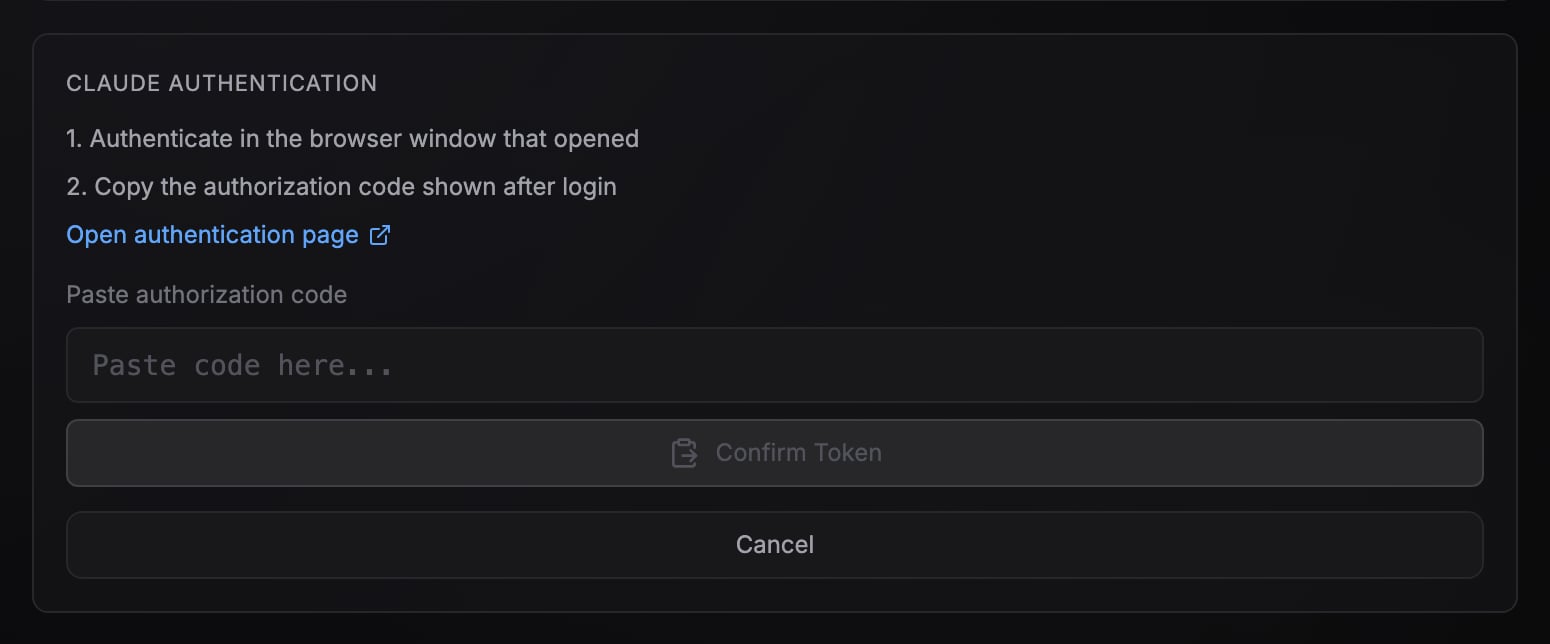
The Claude account connection flow on the agent node
Codex with your ChatGPT account
Works with a ChatGPT plan that includes Codex: Plus, Pro, Business, Edu, or Enterprise. Requires device code auth enabled in your ChatGPT security settings.ChatGPT Free does not include Codex. A Free-plan sign-in is turned down at the end of the connection, and NoClick tells you to use a plan that includes Codex or connect an OpenAI API key instead.
1
Select Codex
Pick Codex in the Model dropdown.
2
Start the connection
Click Connect with ChatGPT account. NoClick shows a short device code and opens the verification page.
3
Enter the code
Enter the code on the OpenAI verification page and approve. NoClick detects the approval automatically.
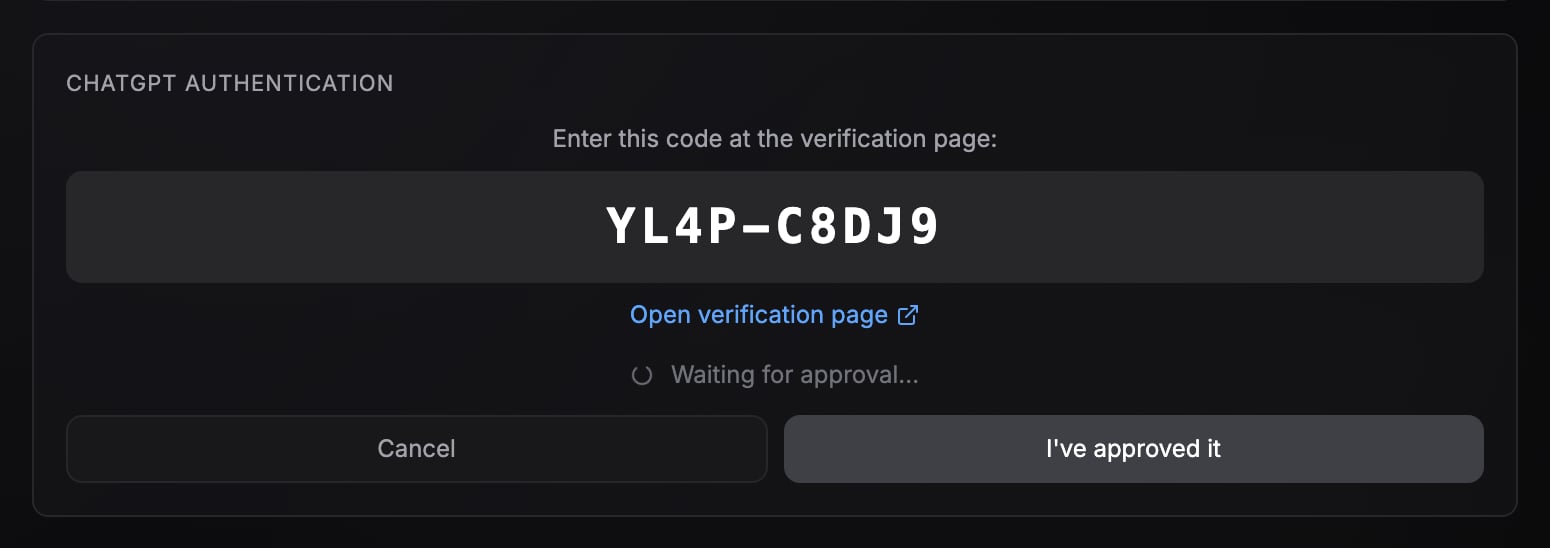
The ChatGPT device code prompt
GitHub Copilot and xAI SuperGrok (via OpenCode)
Pick OpenCode as the model, then choose a GitHub Copilot or xAI sub-model. The credentials section offers Connect with GitHub Copilot (requires a paid Copilot subscription) or Connect with xAI SuperGrok (requires a SuperGrok subscription). Both use the same device code flow as Codex: a code appears, you enter it on the provider’s verification page, and NoClick completes the connection.Capability matrix
Next steps
Give your agent tools
Wire integrations into the agent’s bottom handle.
Files and repositories
Persistent storage and authenticated repo access in the sandbox.