

linear__create_issue, slack__send_message_to_channel, and so on.
Wire a tool provider
1
Connect the node to the agent
Drag an edge from the integration node’s top handle to the agent’s bottom handle. Or click Add tool in the agent’s config panel and pick the service from the palette, which creates and wires the node for you. The palette matches on what a service can do as well as its name, so “create issue” finds Linear, Jira, and GitHub.
2
Pick the allowed actions
Once wired, the node’s config panel switches from a single-operation form to an operation allowlist. Search for actions, or use the quick selects: Read-only (list/get/search actions, no mutations), All, or Clear. For services with a long list of actions, the Show selected toggle filters the list down to just the ones you have allowlisted. The same picker appears in the setup view when you set up a tool-provider node.
3
Limit an operation to specific resources (optional)
For operations that act on a typed resource ID, expand Limit to specific… under the operation and pick which documents, sheets, or other records the agent may act on. The agent can then use that operation only against the resources you pinned. When a create operation makes a new resource, its ID is added to the matching scope for you, so the agent can immediately read back what it just created.A value already saved in one of those fields on the node counts as a limit too. A chat, channel, or record left in the node’s own config is what the agent gets for that field, rather than a default it can replace, which is what keeps an alert going to the one recipient you chose. Change the value and it applies on the agent’s next turn.
4
Connect credentials
Attach the service credential as usual. The agent calls every tool with this credential. If every action you allowed can run on NoClick’s own keys, no credential is asked for and the node is not marked incomplete. Allowing one action that does need an account puts the requirement back.
5
Lock anything that should ask first (optional)
Each allowlisted operation carries a lock. Lock one and the agent’s call waits for your approval instead of running. The locks belong to the connection rather than to this node, so the rule applies everywhere that connection is used, and they save on their own, separately from the allowlist. See Tool permissions.
6
Run
Each allowlisted operation becomes a tool named
{service}__{operation}. The agent also gets one automatic {service}__lookup_options tool for looking up IDs (channels, projects, sheets) so it can fill ID parameters without guessing.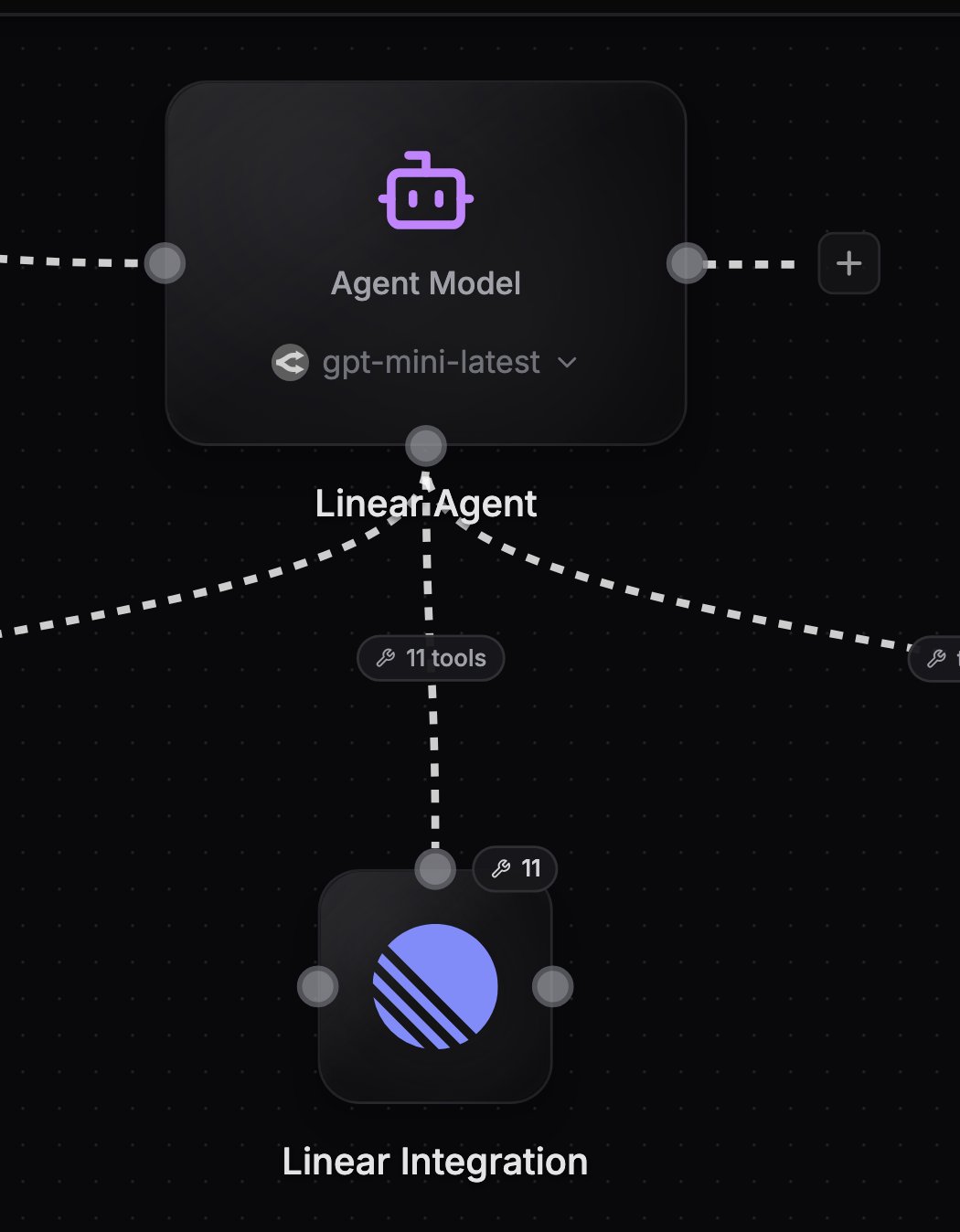
An integration node wired as a tool provider into the agent's bottom handle
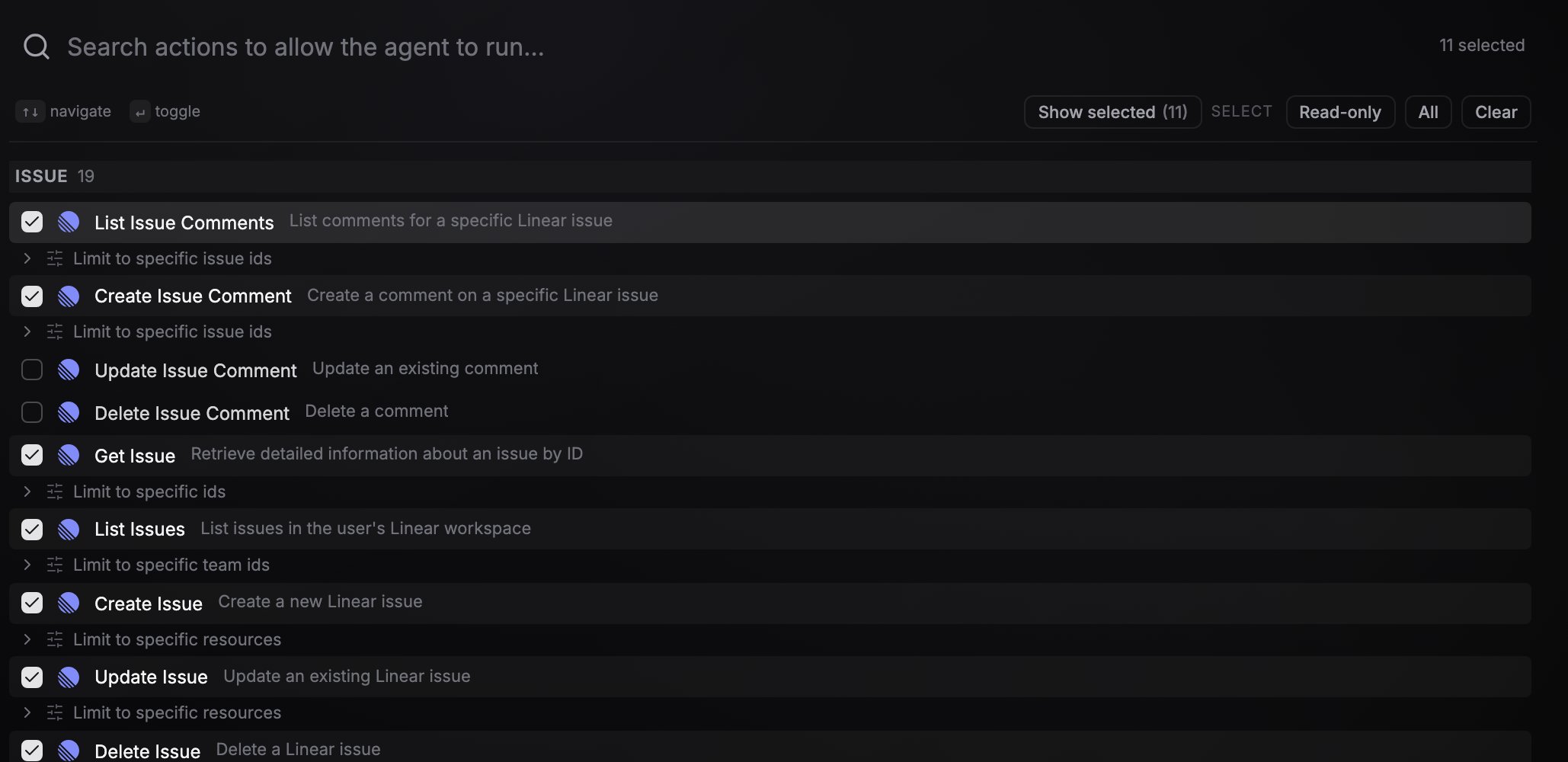
The operation allowlist with search and Read-only / All / Clear quick selects
Rules
- A tool provider is tools-only. It cannot also feed its output into normal dataflow nodes, and it cannot have a trigger operation selected.
- Use two nodes of the same service when you need both roles, for example one Slack node with a trigger operation wired into the agent’s input and a second Slack node wired as a tool provider with send operations allowlisted. This is the channel agent pattern.
- Multiple providers of the same service on one agent are fine: tool names get label-derived suffixes and the node and credential labels appear in tool descriptions so the agent can tell them apart.
- Tools are scoped per agent. Two agents on the same canvas only see the tools wired into their own bottom handle.
- A tool provider does not run on its own. Its Run button is off, because its actions run when the agent or your MCP client calls them. Run the agent instead, or use a test run to see the calls it makes.
Next steps
MCP servers
Give agents tools from external MCP servers or from NoClick itself.
Channel agents
Combine a trigger node and a send-tool node of the same service.