

L) to see the workflow’s run history.
The run list
Each row shows the run’s status, what triggered it, its message, when it ran, and how long it took.
Filter chips above the list narrow by status or trigger and show a count for each; the search box (“Search error messages”) finds runs by error text. The list scrolls infinitely through older runs.
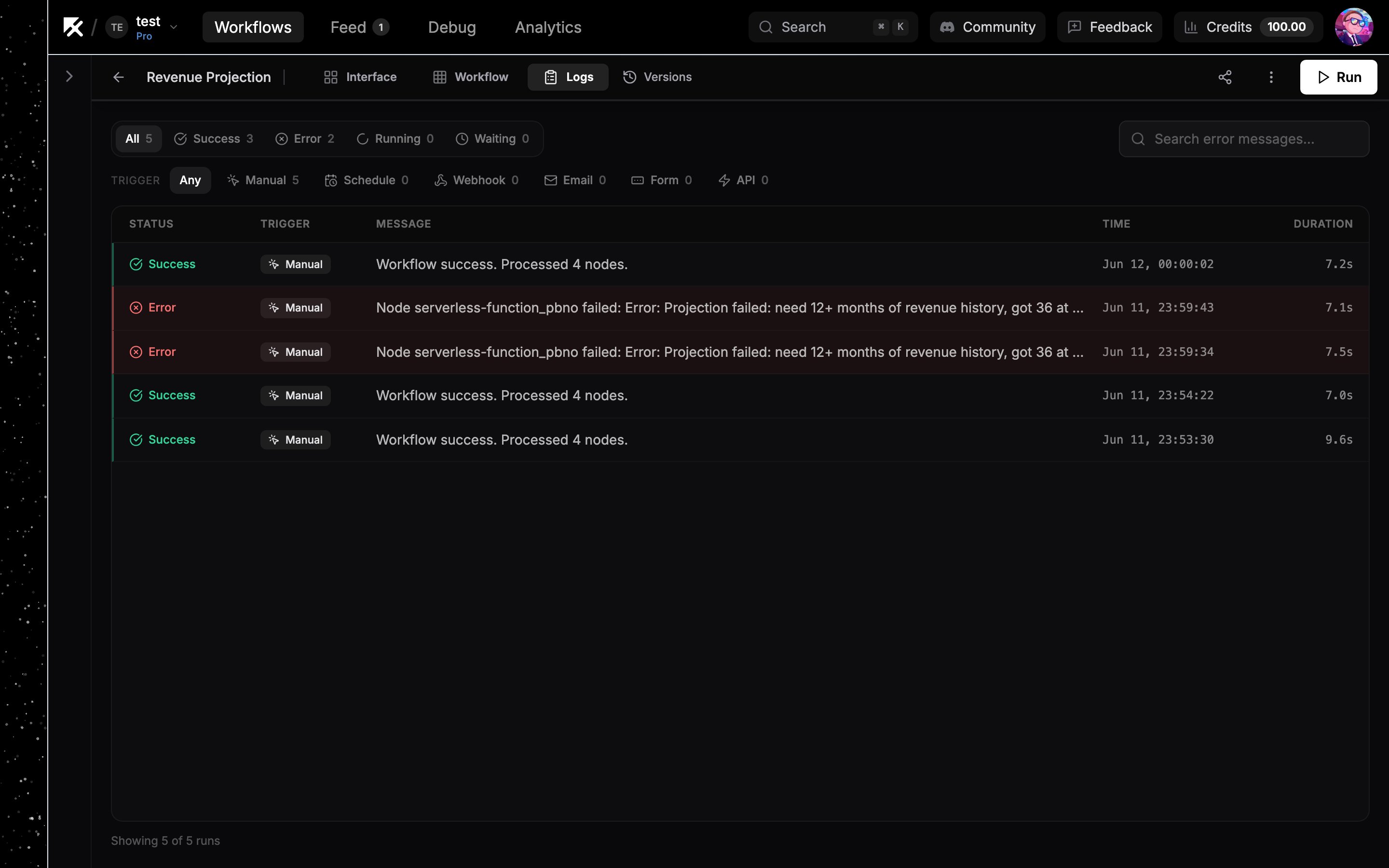
The Logs tab with filter chips and the run list.
Runs are retained for 14 days or the most recent 25,000 runs per workflow, whichever limit is reached first.
Replaying a run
Click any run row and the canvas renders that execution’s exact graph snapshot, read-only, under an amber “Viewing execution run” banner. This is the graph as it was when the run happened, even if you’ve edited the workflow since. In replay mode:- Nodes carry success or error rings showing how each step ended.
- Click a node to see the inputs it received and the output it produced.
- Agent runs show a tool calls panel listing each tool call with its arguments, result, and duration.
L to jump back to the list and pick another run.
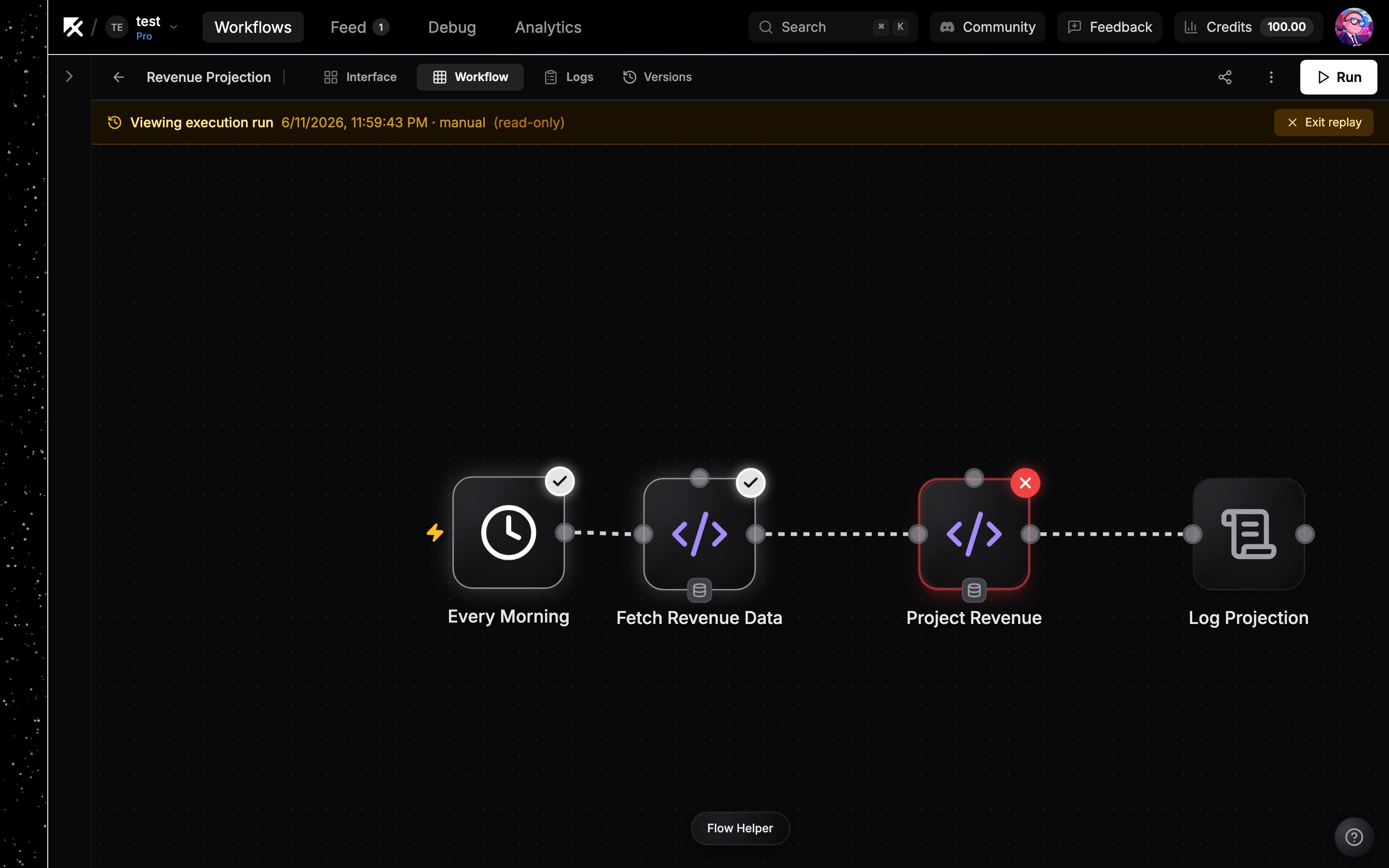
Replaying a past run: read-only snapshot with per-node results.
Next steps
Running and testing
Run nodes individually while you build.
Error handling
Route failures down dedicated branches.