

V) keeps named snapshots of your workflow. Save one before a risky edit and you can always get back.
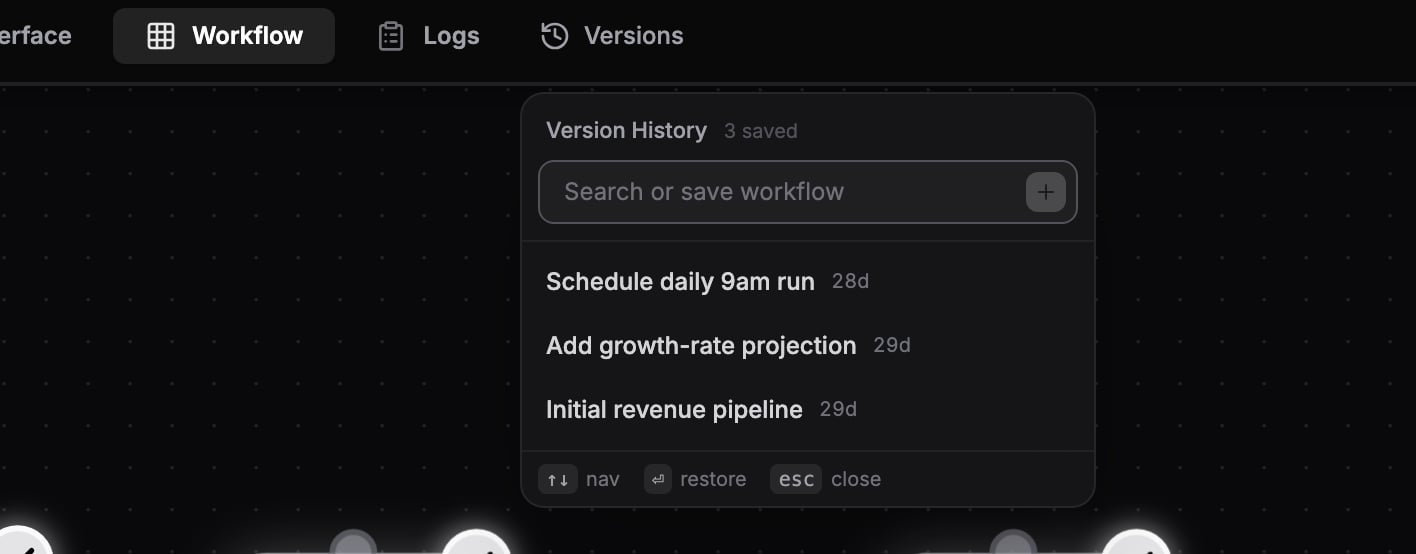
The Versions popover with saved snapshots.
Saving a version
1
Open Versions
Click Versions in the top bar or press
V.2
Name it
Type a name into the input (“Save current state…”) and press
Enter. The snapshot captures the current nodes and edges.Restoring a version
The same input searches existing versions as you type. Click a version (or arrow down to it and pressEnter) and confirm in the Restore version? dialog. Restoring replaces your current workflow with the saved snapshot.
Deleting a version
Hover a version in the list and click the trash icon, then confirm in the Delete version? dialog.Limits per plan
See Plans for the full comparison.