

Run the whole workflow
Click Run in the top right (or pressShift + R). While a run is in progress the button becomes Stop; if several runs are active it becomes a Stop (N) dropdown where you can stop one run or Stop all.
If a workflow only starts on its own, with triggers like an incoming email, a new row, a schedule, or a webhook and no manual entry point, pressing Run opens a popup that explains it runs automatically. The popup lists what each trigger watches and the address or URL that fires it. From there you can Add a Run step to add a manual entry point, Open config for any trigger, or Run anyway to do a single manual run. See Triggers overview.
When you Run anyway on a workflow whose webhook or inbound-email trigger has already fired at least once, the trigger replays its last received event so the rest of the flow has real data to work with. A trigger that has never fired runs as before.
A trigger that waits for the service to push something, such as an incoming WhatsApp message, has nothing to replay until one arrives. It reports that it is waiting and stops there, so the nodes after it are not run on an empty event and an agent does not spend a turn on nothing. Branches that do not come off that trigger still run.
Before running
If any step still needs setup, Run opens a popup that walks you through them one at a time, with a progress bar you can click to jump around. A pill at the top counts what is left (“2 nodes need setup”) and turns into Ready to run once you clear them. A step appears here when it is missing a required field, has no action selected, has no account connected, or is a tool provider with no operations allowed yet. You fix each one in the popup itself:- Missing fields get the same editors as the config panel, including dropdowns that load their options from the connected account.
- No action selected gets the node’s action picker. Until an action is picked, which fields the node needs is unknown, so this comes first.
- No account gets the node’s credentials block. Connecting through OAuth opens the provider window with the popup still up, and the block flips to done when the credential lands.
- A tool provider with nothing allowed gets its operation list, so you can tick the operations the agent may call.
Choose where a run starts
When a workflow has more than one entry point, the popup also asks which of them to start from. Each row names the branch it begins, such as “Then Slack, Gmail” or “Uses Telegram”, and you untick the ones to leave out. Untick everything and Run is disabled. With more than two entry points, Select all and Clear appear. Interface blocks that start nothing, such as a standalone app or a display block, are not listed. They render from their own config in the Interface tab, so there is nothing to run. An interface block that does feed other nodes, like a form leading into Slack, is still listed, because the branch behind it runs only when you tick it. An agent entry point gets a box for its opening message, prefilled from the agent’s Message field, so you can adjust what it does on this run without editing the node. When the agent is the only entry point you run, its answers arrive in the chat, which opens as soon as the run starts. With another branch ticked too, the run stays on the canvas and the agent’s answer lands on its node. This screen appears when there is a choice to make or an agent message to write. A workflow with one non-agent entry point runs straight off the button. Workflows that only start on their own show the trigger popup described above instead.Run results
When a run finishes, a results popup walks through the run in reading order. Each section only appears when the run has something to put in it:
A message that arrived with a photo, video, voice note, or document keeps that attachment in the What came in frame: pictures and video show in the bubble, a voice note gets a player you can listen to, and a document shows as a chip with its filename. A WhatsApp attachment previews once NoClick has rehosted it; a Telegram one shows as a named chip, since Telegram hands over a file id rather than a link. A shared location or contact card reads as a single line naming the place or the person.
A Slack message reads as one too: the channel it was posted in, who posted it, the time, and the text with mentions, channel links, and link labels written the way Slack shows them. A bot post’s attachments and the names of any shared files are part of the message, a reply is marked as being in a thread, and a channel notice such as someone joining reads as that notice rather than an empty message.
A run where the agent worked and chose to send nothing says so along with the agent’s reasoning, rather than reporting an empty result. A chat reply with no tool calls is shown as the Agent’s reply. A failed run shows the error and a way to fix it in place of an outcome. Nodes wired into the agent as tool providers are listed under Agent’s toolkit with the operations they allow, since they never run on their own.
Use Open config next to any section or row to jump straight to that node’s settings.
The popup opens on its own after a full run, a Run from here run that starts partway through the flow, and runs started by a trigger such as a schedule or a webhook. To stop it from opening automatically, click Don’t show again; turn it back on under Settings in the Popups section. These popups do not appear on mobile.
The Runs pill on the top left of the canvas is always available, even before this session’s first run. It shows the latest run’s status and how long ago it ran, and clicking it reopens the results popup. Inside the popup, the Latest run switcher opens your run history: each row carries its status, what fired the run, how long it took, how many nodes ran, and the error message on runs that failed. Pick any row to load that run. The switcher stays reachable while results are loading and on a workflow that has never run.
Run a single node
Testing one node at a time is usually faster than full runs:1
Select the node
Click it on the canvas to open the config panel.
2
Run it
Click Run in the config panel’s toolbar (or press
Cmd/Ctrl + Enter).Inspecting input and output
With a node selected, toggle Output (Y) to see what it produced, in field, JSON, or table view, and Input (X) to see the data arriving from connected nodes. Every value in these panels is draggable into downstream config fields as a reference.
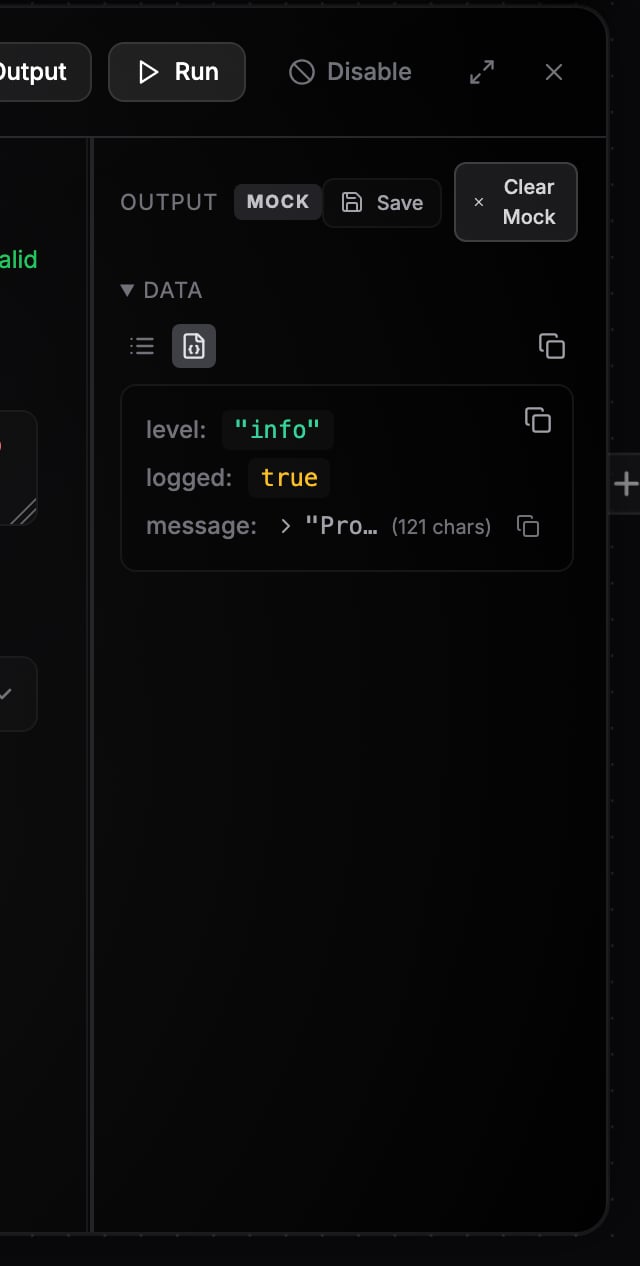
A node's Output panel with the Save and Mock buttons.
Mocked outputs
Click Mock (the pin icon) in the Output panel to pin the currently displayed output as the node’s mocked output. The node then shows a MOCK badge, and downstream nodes use the pinned data without the node re-running, so you can build and test the rest of the workflow against a stable sample. Click Clear Mock (or pressM with the node selected) to go back to live output.
Save stores the current output under a name so you can reload it as mock data later (3 saved outputs per type on Free, 10 on Plus, unlimited on Pro).
You can also pin a node’s output without opening the Output panel: hover the node and click the pin button on its top-left edge. It stays highlighted while the output is pinned, and you click it again to clear. The button is available once the node has produced output.
Execution states on nodes
Nodes reflect the run live on the canvas: a node animates while it isrunning, settles when completed, and shows error styling when it fails. Disabled nodes are skipped entirely. Toggle a node off with D, or hover it and click the disable button on its bottom-left edge; a disabled node greys out and the button turns amber until you enable it again.
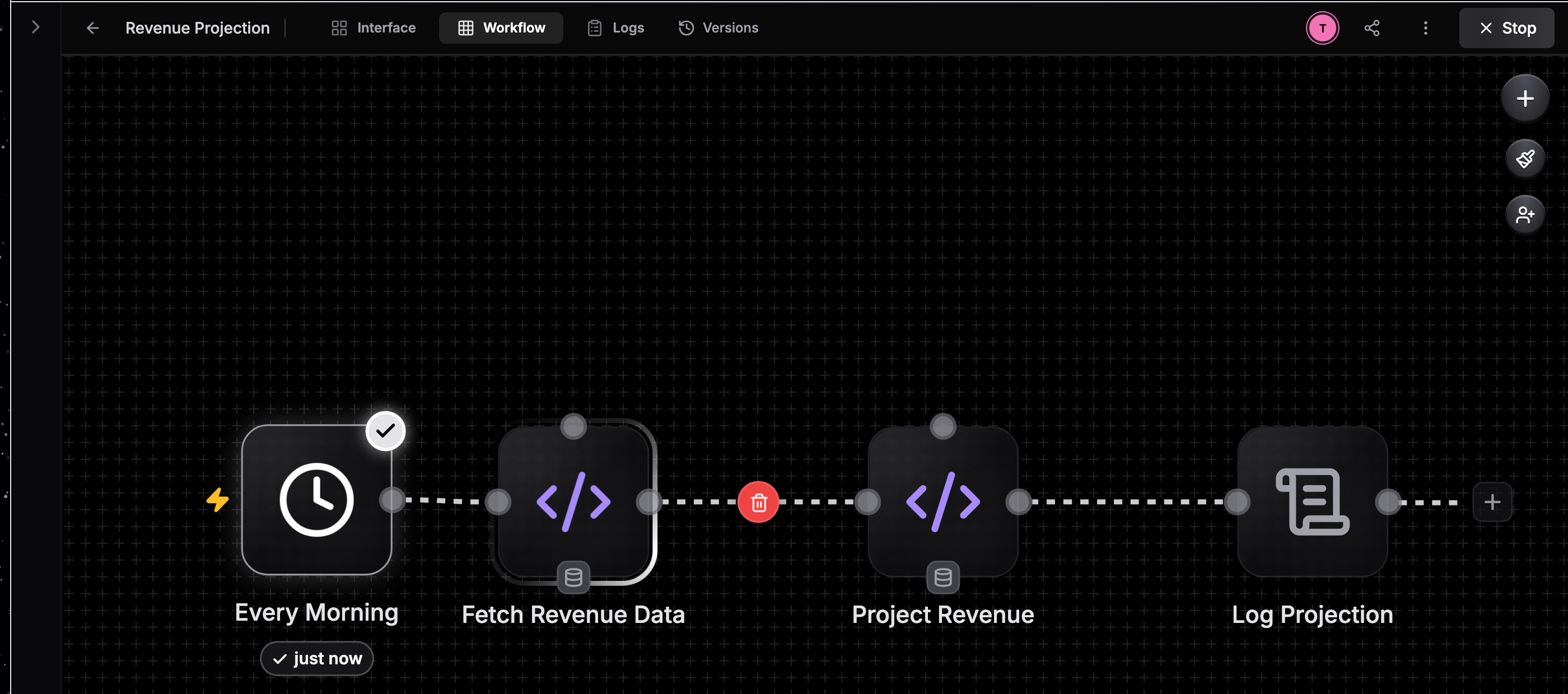
Nodes showing running and completed states during a run.
Next steps
Execution logs
Review past runs and replay them node by node.
Triggers
Run workflows automatically from schedules, webhooks, and more.