

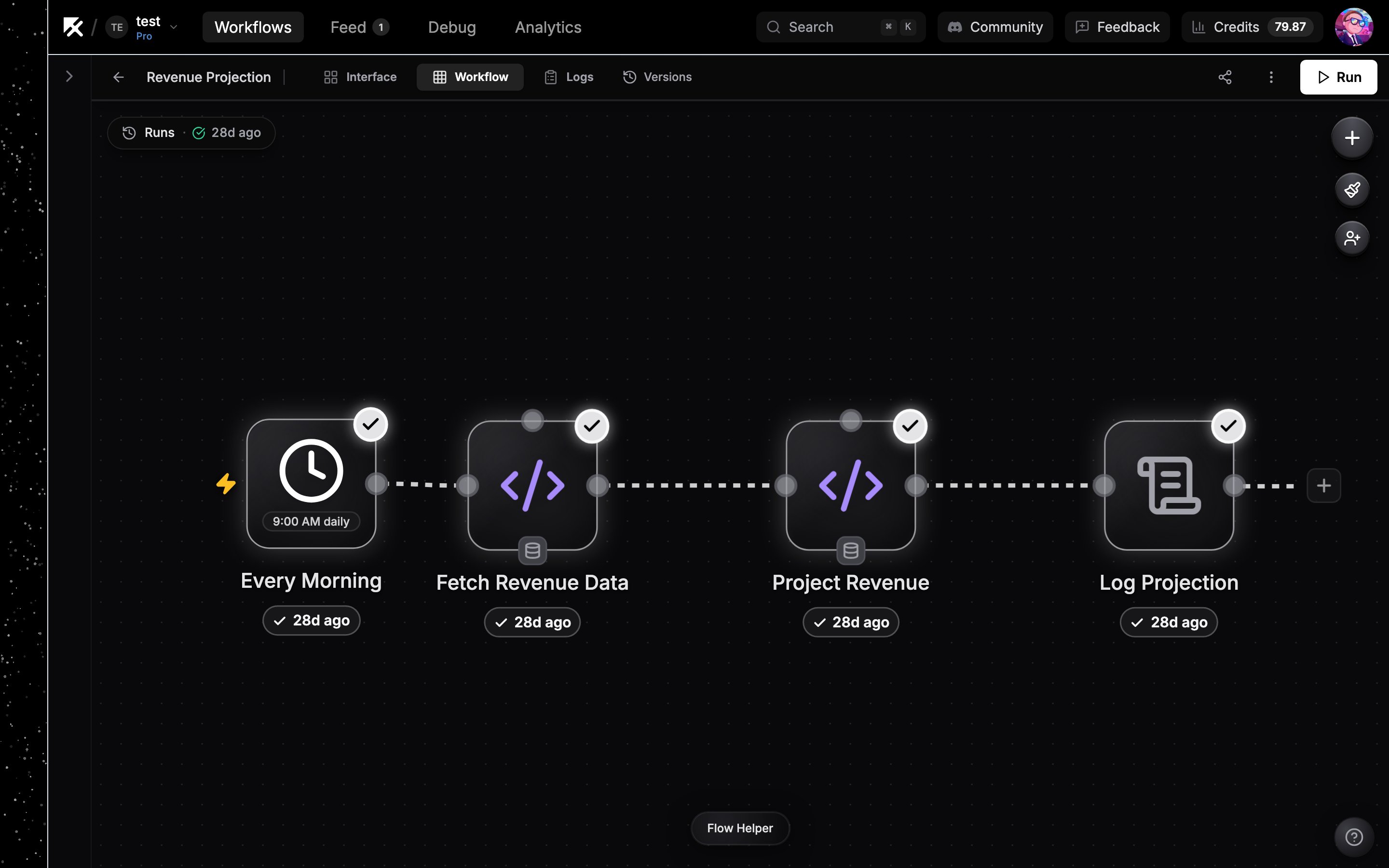
The workflow canvas with the top bar, connected nodes, and the Run button.
The top bar
On the right you’ll find collaborator avatars, Share, the
⋮ menu, and the Run button (see Running and testing).
Adding nodes
1
Open the node palette
Press
N, or click Flow Helper at the bottom of the canvas and open the Nodes tab.2
Search
Type the integration or building block you want. Matching operations are searchable too.
3
Add it
Click a tile to add the node, or drag it to a spot on the canvas.
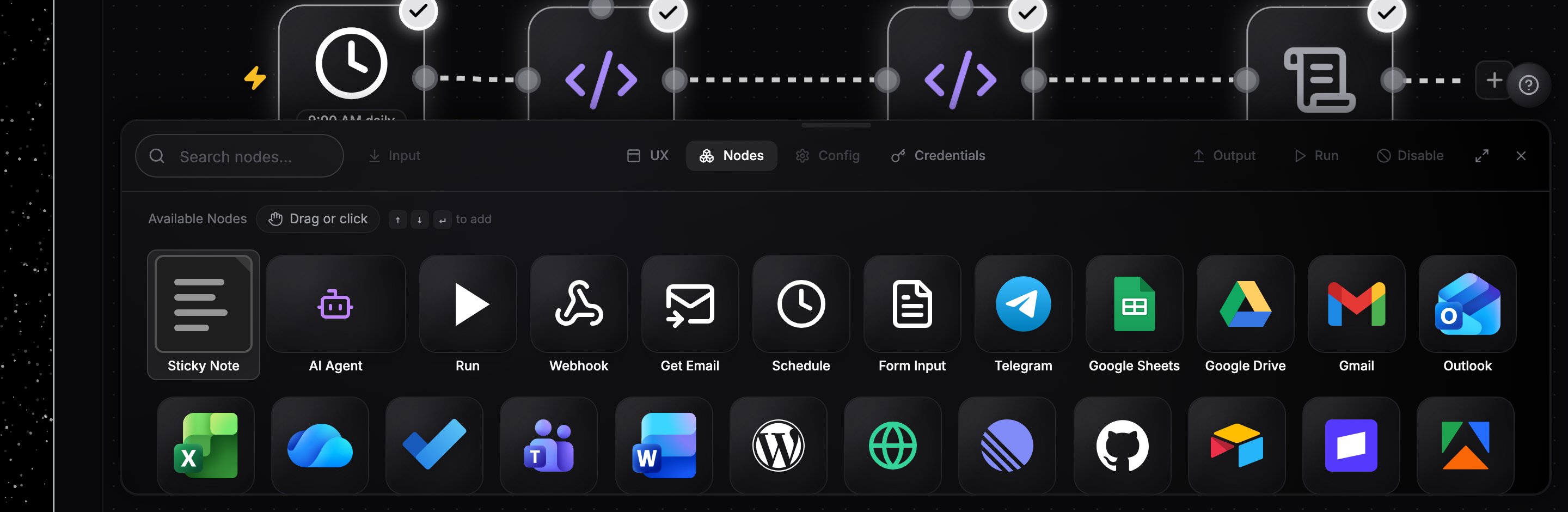
The node palette in the Flow Helper.
Connecting nodes
Drag from the handle on a node’s right edge to the next node’s left edge to create an edge. Data flows left to right; downstream nodes read upstream output through references. The dashed stub next to a node also works as a drag source. You do not have to land exactly on the small handle dot. Release the drag anywhere on the target node’s body and NoClick connects it to the right handle for you, picking the matching input or output based on where you drop.Selecting and moving
Click a node to select it, drag to move it. Drag on empty canvas to box-select multiple nodes. Trackpad scroll pans, pinch zooms, and middle-drag orCmd/Ctrl + drag pans. Arrow keys jump between nodes and Enter opens the selected node’s config.
Right-click menus
Right-click the canvas for a context menu with the actions that fit what you clicked:- Empty canvas: Add node, Add sticky note, Paste, Select all, Auto-layout, Fit view.
- A node: Open, Run from this node, Duplicate, Copy, Cut, Disable or Enable, Rename, Delete. Sticky notes show only the actions that apply to them.
- A multi-node selection: Duplicate, Copy, Cut, Disable/Enable, and Delete, applied to every selected node at once.
Auto-layout
Click the⋮ menu in the top bar and choose Auto-layout to tidy the graph automatically. You can also right-click empty canvas and choose Auto-layout.
Sticky notes
The sticky note is the first tile in the node palette. Drop one anywhere to annotate the canvas, double-click it to edit the text, and drag its corner to resize. Sticky notes never execute.Next steps
Configuring nodes
Pick operations, fill fields, and connect credentials.
Keyboard shortcuts
The full shortcut reference for the editor.