Build a small web app with the AI builder and publish it to your own noclick.app subdomain.
Workflows can have an interface: a grid of blocks (forms, text, results) that you publish as a standalone web app. In this quickstart you build one and put it live.
1
Describe the app
From the dashboard, click New Workflow and describe the app in the chat. For example:
A form that takes a topic and generates a tweet draft
The builder creates the workflow and the interface blocks that go with it: a form for the topic, and an output area for the draft.
2
Open the Interface tab
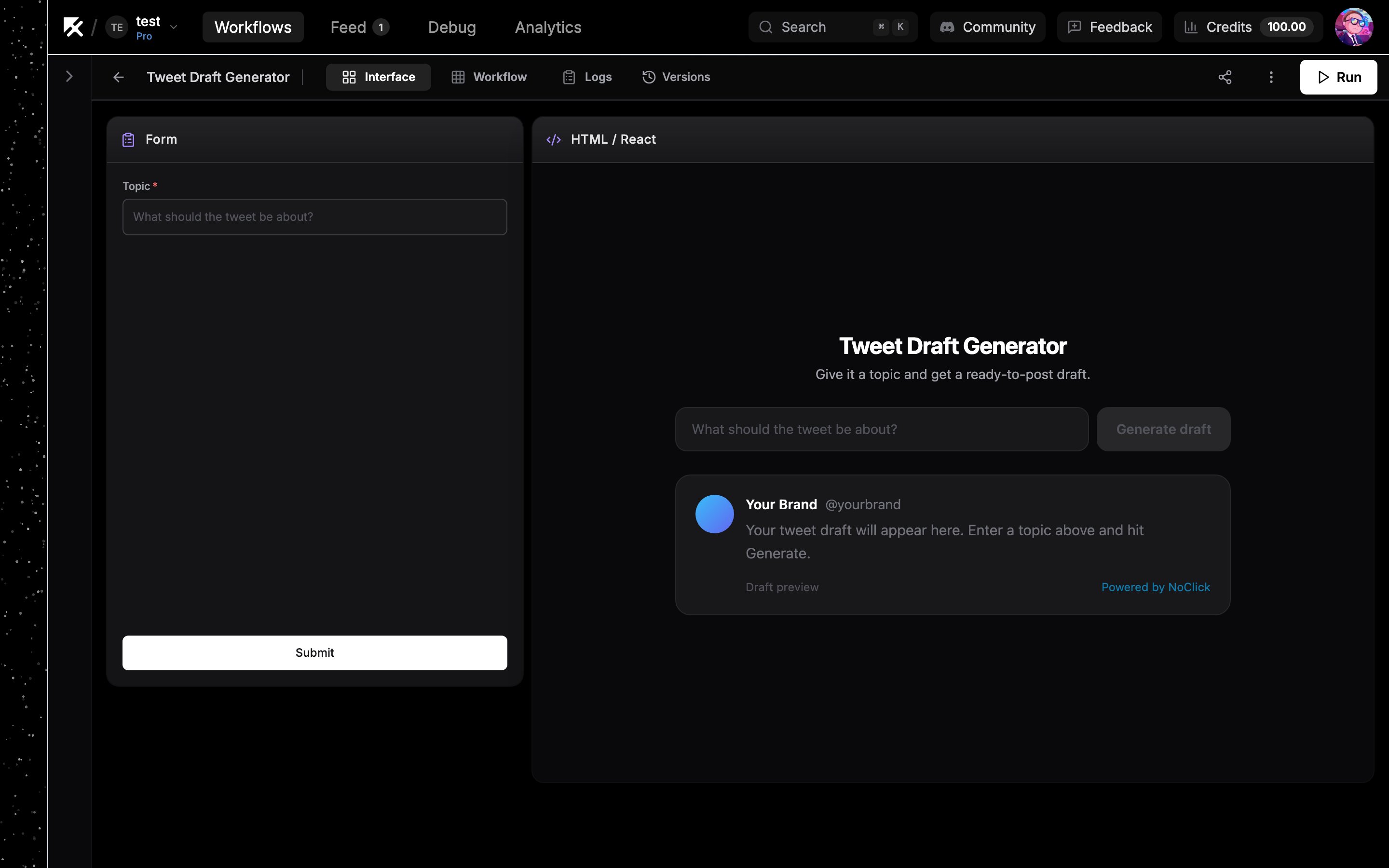
Switch to the Interface tab in the canvas top bar (shortcut I). This is the visual editor for your app.
The Interface tab with the generated form and output blocks.
3
Arrange the blocks
Drag blocks around the grid and resize them until the layout looks right. See Interface blocks for the full set of block types you can add.
4
Publish
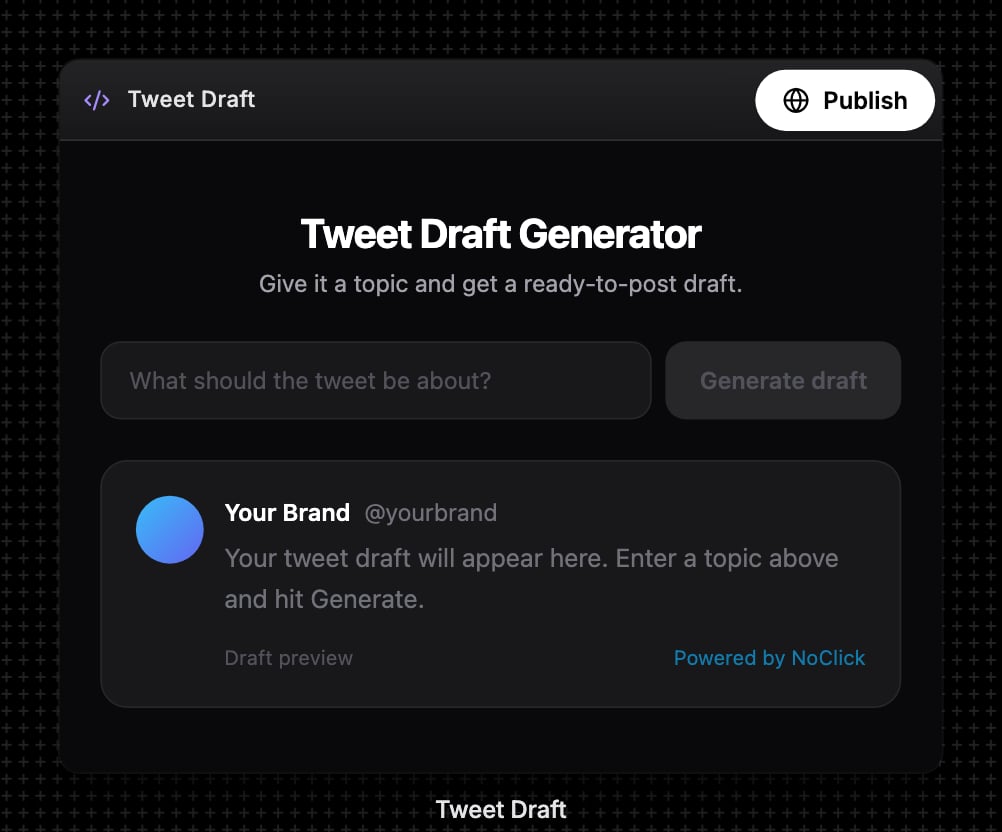
Switch back to the Workflow tab and click the Publish pill at the top right of your app block’s header. (A white Publish button also appears at the top right of the Interface tab.)
The Publish pill at the top right of the HTML/React block.
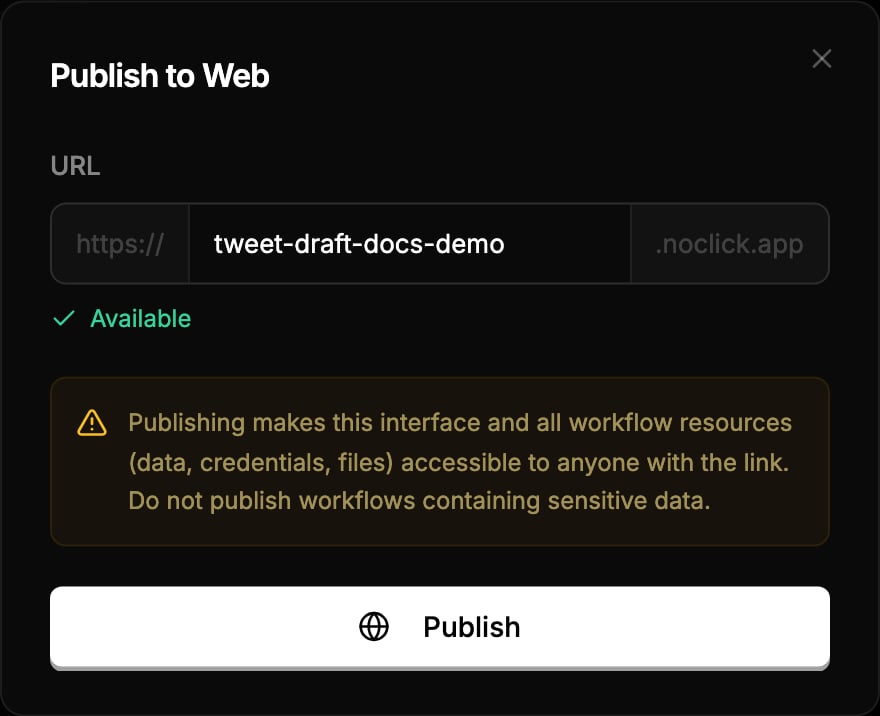
In the Publish to Web dialog, type a subdomain for https://[subdomain].noclick.app. Availability is checked as you type. Then click Publish.
The Publish to Web dialog with the subdomain picker.
5
Open your app
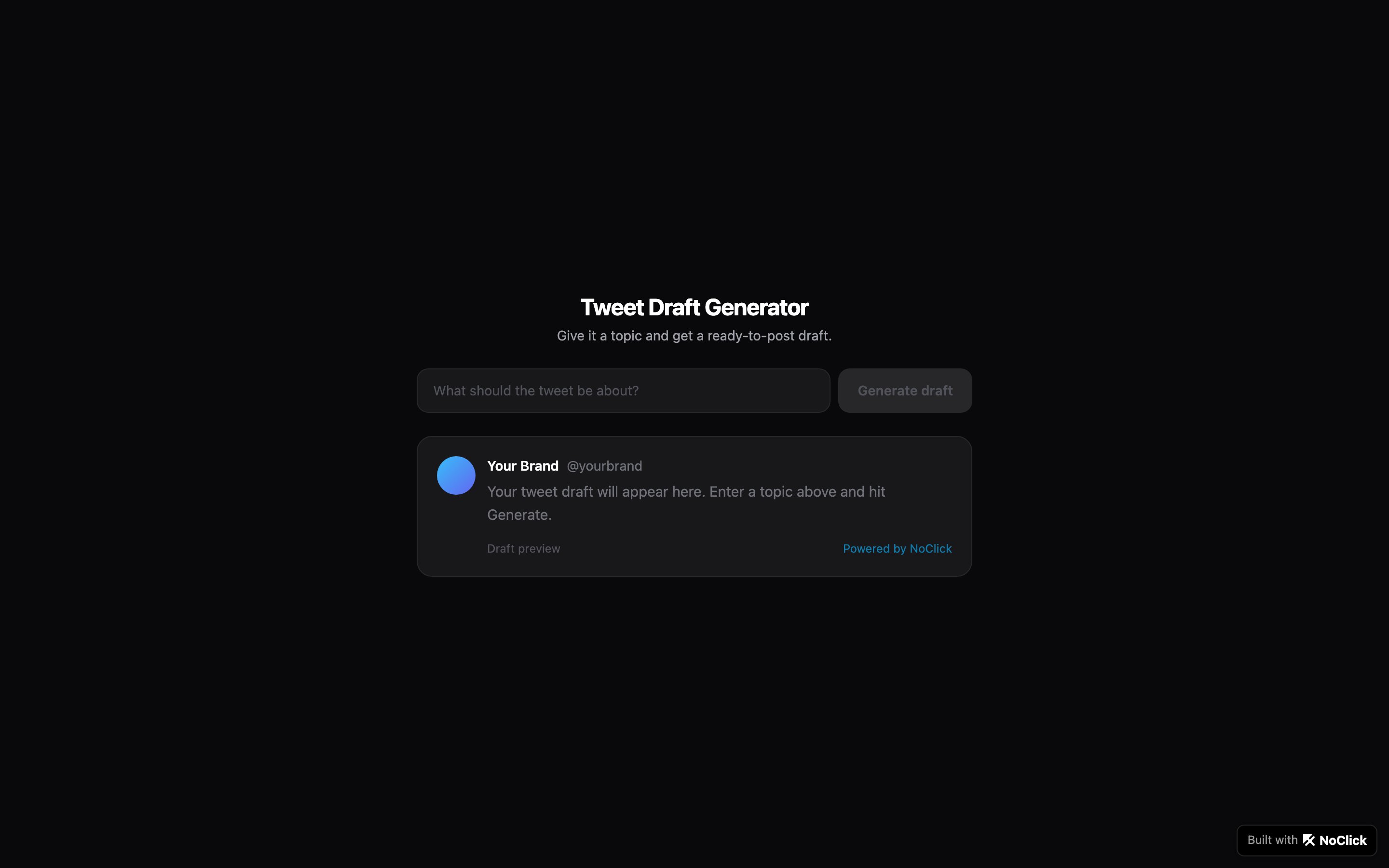
Your app is live at https://yoursubdomain.noclick.app. Share the link with anyone.
The published app, live on its noclick.app subdomain.
After publishing, the button changes to Update (push your latest changes) and Unpublish. Manage all your published apps in Settings → Published Apps.