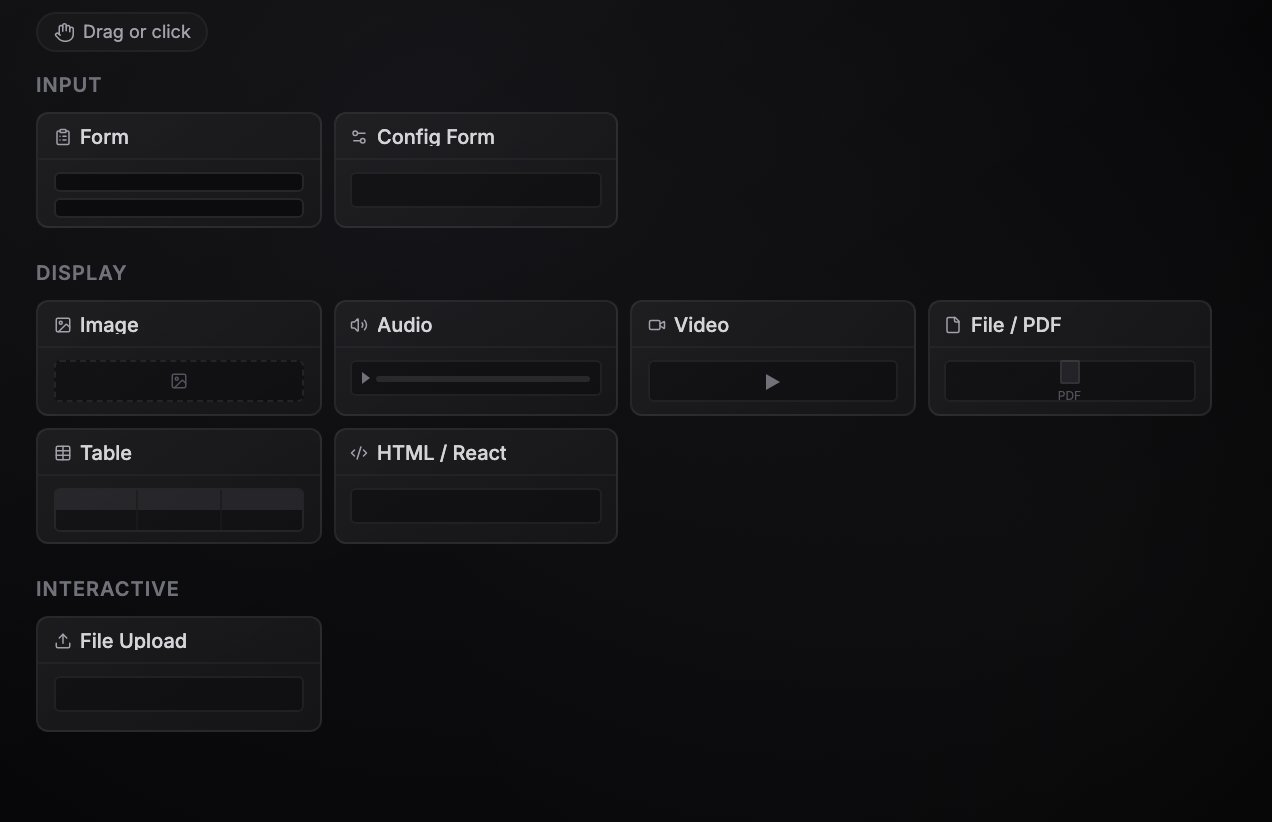
Input blocks
| Block | What it does | Key configuration |
|---|---|---|
| Form | A multi-field form. Submitting it starts a workflow run from the form node, with the entered values on the node’s output. | Form Fields: each field has a name (used in references), type (string, number, boolean, object, array, select, credential), label, description, required flag, and options for select fields. |
| Config Form | A persistent settings form. Values are saved with the workflow and output on every run, so downstream nodes can reference them as {{node-id.values.field_name}}. Unlike Form, it stores values instead of starting runs. | Fields: name, type (string, number, boolean, select, schedule, list), label, description, required flag, options, and a default value. |
Display blocks
| Block | What it does | Key configuration |
|---|---|---|
| Image | Shows an image. After a run, the URL from the connected node’s output takes priority; otherwise it shows the configured source or an uploaded file. | Source URL, Alt Text, or an uploaded file (drag and drop onto the block). |
| Audio | Waveform audio player. | Source URL or an uploaded file. |
| Video | Video player. | Source URL or an uploaded file. |
| File / PDF | PDF embed or file preview. | Source URL, File Name. |
| Table | Tabular data grid (AG Grid). Shows a saved dataset, data from an upstream node, or inline JSON rows. | Data (inline JSON array or a reference to upstream output), or a dataset picked from your workflow resources. |
| HTML / React | Renders custom HTML or a React/JSX component with Tailwind, npm packages, and SDK access. Fullscreen by default. | Content (HTML mode) or JSX Source (React mode), Fullscreen (Yes/No). See Custom components. |
Interactive blocks
| Block | What it does | Key configuration |
|---|---|---|
| File Upload | Drop zone with a file picker. Uploaded files are stored as workflow resources, and their resource IDs are available to the workflow. | Accepted Types, Max Size (MB) (default 10). |
There is one more block that never appears in the palette: Agent Chat. Enable Show in Interface on an AI agent node (or click the Chat pill on the node) and the agent appears as a fullscreen chat tab in the Interface tab. See AI agents.