Publish a workflow interface to the web at your own noclick.app subdomain.
Publishing puts a workflow’s custom component on the public web at https://{subdomain}.noclick.app. Anyone with the link can open the app and use it, no NoClick account required.
Publishing works for HTML / React blocks (custom components). Other block types stay inside the editor; build the user-facing surface as a custom component to publish it.
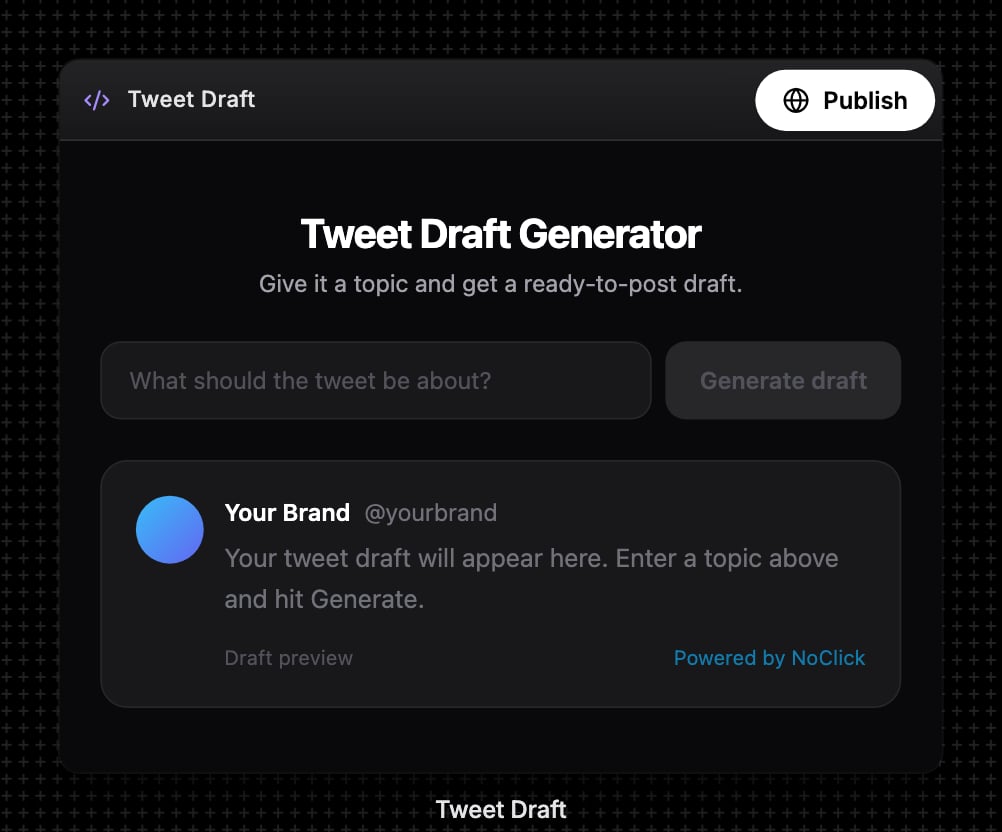
On the Workflow tab, click the Publish pill at the top right of the HTML/React block’s header.
The Publish pill at the top right of the HTML/React block
The same dialog opens from the white Publish button at the top right of the Interface tab, or from the Publish to web banner.
2
Pick a subdomain
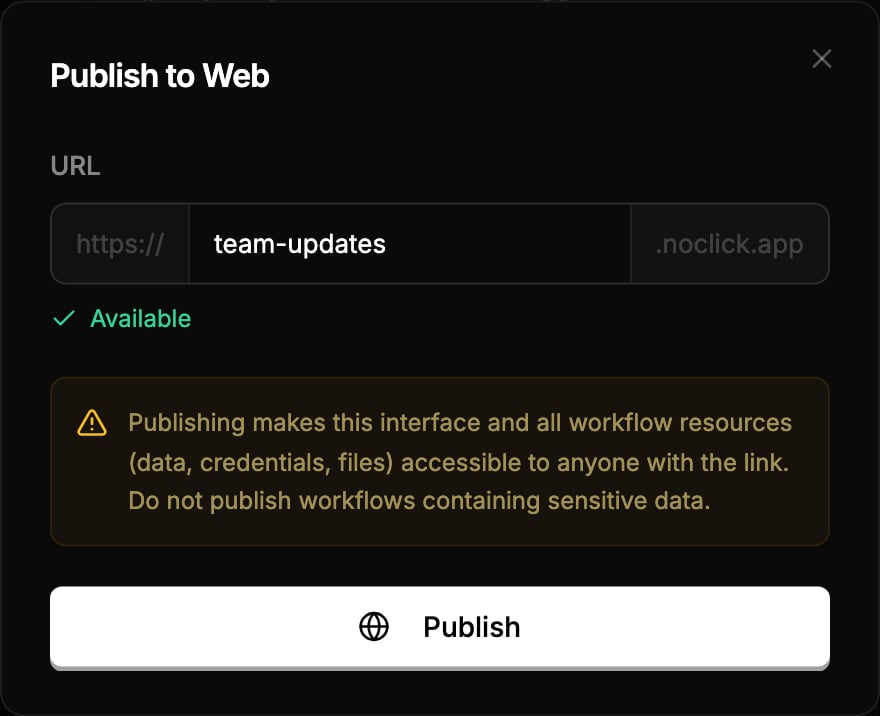
The Publish to Web dialog asks for a URL in the form https://[subdomain].noclick.app. Availability is checked live as you type: you’ll see Available, Already taken, or a reminder to use lowercase letters, numbers, and hyphens (3-63 characters).
The Publish to Web dialog with a live subdomain availability check
3
Publish
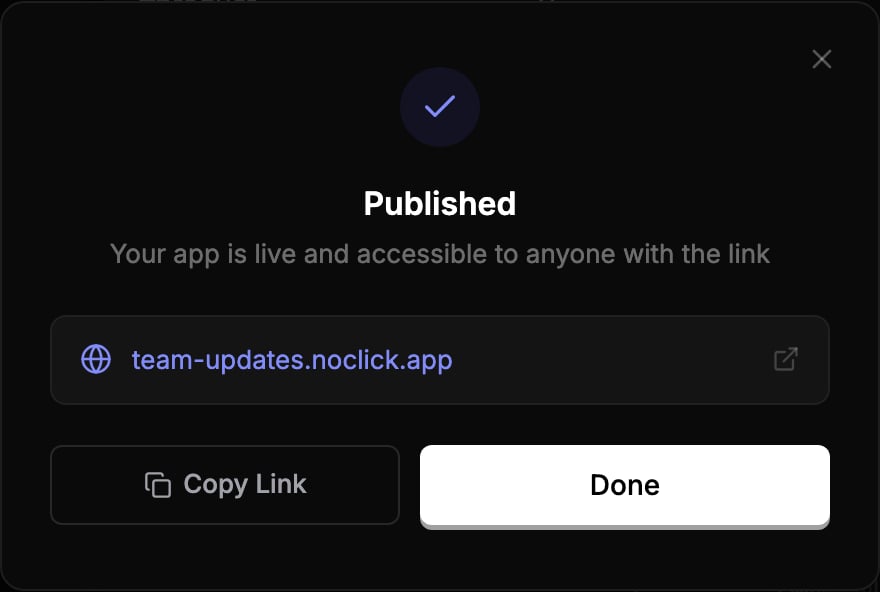
Click Publish. Your app goes live at the chosen URL, and the dialog shows a Copy Link button.
The published confirmation with the live app URL
Once an app is live, the AI builder and your agents can see its address. Ask either one for the app’s URL and you get the live link back.
Visitors interact with the published app exactly as it appears in your Interface tab. Form submissions and component actions run the underlying workflow on your behalf, using your connected credentials and your credit balance. A small “Built with NoClick” badge appears in the corner of every published page.
Publishing makes this interface and all workflow resources (data, credentials, files) accessible to anyone with the link. Do not publish workflows containing sensitive data.
A published app is a snapshot. Edits to the component do not go live until you republish:
Open the publish dialog again to see the Published App view, then click Update to push the latest version.
Click Unpublish to take the app down. To move to a different subdomain, unpublish first, then publish again with the new name.
Taking an app down revokes its API key, deletes the published files, and clears the CDN cache before the app leaves your list. If one of those steps does not complete, the app stays listed so you can try again, rather than disappearing while the page is still reachable.All your published apps are listed under Settings → Published Apps, where you can open, copy, or unpublish each one.
Settings → Published Apps lists every app on a noclick.app subdomain
Custom domains are not supported yet; published apps live on noclick.app subdomains.