

- Trigger in: a node with the service’s trigger operation (for example Telegram Receive Webhook Messages, Slack On Channel Message or On App Mention, WhatsApp Receive Message) wired into the agent’s left input.
- Reply out: a second node of the same service wired as a tool provider with send operations allowlisted (for example Slack Send Message to Channel).
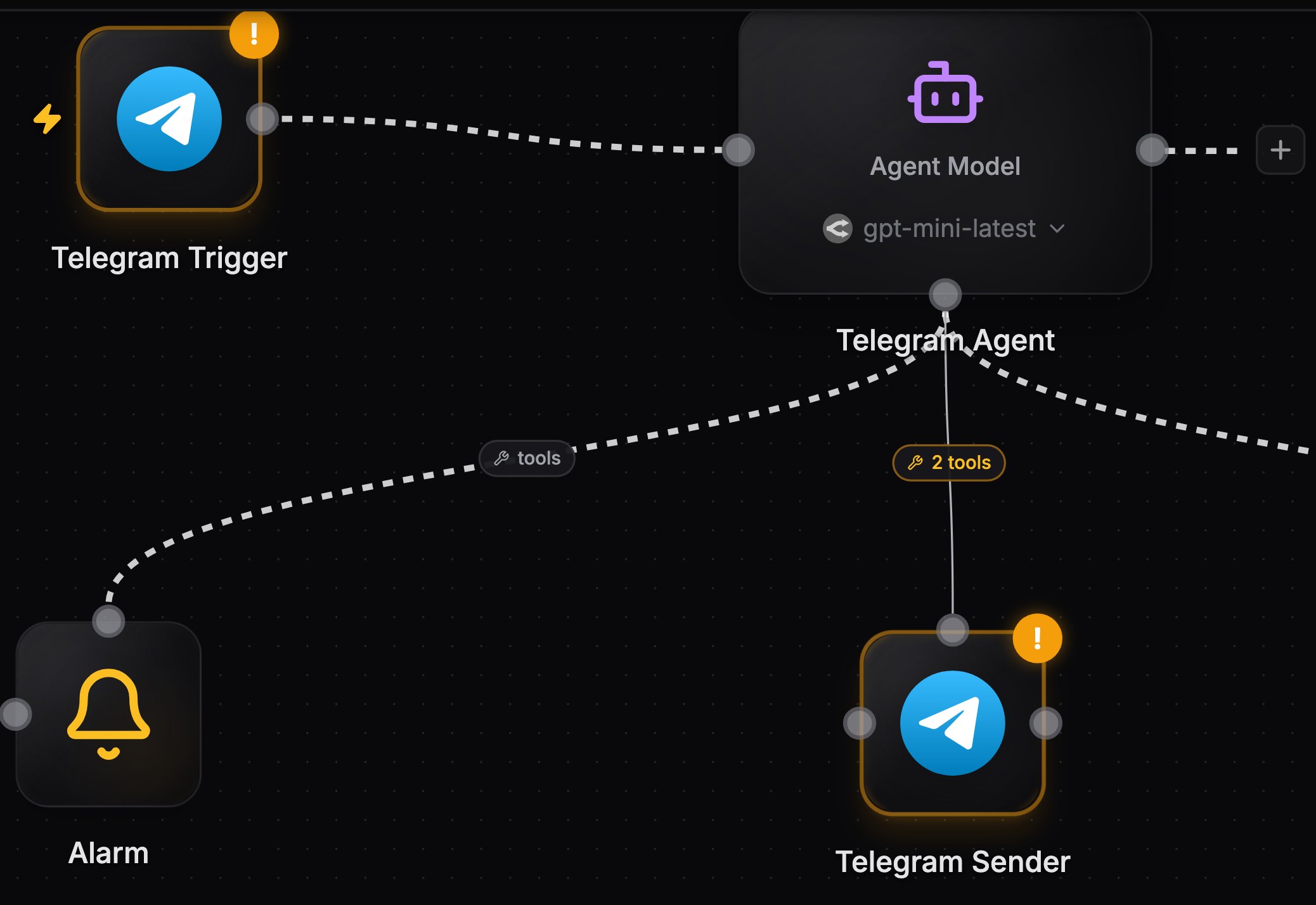
A channel agent: trigger node into the agent's input, send-tool node on its bottom handle
How a turn works
Each incoming message is delivered to the agent as an event alongside its standing instructions from the Message field. The event is an account of what happened rather than the payload the service sent: the service and the kind of event, who it came from and where, the message itself, and the reply IDs (chat ID, channel and thread), so the agent passes those to its send tool to answer in the right place. Chat triggers (Telegram, Slack, WhatsApp, Discord, Microsoft Teams, and more) also set the conversation key automatically (per chat, per thread), so follow-up messages continue the same conversation with memory.What the turn looks like in chat
Open the agent’s chat and a turn that a trigger started is shown as the message that started it, laid out the way that app lays it out, under a caption naming the app, the trigger node’s label if you gave it one, and the trigger operation, for example Slack · Support channel · On app mention. Where a message view does not fit, such as a schedule tick or a notification carrying only IDs, the account the agent read is shown instead, with the event itself behind an Event payload toggle. Your standing instructions stay in the Message field, rather than appearing in the chat as a message you never sent.Voice notes, photos, and files
When a message carries media, the file is saved to the workflow’s resources as the message arrives and the agent receives a download link with the file type and name. The caption arrives as the message text, and a message with no caption reads as what it carried, such as[voice message]. Nodes wired downstream of the trigger read the same link from the trigger output.
What the agent does with the file depends on what it is:
This works on WhatsApp, Telegram, Discord, files shared in a Slack message, attachments on an inbound email, and files you upload in the agent chat. Slack keeps its file links private to the workspace, so NoClick saves a copy and passes the agent a link it can fetch, for up to three files per message at 25 MB each.
Transcripts appear in the chat under the audio player, so you can check what the agent heard.
Transcription costs credits like other AI usage, and is charged per transcription. Audio is transcribed up to 20 MB and 10 minutes, at most three audio files per message. A Test Run transcribes nothing, because the media it stages is made up.
Discord channels
Connect Discord with the Discord Bot Install credential so NoClick’s bot joins your server, choosing the server during the Discord sign-in, then pick On Channel Message (every message, optionally scoped to one channel and the threads opened in it, or to a category and every channel under it) or On Bot Mention (only messages that @-mention the bot). Messages from other bots and webhooks are skipped unless you turn Ignore bot messages off, which keeps automated channels from flooding the agent. Each channel and thread is its own conversation, and the event names the channel and message so the agent’s send tool can answer in place. A message posted in a thread names the thread and the channel it was opened under, and tells the agent where to read the thread’s earlier messages.Slack channels
Slack sends channel events only to apps that are in the channel, so a Slack trigger on a channel the app was never invited to hears nothing. The trigger’s Status field says so when that is the case, and offers a Join #channel button for a public channel. In a private channel, invite the app from Slack with the command the status names. See App events.1
Add the agent and trigger
Add an AI Agent node, click Add trigger in its panel, and pick the service and trigger type. Connect credentials.
2
Write standing instructions
In Message, describe the agent’s job and tell it to reply using its send tool, quoting the chat or thread from the incoming event.
3
Add the send tool
Click Add tool, pick the same service, and allowlist the send operations the agent may use.
4
Test
Send a message on the channel and watch the run in execution logs, including each tool call the agent made.
Email is a special case
There is no user-wirable email send node for arbitrary recipients. Instead, when an inbound email trigger is wired directly into an agent, the agent automatically gains a lockedemail__reply tool:
- The recipient and threading are derived server-side from the email that fired the run; the agent only writes the reply body.
- Replies are capped at 5 per run, are only valid within 48 hours of the inbound message, and each send costs 0.01 credits.
Phone calls
A Twilio number you already own can carry an agent on a live call, and it does not follow the two-node pattern above: the agent speaks on the call itself rather than replying through a send tool.- Answering. Put a Twilio node on On Incoming Call, pick the Phone Number that should ring and write a Greeting, then wire it into the agent. NoClick points that number’s voice webhook at the workflow. One number rings one agent, and a second workflow that tries to claim the same number is told which workflow holds it.
- Calling out. Allowlist Place an Agent Call on a Twilio node wired as a tool provider. The agent supplies a From Number, a To number in international format, and a Goal in plain words: who to ask for, what to find out or arrange, and any facts it may state. The tool returns straight away while the call runs.
Both operations need a Twilio Account credential with an Account SID and Auth Token. An API key credential cannot verify the webhooks Twilio signs, so it is not accepted for calls.
When the channel goes quiet
A WhatsApp QR connection can be dropped by the provider, and then no message reaches the trigger. NoClick emails you when that happens and marks the credential Disconnected wherever it is shown. Re-scan the QR code for that same credential to bring it back. See When a connection drops. Running the WhatsApp Receive Message step by hand never returns a message, because real messages arrive through the trigger rather than the step. On a healthy connection the run reports that there was no live event. On a dropped one it fails and tells you to re-scan.Next steps
Conversations
How per-chat and per-thread memory works.
Email trigger
Reserve an inbound address on noclick.app.