

- “Add a filter so only emails from customers get through”
- “Post the summary to #general instead of #random”
- “Make the schedule run hourly on weekdays”
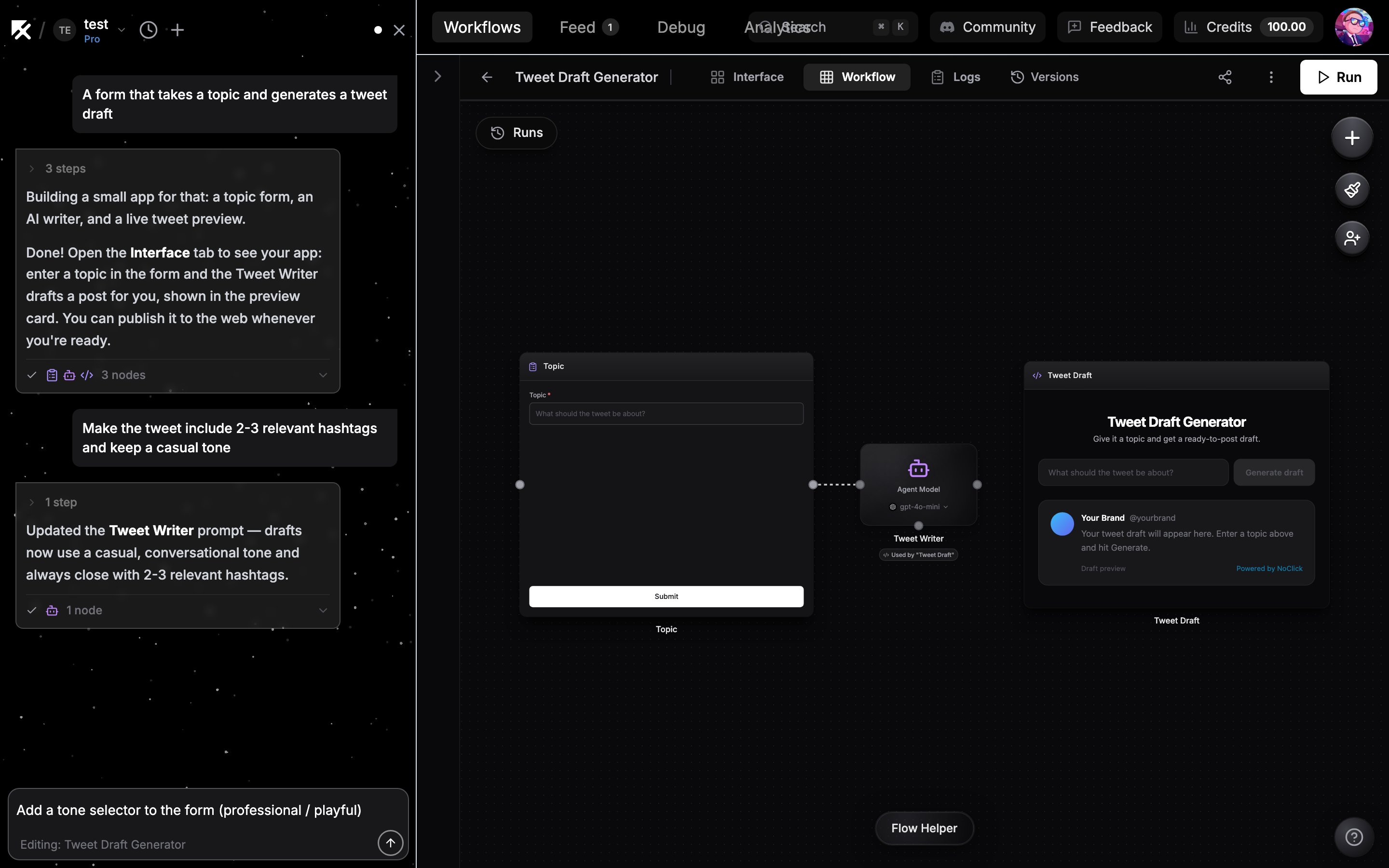
Asking for a change to an open workflow
Your existing nodes are preserved
The builder reads your current workflow and makes targeted changes. It adds, reconfigures, rewires, or removes only what your request needs; every other node, connection, and setting stays as it is. The chat shows a card for each node it touched so you can see exactly what changed.It can read what past runs produced
The builder can look at the output a node stored on earlier runs, so questions about what actually happened are answered from your data instead of guessed. It lists a node’s recent outputs newest first, with the time, what started that run, and whether the run finished, then opens the one it needs and reads a single field out of it. That makes questions like “which number messaged the WhatsApp trigger this morning” or “what did the summary step return on the run that failed” worth asking. A trigger with nothing stored says no delivery has been recorded, and an output left behind by a manual run of a trigger that waits for events is marked as such, so an empty test is never read as a real message. When the newest run failed at the step you asked about, the builder reports the error that run recorded rather than asking you to run the node first.It checks references against your real data
When the builder fills a field with a reference to an upstream step, it compares that reference against the shape that step’s output actually has: the latest output stored in this workflow, or the shape learned from earlier runs of the same operation. A reference to a key that is not there is rejected as it is written, with the keys the output does hold, and the same check runs again before the builder tells you it is done. That matters because a required field whose reference resolves to nothing fails the step at run time, so catching it while building saves a failed first run. A step whose output shape is not known yet is never judged, so a node that has never run does not get flagged.When to edit on the canvas instead
Direct canvas editing is the better tool when you already know the exact change:- Setting one field to a precise value, especially from a dropdown you can see
- Rewiring a single connection or repositioning nodes
- Quick toggles like disabling a node