Skills are reusable context for the builder: writing guidelines, domain knowledge, conventions your team follows, or a reference workflow to imitate. Once a skill is enabled, the builder considers it on every message and loads the ones relevant to your request, so you do not have to repeat yourself in every prompt.

Creating a skill

1

Open Settings, then Skills

The Skills section lists your skills and any shared with you.
2

Create it

Enter a name (for example “Apple-style copy guidelines”) and click Create. The editor opens immediately.
3

Fill in the content

On the Content tab:
  • Description: a few sentences on when and why the builder should use this skill. The builder reads descriptions to decide which skills to load, so make this specific.
  • Text body: the instructions themselves. Prose, examples, code samples, anything the builder should follow.
4

Optionally attach a workflow

The Workflow tab opens a canvas where you can build an example workflow into the skill. The builder studies it as a reference, including exact node configurations, when building something similar.
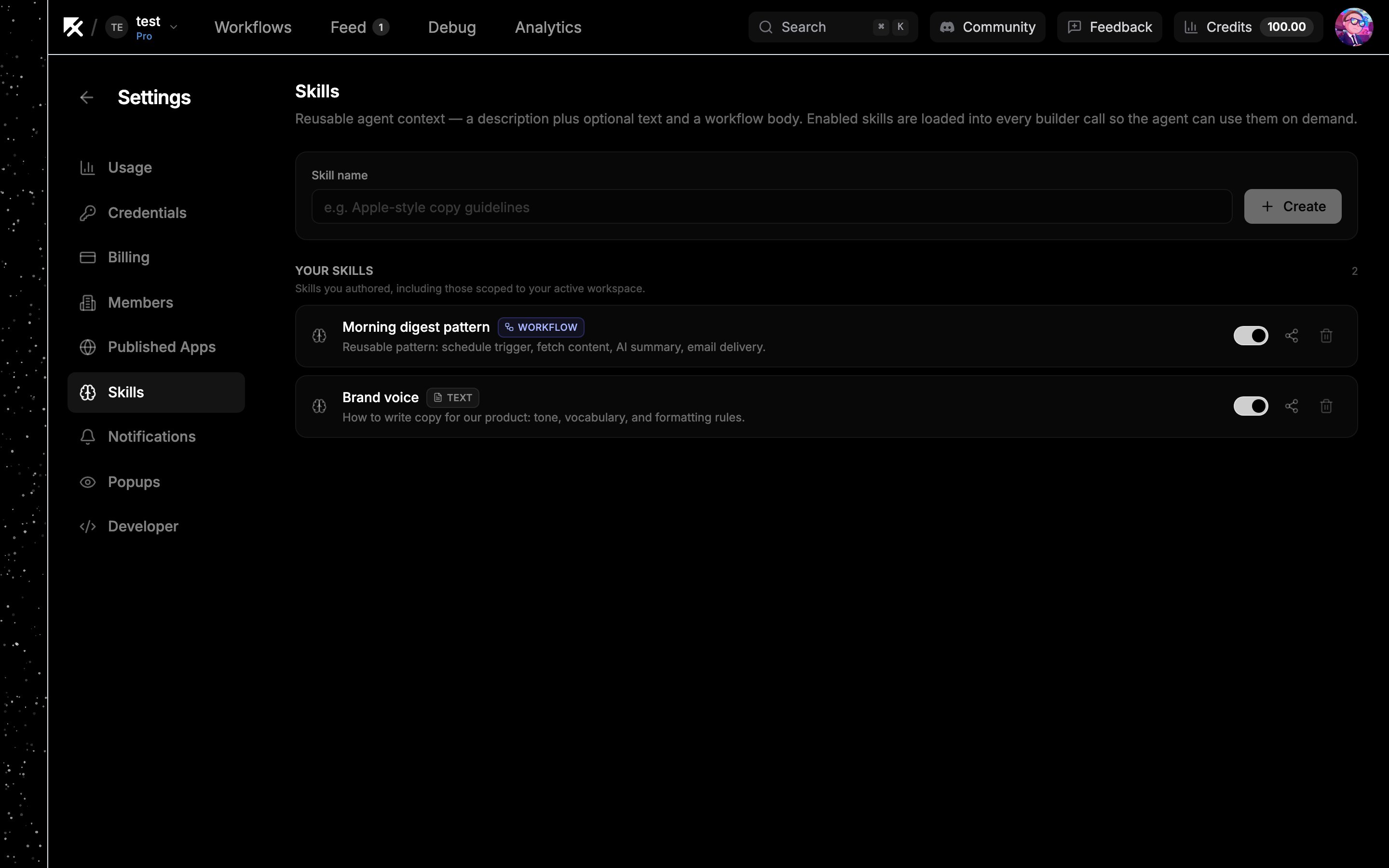
Settings page showing the Skills list with create form and toggles

Enabling and disabling

Each skill row has a toggle. Enabled skills are available to the builder; disabled ones are excluded entirely. Turn a skill off when you want to keep it around but stop it from influencing builds.

Sharing skills

Click the Share button on a skill to share it with specific people or organizations. Skills shared with you appear in a “Shared with me” section. They are read-only, and their toggle mutes or unmutes them just for you without affecting the owner.