

Browse the gallery
Search the catalog by job, outcome, app, or node. A search covers every published template, not just the ones on screen.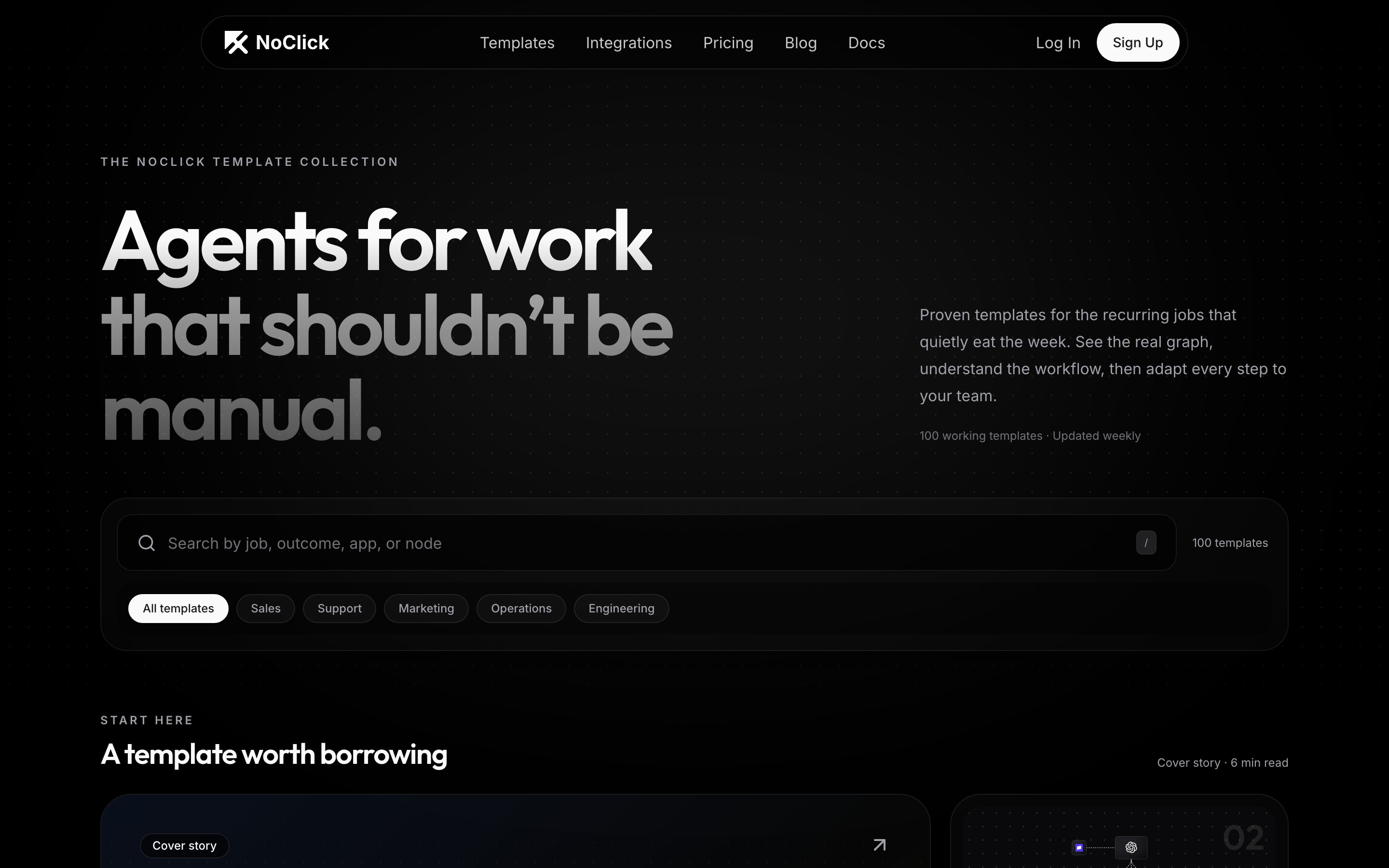
The gallery search box, template count, and category chips
- Category chips above the results: All templates, Sales, Support, Marketing, Operations, or Engineering.
- Apps & nodes in the Refine rail, with its own search box for finding one. Pick as many as you need and only templates using all of them stay.
- Trigger in the same rail, to keep templates that start a certain way. Any trigger clears it.
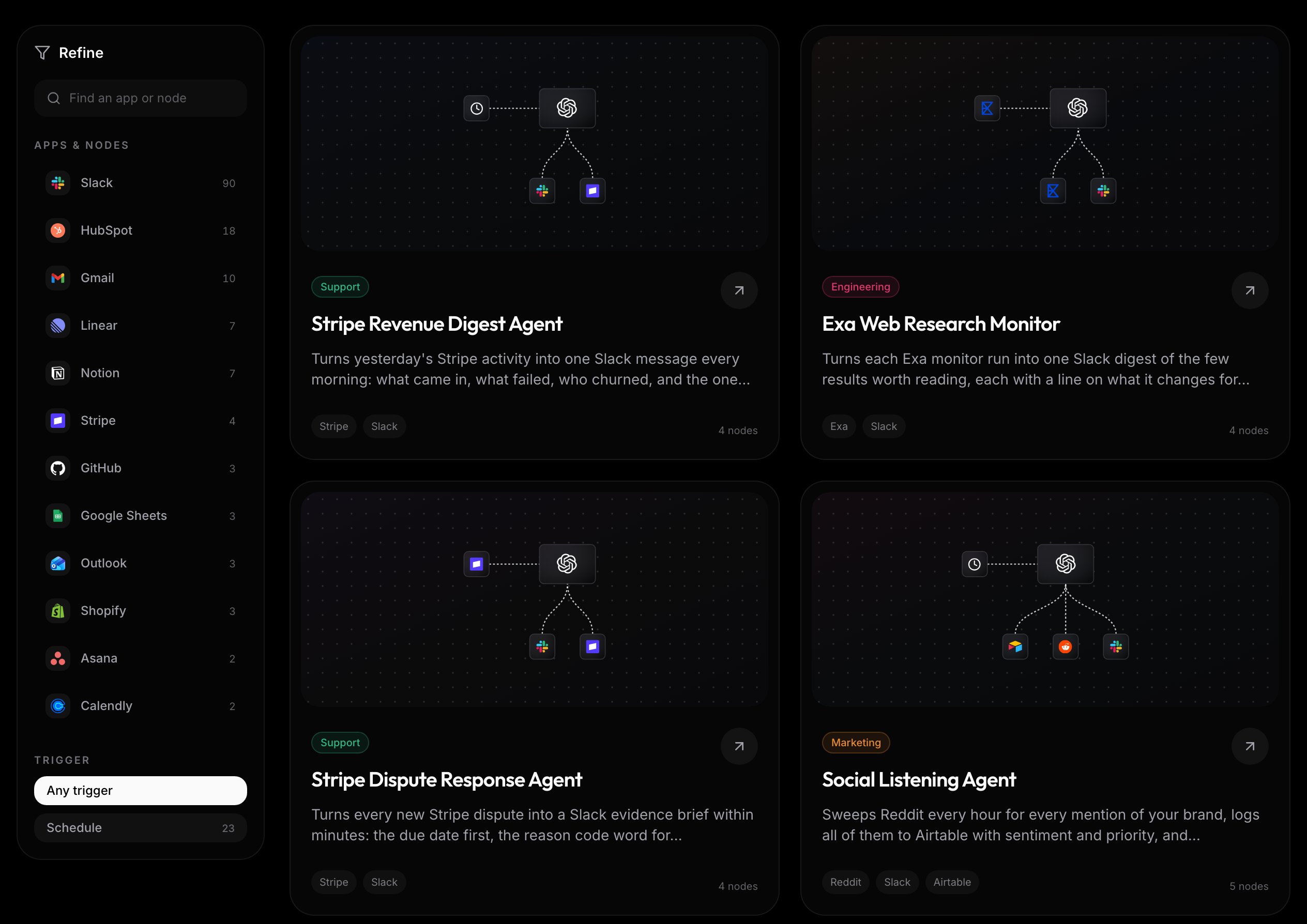
The Refine rail beside the canvas preview cards
Template detail pages
Click a template to open its detail page. It leads with the author’s opening line, how many people have it in use, the view count, and the thumbs up and thumbs down buttons, then a preview of the real canvas. Set up this agent below the preview takes a copy, and the same action sits on the preview itself as Use this agent. The sections underneath set out what taking a copy involves, with jump links beside them on a wide screen:- Watch it work before it’s live shows the staged conversations the template ships, each rendered in the shape it would really arrive in. Click Run this test to watch the agent handle one on the page, with no account needed, and the page says clearly that the answers it gets are simulated. These are the same situations you can run yourself after forking.
- Set up in minutes lists what the guided setup asks for, in order: the services to connect, the questions taken from the template’s workflow variables, which agent runs it, and a test run at the end. Variable values are never shown, only the questions.
- About this agent carries the rest of the author’s description.
- More ways to run it links the coding agents this template has a page for, the apps it works with, and other agents like it. Each suggestion shows that workflow’s real canvas.
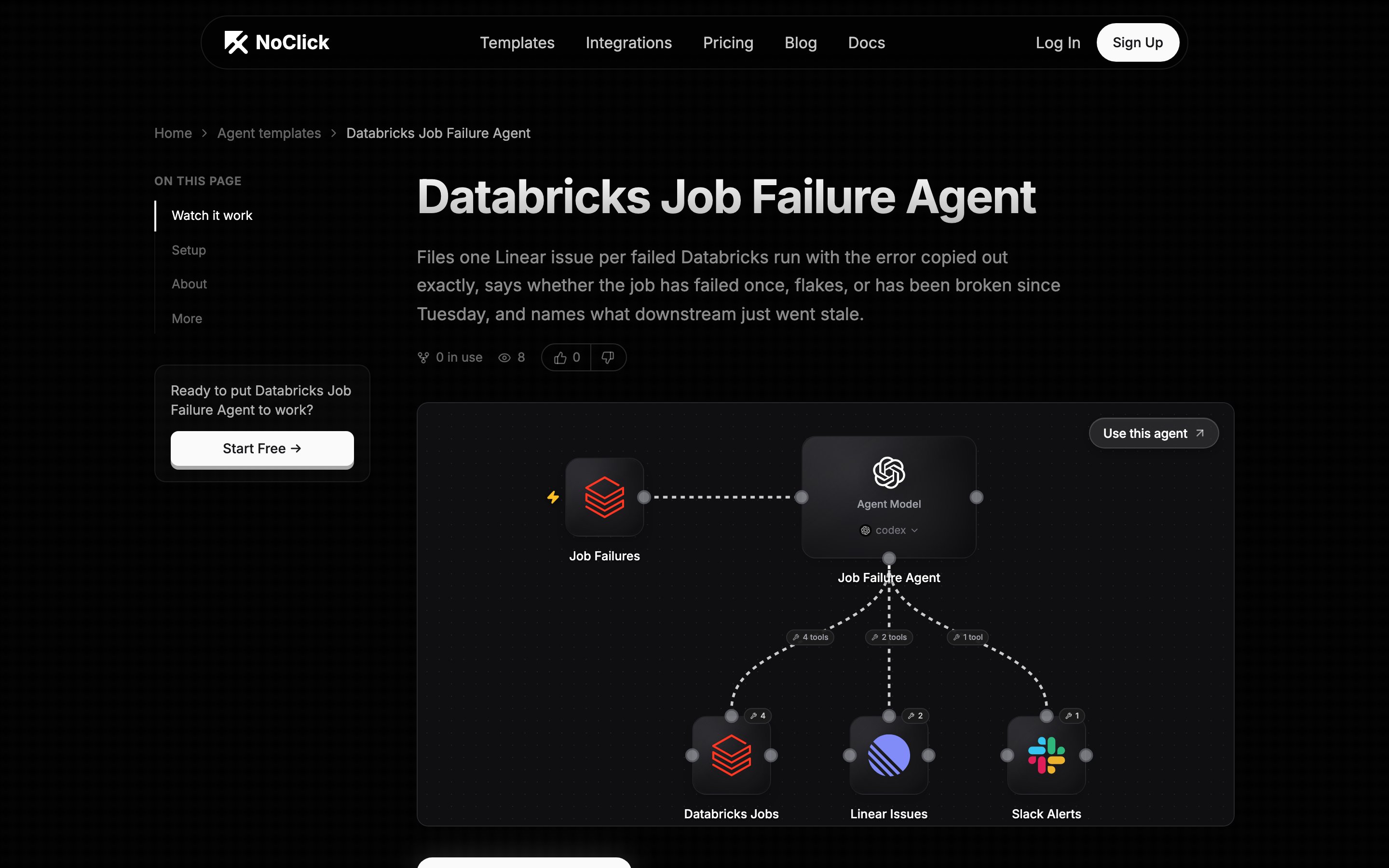
An agent template detail page with its live canvas preview
Fork a template
1
Take a copy
On the detail page, click Set up this agent, or the Use this agent pill on the canvas preview. If you’re signed out, you’ll be asked to sign in first; the fork continues automatically afterward.
2
Get your copy
The workflow is copied into your dashboard as your own workflow. You can rename, edit, and run it freely; changes never affect the original template.
3
Work through setup
Your copy opens straight into full screen Setup, which lists everything the workflow still needs: accounts to connect, the author’s per-user questions to answer, and any action or field left open. Credentials are never included in a template, so connecting your own accounts is part of this step. See Connecting credentials.
4
Test it before it goes live
Setup ends on a Test Run. The agent handles one of the template’s staged events for real while every tool call is answered with made-up data, so you can see how it behaves before pointing it at anything of yours. Close setup with the ✕ at any point to go to the normal workspace.