Publish your workflow to the public template library from the Share dialog.
Publishing a workflow as a template lists it in the public gallery at noclick.com/templates, where anyone can view it, vote on it, and fork it into their own workspace.
Open your workflow and click the Share button at the top right of the canvas. In the Share Workflow dialog, turn on the Public access toggle (“Anyone with the link can view”).
2
Open the template dialog
With public access on, a Publish to Template Library button appears in the Share dialog. Click it to open the Publish Template dialog.
3
Add title and description
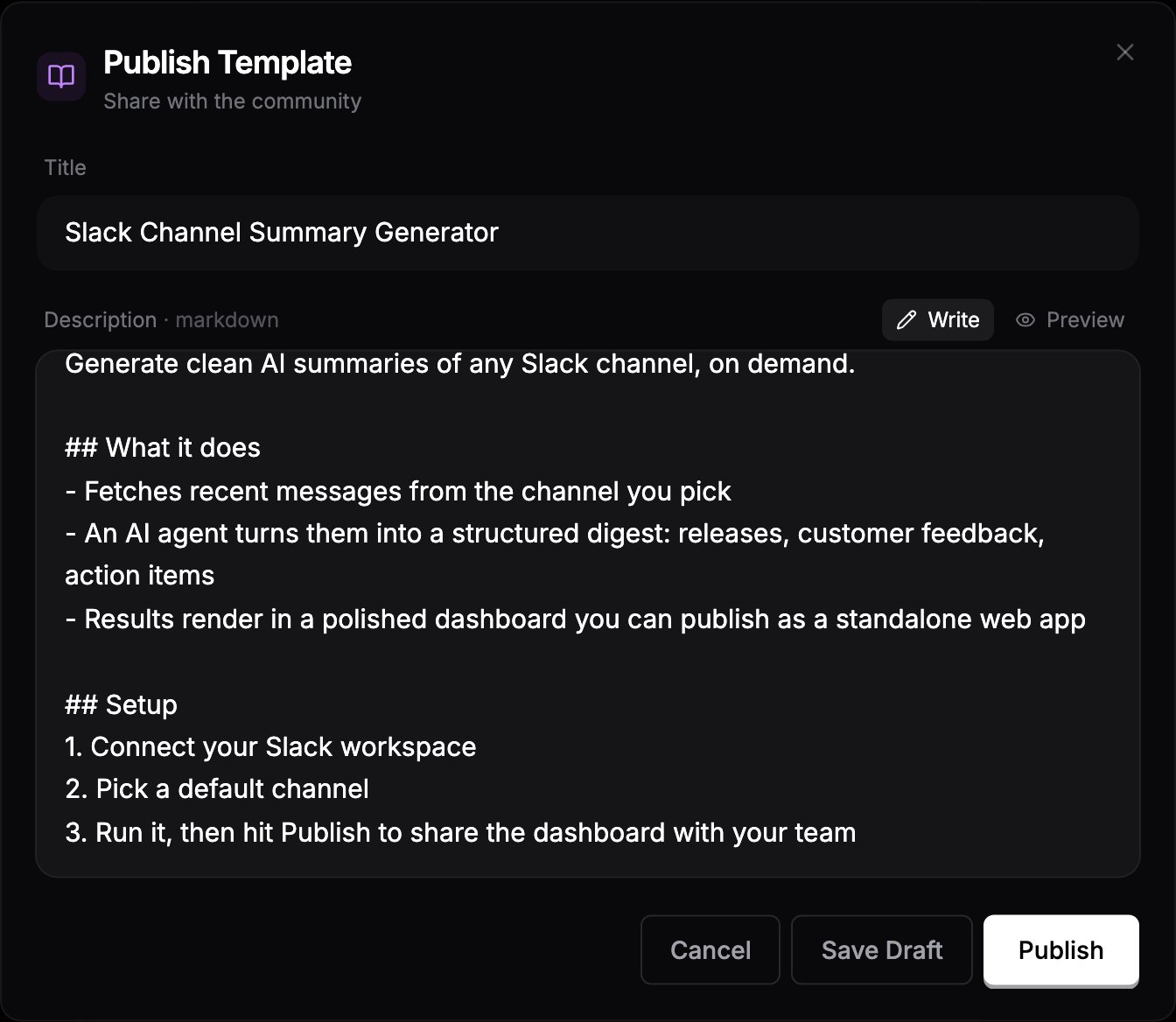
Fill in the Title and a Description. The description supports markdown, with Write and Preview tabs so you can check the formatting. Use Save Draft to keep your work without going live.
The Publish Template dialog with title and markdown description
4
Publish
Click Publish. The dialog shows a Live badge and the template’s public URL with a copy button. Your template now appears in the gallery and gets its own detail page.
Stats: the gallery tracks view counts, fork counts, and votes for your template, shown on its card and detail page.
Workflow changes: the template’s preview and forks reflect your current workflow, so improvements you make carry through. Title and description are edited in the Publish Template dialog; click Save to apply changes.
Unpublish: reopen the dialog and click Unpublish to remove the template from the library.
A published template exposes your workflow’s structure and node configurations publicly. Credentials are never shared, but remove anything sensitive from node configs (API endpoints, internal IDs, prompt content) before publishing.