

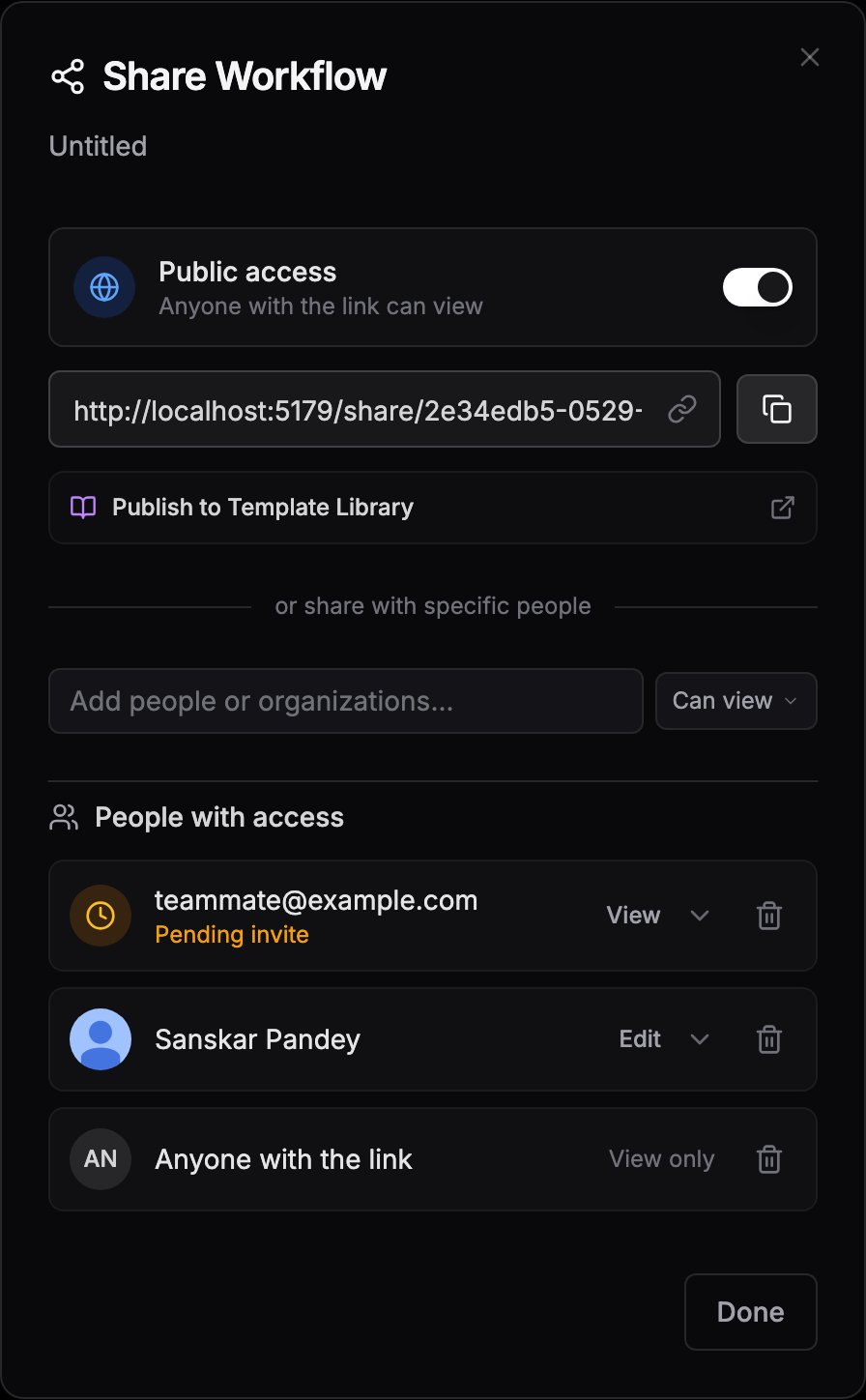
The Share Workflow dialog with public access enabled
Public link
Turn on the Public access toggle (“Anyone with the link can view”) to get a view-only link:When public access is on, a Publish to Template Library option appears. See Publishing templates.
Specific people and organizations
1
Add a recipient
Type in the Add people or organizations… field. Suggestions include your organizations (shared with “All members”) and their members, or enter any email address.
2
Pick a permission
Choose Can view or Can edit next to the input before adding. Editors can change the workflow; viewers can only look.
3
Manage access
Everyone you’ve shared with appears under People with access. Use the dropdown next to a person to switch between Can view and Can edit, or click the trash icon to remove their access.
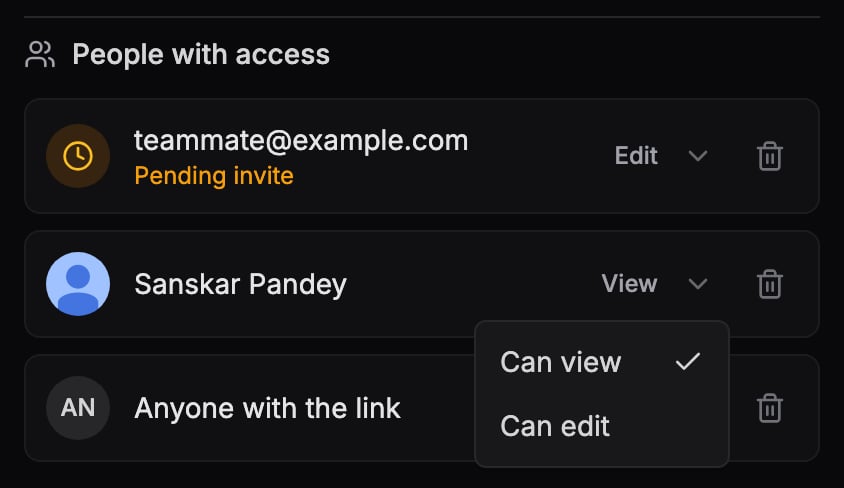
People with access, including a pending invite
Invite links
The fastest way to bring someone into a flow is the invite link. Click the Invite collaborators button (the round person-plus button on the right edge of the canvas) to open the invite card, then click Copy link.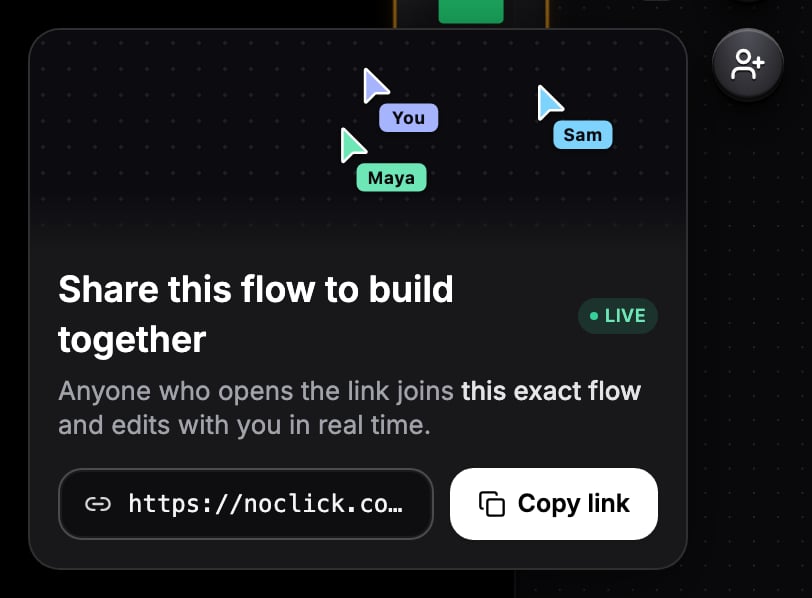
The invite card with the workflow's collaboration link
noclick.com/i/{token}. When someone opens it:
- They land on an invite page showing who invited them and the workflow name.
- They sign in or create an account on that page.
- They join the same workflow as a collaborator with edit access. There is no copy or fork; you build together on one canvas.
Invite links aren’t available for organization workflows. Members of an organization already share access to its workflows.
Next steps
Work together in real time
Live cursors, presence avatars, and instant edit syncing.
Credential sharing
How collaborators run nodes without copying your credentials.