

Create an organization
1
Open the workspace switcher
Click your name at the top of the sidebar, then choose New organization.
2
Name it
In the Create Organization dialog, enter an Organization Name and an Identifier. The identifier is checked for availability as you type, is used for your SSO login URL, and cannot be changed later.
3
Create
Click Create. You become the organization’s owner and switch into the new workspace.
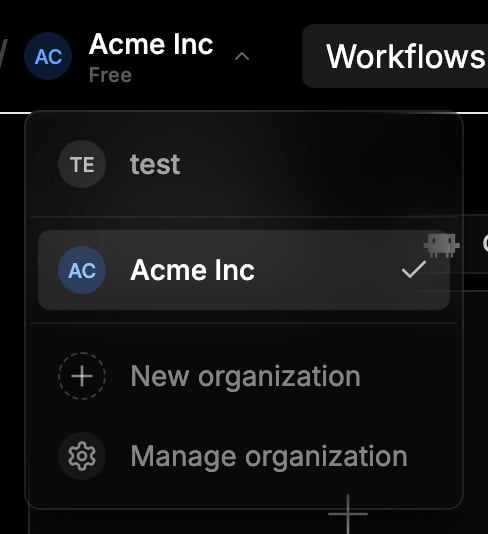
The workspace switcher with a personal workspace and an organization
Switch workspaces
The same switcher moves you between your personal workspace and your organizations. Your dashboard is scoped to the active workspace: workflows you create while inside an organization are owned by the organization and visible to all of its members.Invite members
Open Settings → Organization while in the organization workspace. On the Overview tab:- Enter an address in Invite by email…, pick Member or Admin, and click Invite.
- The recipient gets an email with an invite link. They sign in and accept on the invite page.
- Pending invites appear above the member list with a “pending” label; hover one to revoke it. Invites expire after 7 days.
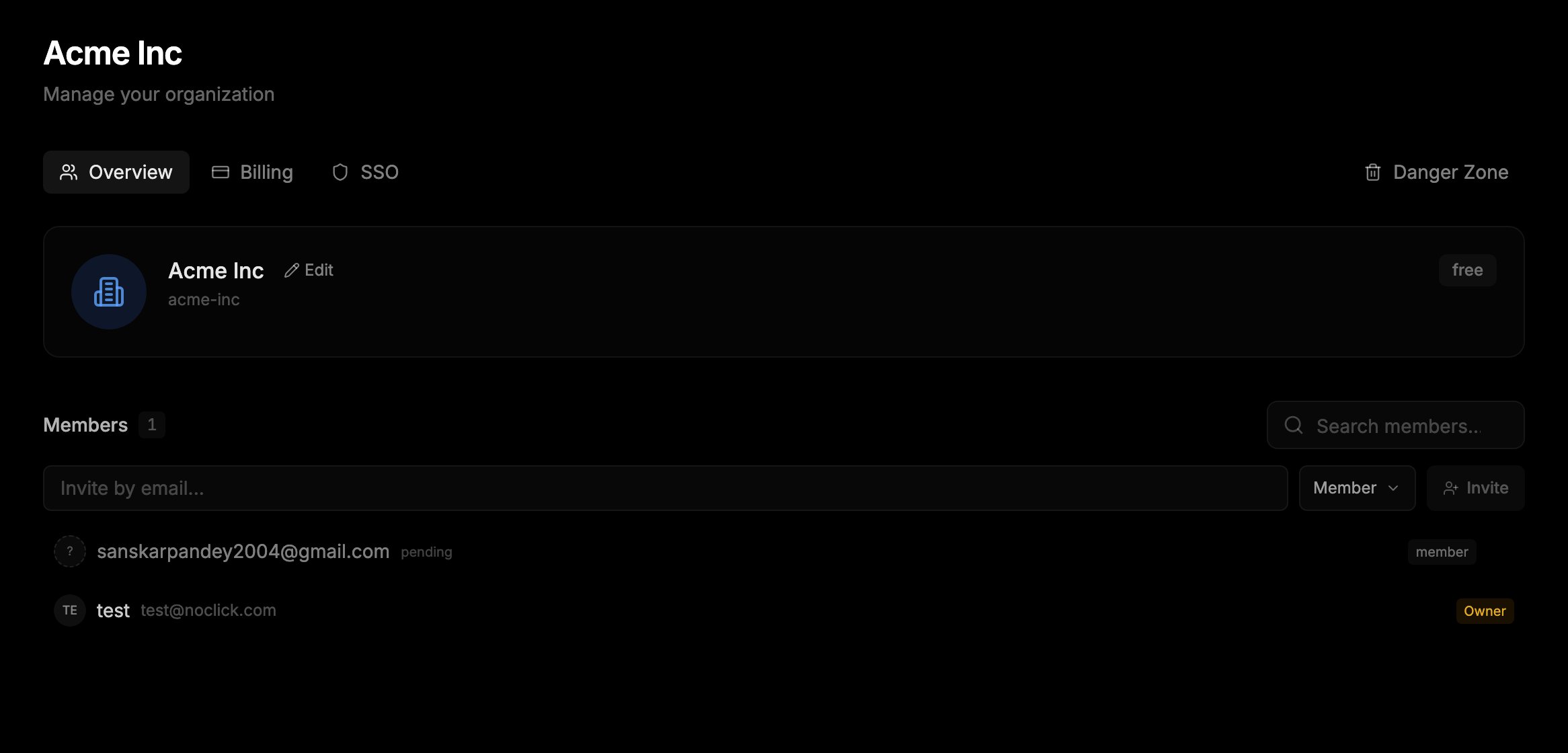
Organization settings with the member list and invite field
Member limits
Member limits follow the organization’s plan. Pending invites count toward the limit.Roles
- Owner: full control, including billing, ownership transfer, and deleting the organization.
- Admin: manage members, organization settings, and SSO.
- Member: use and build the organization’s workflows.
Billing
The organization has its own subscription, separate from your personal plan. Owners and admins manage it on the Billing tab of the organization settings. Credits work on an “owner pays” model: organization workflows always draw from the organization owner’s credit pool, no matter which member runs them. See Plans.SSO
Organizations can require SAML 2.0 single sign-on, configured on the SSO tab of the organization settings. Follow the SSO setup guide for Okta, Azure AD, and other identity providers.Next steps
Share a workflow
Share individual workflows outside an organization.
SSO setup
Configure SAML single sign-on for your organization.