Turn a workflow into a hosted MCP server that Claude, ChatGPT, and Cursor can call
The MCP Server node can host its own MCP server. Wire integration nodes into it, pick the operations to expose, and NoClick mints a public URL that any MCP client can connect to. Calls run with the credentials connected in your workflow, so your assistant gets working Slack, Linear, or GitHub tools with zero setup on the client side.
Add an MCP Server node to the canvas and leave its Server URL field empty. An empty URL puts the node in hosting mode.
2
Wire in integration nodes
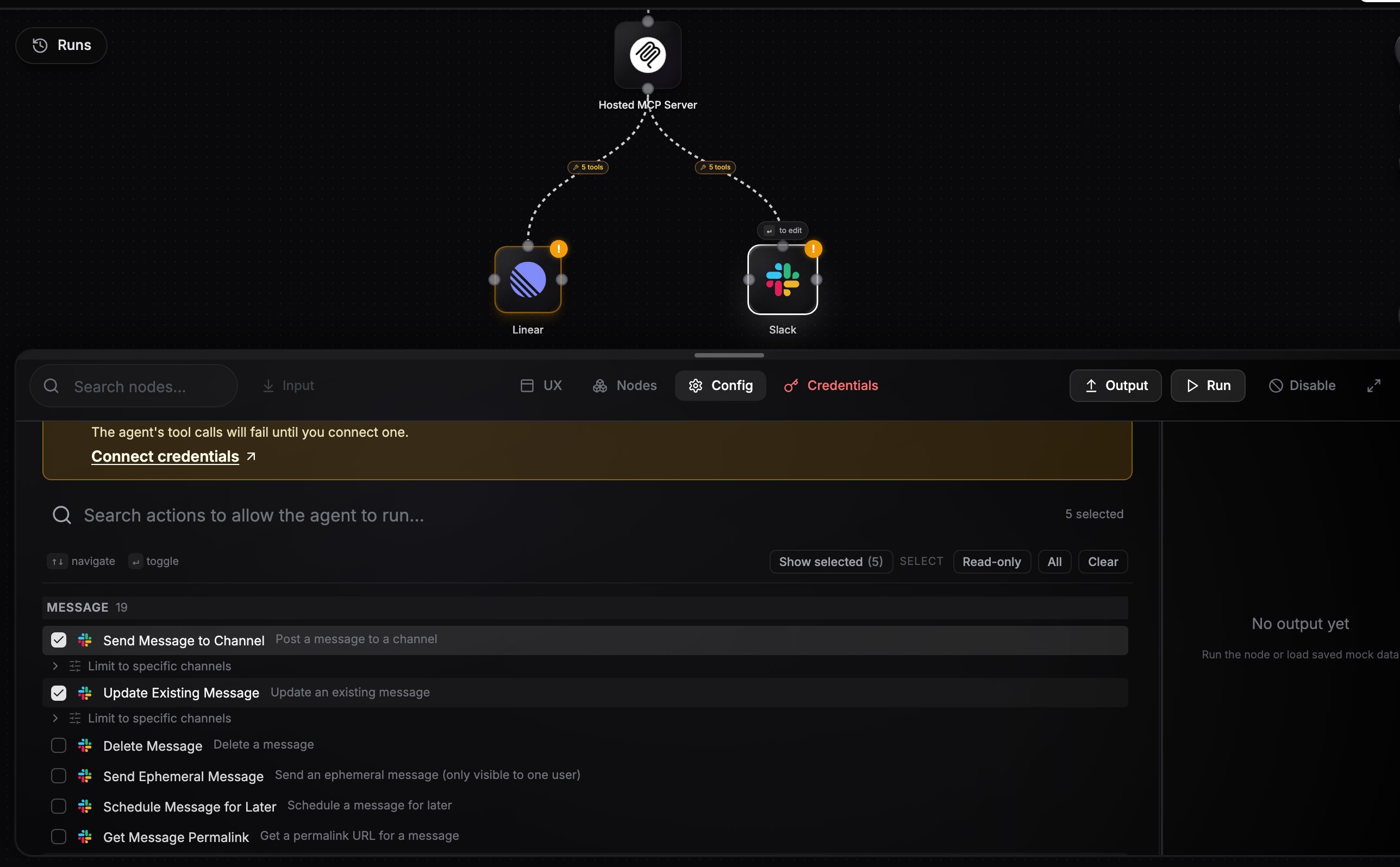
Drag from an integration node’s top handle into the MCP Server node’s bottom handle. You can wire in multiple nodes, each with its own credential.
3
Allowlist operations
Click a wired node. Its config panel switches to an operation allowlist; pick the actions the server should expose. Each becomes a tool named {provider}__{operation} (for example linear__create_issue), plus an automatic {provider}__lookup_options tool for resolving IDs.
Integration nodes wired into an MCP Server node, with the operation allowlist open
4
Copy the server URL
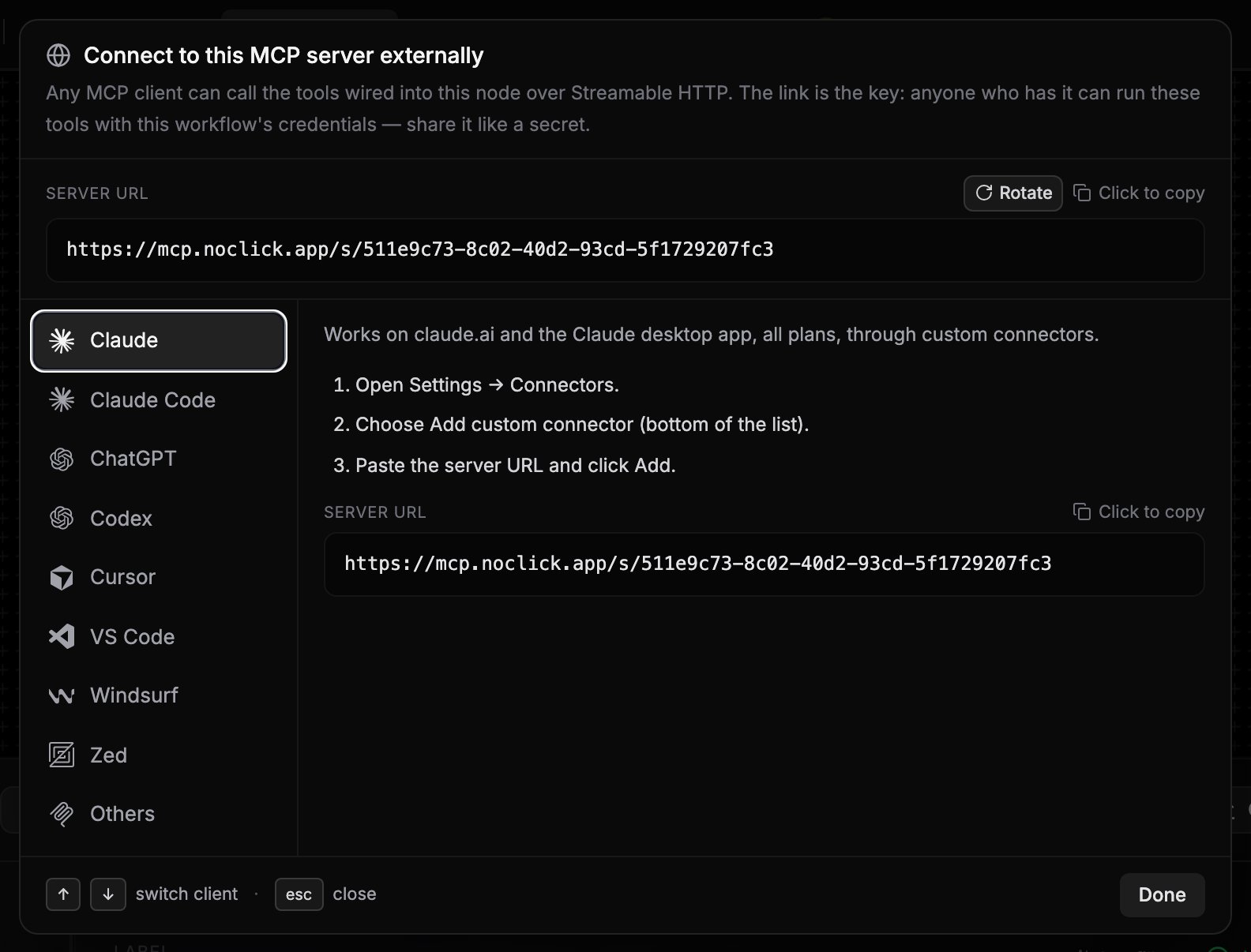
Select the MCP Server node and click Connect externally at the top of its config panel. The dialog mints your server URL and shows setup guides for each client:
https://mcp.noclick.app/s/{id}
The Connect externally dialog with the hosted server URL and per-client guides
5
Connect from your client
Paste the URL into any MCP client that speaks Streamable HTTP. No authentication step is needed; the URL is the key.
Claude (claude.ai, the desktop app, and mobile): open Customize > Connectors, click +, choose Add custom connector, paste the server URL, and click Add. Then turn it on in a chat from + > Connectors. On Team and Enterprise, an Owner adds it under Organization settings > Connectors first.ChatGPT: turn on Developer mode under Settings > Apps & Connectors > Advanced settings, then click Create, paste the URL as the MCP Server URL, and set Authentication to No Authentication.Cursor: add the server to .cursor/mcp.json in your project (or ~/.cursor/mcp.json for all projects):
The Setup tab ends on a connect step for a workflow that hosts a server. It gives numbered instructions for one client at a time, with the command to run, and a status panel underneath that watches the server.The panel answers two questions separately, so you can tell a link that is not serving from a client that has not started:
Link ready with a tool count and a few tool names is the server side. NoClick reads it from your workflow graph, with no client involved. If it says no tools are wired yet, the allowlist is what to fix.
Waiting for your agent to connect is the client side. It flips to Connected with the client’s name, how many tools it was served, and which ones it can call. That is a real handshake reaching your server, so it tells you the link works rather than that the config looks right.
Under the waiting line is what makes that particular client connect. Most clients only write the config when you run their add command and open the connection when a session starts, so the usual fix is to start or restart the client. After 45 seconds the panel offers that client’s own check command, for example claude mcp list or opencode mcp list. Those commands list the configured servers and connect at the same time, so running one turns the status green.If NoClick cannot read handshakes at that moment, the panel says it cannot check rather than reporting that nothing has connected. Your link keeps serving either way.The same status sits on the node itself. Once a client has been served, the Connect externally header on the MCP Server node reads Connected with the client’s name and the tool count, so anyone who opens the workflow later sees it without running the Setup finale again.Click Using a different agent? to see the instructions for the other clients.
The tool list is read from your workflow graph on every request. Adding a node, changing an allowlist, or swapping a credential applies on the client’s next tool listing, with no publish step. Draft workflows serve too.
If an operation fails, the client is told it failed and gets the message the service returned, with the HTTP status when there is one. So a client that asks for a table that does not exist reads the “not found” back rather than treating an error as a working answer and guessing again.
The AI builder knows the server’s URL. Ask it for the address of your MCP server and it gives you the live link, minting one if the node does not have a link yet. Your agents can read the same URL when you ask them about the workflow.
The link is the capability. Anyone who has the URL can call the exposed tools as you, with the credentials connected in the workflow. Share it like a secret.
To revoke access, click Rotate next to the URL in the Connect externally dialog. The old link stops working immediately; update every client that used it.
Every call is audited, so you can review what was invoked and whether it succeeded.
Only the operations you allowlist are exposed. Keep the list minimal.
The same node has a second, mutually exclusive mode: set Server URL to an external MCP server endpoint and the node proxies that server’s tools to AI agents in your workflow instead. External mode supports Streamable HTTP and SSE transports, API key or OAuth authentication, a tool name prefix, and a tool filter.One node cannot do both. If it has a Server URL and wired tool nodes at the same time, it returns an error instead of picking a side. Use two MCP Server nodes if you need both.