

Create a key
1
Open Developer settings
In the NoClick dashboard, go to Settings and open the Developer section.
2
Name the key
Enter a Key Name that identifies where you’ll use it, for example “My Dashboard App”.
3
Pick a scope
Leave the Scope dropdown on All workflows, or select a single workflow to restrict the key to it.
4
Create and copy
Click Create. The new key appears once in a banner. Copy it now; only a hash is stored, so it cannot be shown again.
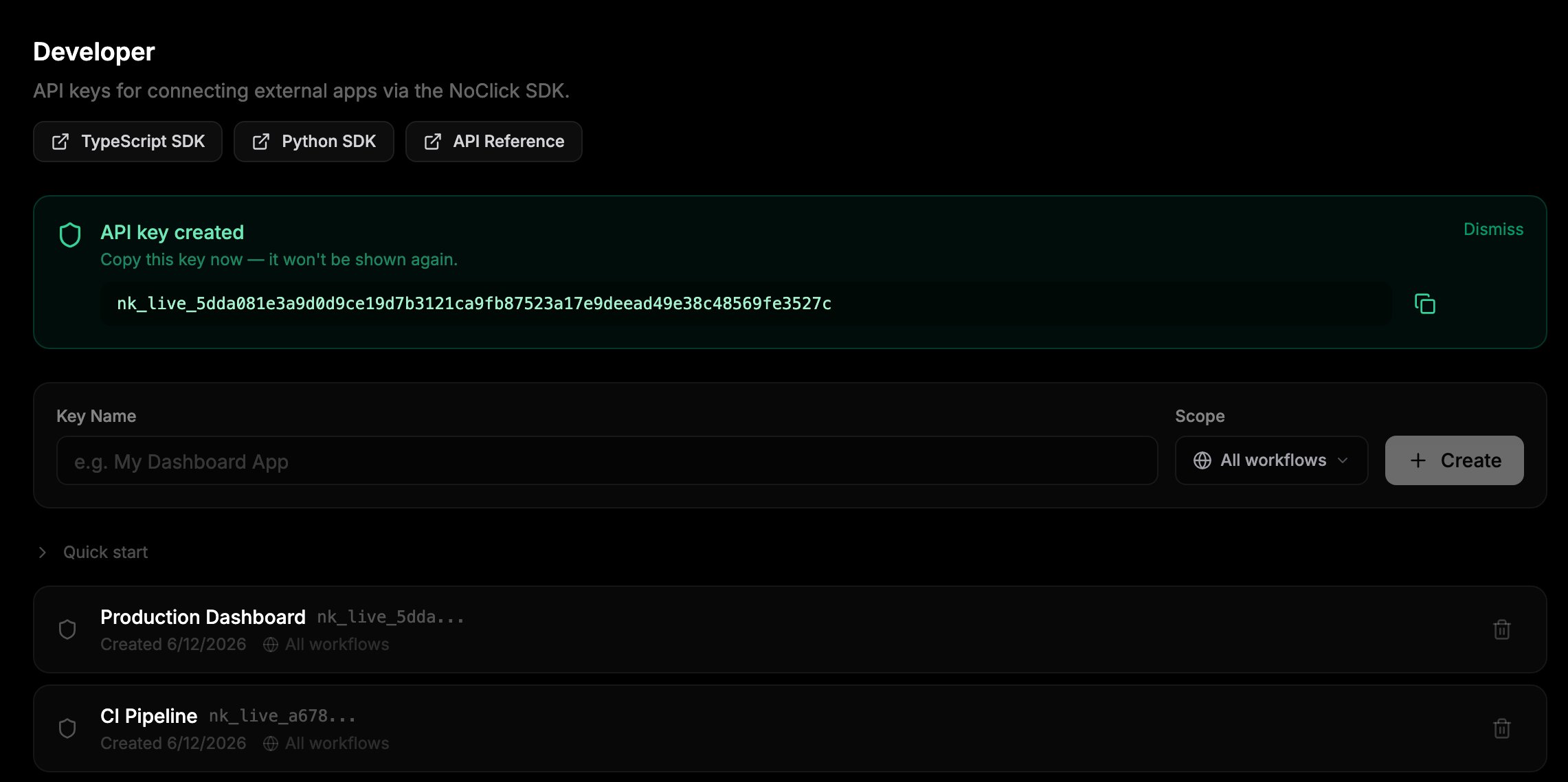
Settings → Developer: create, copy, and revoke API keys
Key format
The key list in Developer settings shows only the first 12 characters of each key for identification.
Permissions
Every SDK call is checked against the key’s permissions:
Keys created in Developer settings get all three permissions. To mint a key with fewer permissions, call the REST endpoint below with a narrower
permissions list.
Workflow scoping
A key scoped to one workflow rejects any request that targets a different workflow. Use scoped keys when an external app only needs one workflow, so a leaked key cannot touch the rest of your account.Publishing an app mints its own workflow-scoped key automatically. These keys are managed by NoClick, hidden from your key list, and revoked when you unpublish.
Use a key
Manage keys over REST
Developer settings is backed by a small REST surface athttps://api.noclick.io that you can call directly. These endpoints authenticate with your NoClick sign-in, not with an API key: send your session’s access token as Authorization: Bearer <token>, which is what the dashboard does, or rely on the browser session cookie when you call from the same domain.
Revoke a key
Click the trash icon next to a key in Developer settings. Revocation takes effect immediately; the next request with that key is rejected. Revoked keys stay visible under Show revoked keys for reference.Security
- Keys are hashed (SHA-256) at rest. The raw key is shown once at creation and never stored.
- Treat keys like passwords: keep them in environment variables, never in source control or client-side code.
- Scope keys to a single workflow whenever possible.
- Check the “Last used” date in the key list and revoke keys you no longer need.
Next steps
External apps
Connect a TypeScript or Python app to NoClick over WebSocket.
API reference
Every SDK namespace and method.