> ## Documentation Index
> Fetch the complete documentation index at: https://docs.noclick.com/llms.txt
> Use this file to discover all available pages before exploring further.
# Credential problems
> What to do when an OAuth connection expires or is revoked, or an API key stops working.
## Symptoms
* Runs fail with authorization errors (the provider rejecting the call) in the **Logs** tab.
* Dropdown fields that load options from the account (channels, spreadsheets, boards) stop loading.
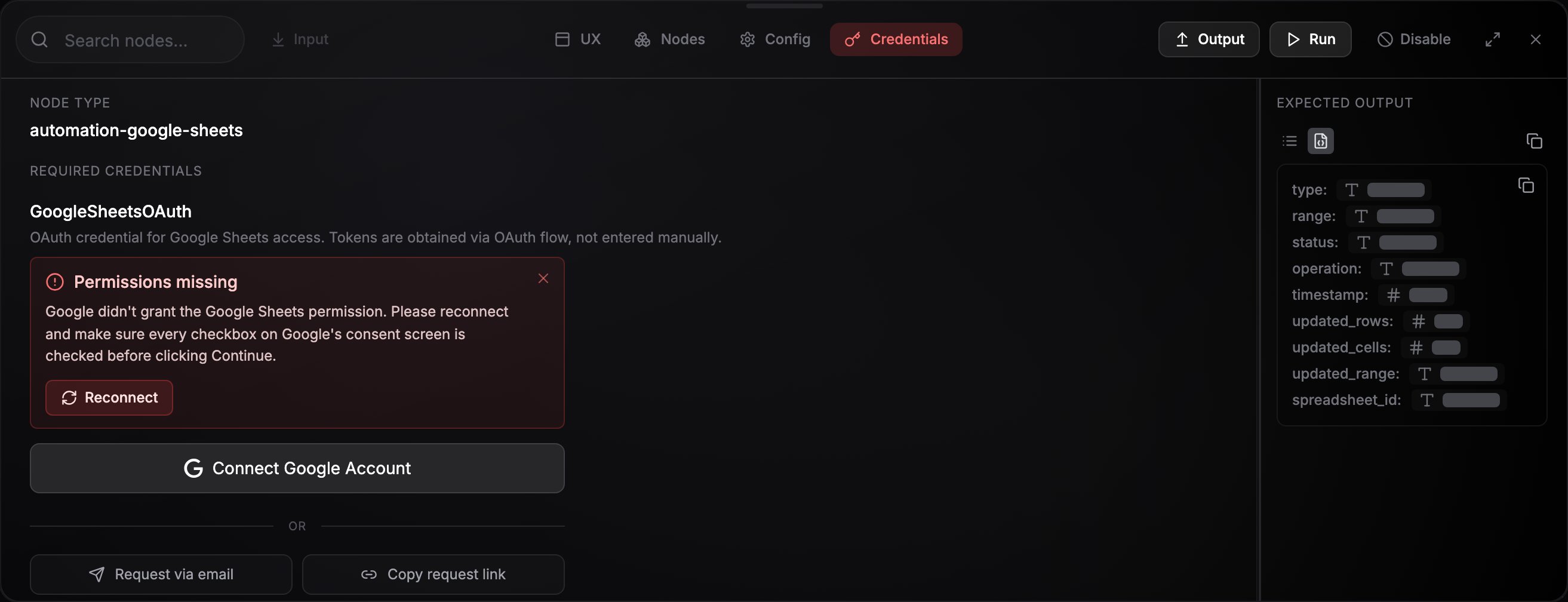
* The node's **Credentials** tab shows an error panel with a **Reconnect** button.
## Why it happens
OAuth tokens normally [refresh automatically](/credentials/security), so day-to-day expiry never needs your attention. A credential genuinely breaks when the provider revokes access: you changed your password, removed the app from the account's authorized apps, the account lost the required permissions, or a provider with rotating tokens invalidated the chain after a long disconnection. In those cases only a fresh sign-in fixes it.
## Reconnect an OAuth credential
Select any node that uses the credential and open its **Credentials** tab (`K`).
If an error panel is showing, click **Reconnect**. Otherwise click **Connect Another Account** and complete the provider sign-in with the same account.
Make sure the node has the right credential selected, then run the node. Dropdown fields loading again is a quick health check.
 ## Replace an API key
If a pasted key was revoked or rotated, select the credential on a node, click **Edit credential**, and enter the new key. Stored values are never displayed back, so you re-enter the field.
## On a shared workflow
A credential tagged "Owned by \[someone]" belongs to the workflow owner, and only they can reconnect or edit it. Ask the owner to refresh the connection, or attach your own credential to the node instead.
Dead credentials you no longer need can be deleted from **Settings → Credentials**. Nodes that were using a deleted credential need a new one selected before they can run.
## Replace an API key
If a pasted key was revoked or rotated, select the credential on a node, click **Edit credential**, and enter the new key. Stored values are never displayed back, so you re-enter the field.
## On a shared workflow
A credential tagged "Owned by \[someone]" belongs to the workflow owner, and only they can reconnect or edit it. Ask the owner to refresh the connection, or attach your own credential to the node instead.
Dead credentials you no longer need can be deleted from **Settings → Credentials**. Nodes that were using a deleted credential need a new one selected before they can run.