> ## Documentation Index
> Fetch the complete documentation index at: https://docs.noclick.com/llms.txt
> Use this file to discover all available pages before exploring further.
# Schedules
> Run a workflow on a recurring schedule with the Schedule trigger node.
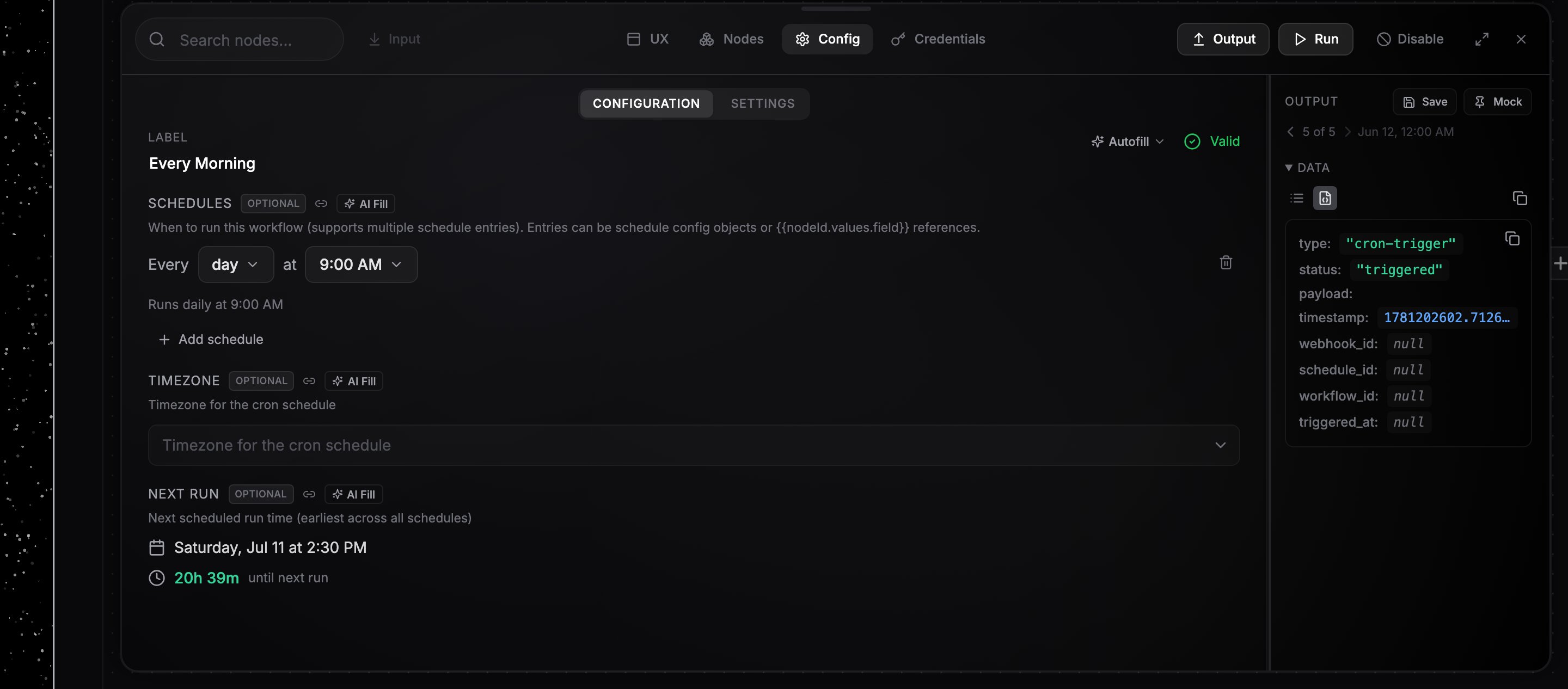
The **Schedule** node runs your workflow on a recurring schedule. No cron syntax required: you pick a frequency and time in a visual widget, and the node shows when it will fire next.
 ## Set up a schedule
Add the **Schedule** node to your canvas and connect its output to the first node you want to run.
The schedule picker reads as a sentence: "Every 30 minutes", "Every day at 9:00 AM", "Every week on Monday at 5:00 PM". Frequencies: seconds, minutes, hours, day, week, weeks, and month. Interval frequencies take a number; day, week, and month schedules take a time (15-minute increments) and, where relevant, a day. A summary line below the picker confirms the schedule in plain language.
Choose your timezone in the searchable **Timezone** dropdown. Daily, weekly, and monthly run times are interpreted in this timezone.
The **Next Run** field shows when the schedule fires next. Each run appears in the **Logs** tab with the trigger source `Schedule`.
## Example schedules
| Goal | Configuration |
| ------------------------- | ----------------------------------------- |
| Poll an API twice an hour | Every `30` minutes |
| Morning digest | Every day at `9:00 AM` |
| Weekly report | Every week on `Friday` at `5:00 PM` |
| Biweekly sync | Every `2` weeks on `Monday` at `10:00 AM` |
| Monthly invoice run | Every month on the `1st` at `9:00 AM` |
## Multiple schedules
One Schedule node can hold several schedules. Click **Add schedule** to add another entry; each fires independently. Removing every entry disables the trigger.
Run times are converted to UTC using your timezone's current offset. If your timezone observes daylight saving time, open the workflow or edit the schedule after a DST change to refresh the run time.
## Set up a schedule
Add the **Schedule** node to your canvas and connect its output to the first node you want to run.
The schedule picker reads as a sentence: "Every 30 minutes", "Every day at 9:00 AM", "Every week on Monday at 5:00 PM". Frequencies: seconds, minutes, hours, day, week, weeks, and month. Interval frequencies take a number; day, week, and month schedules take a time (15-minute increments) and, where relevant, a day. A summary line below the picker confirms the schedule in plain language.
Choose your timezone in the searchable **Timezone** dropdown. Daily, weekly, and monthly run times are interpreted in this timezone.
The **Next Run** field shows when the schedule fires next. Each run appears in the **Logs** tab with the trigger source `Schedule`.
## Example schedules
| Goal | Configuration |
| ------------------------- | ----------------------------------------- |
| Poll an API twice an hour | Every `30` minutes |
| Morning digest | Every day at `9:00 AM` |
| Weekly report | Every week on `Friday` at `5:00 PM` |
| Biweekly sync | Every `2` weeks on `Monday` at `10:00 AM` |
| Monthly invoice run | Every month on the `1st` at `9:00 AM` |
## Multiple schedules
One Schedule node can hold several schedules. Click **Add schedule** to add another entry; each fires independently. Removing every entry disables the trigger.
Run times are converted to UTC using your timezone's current offset. If your timezone observes daylight saving time, open the workflow or edit the schedule after a DST change to refresh the run time.