> ## Documentation Index
> Fetch the complete documentation index at: https://docs.noclick.com/llms.txt
> Use this file to discover all available pages before exploring further.
# Publishing templates
> Publish your workflow to the public template library from the Share dialog.
Publishing a workflow as a template lists it in the public gallery at [noclick.com/templates](https://noclick.com/templates), where anyone can view it, vote on it, and fork it into their own workspace.
## Publish a workflow
Open your workflow and click the **Share** button at the top right of the canvas. In the **Share Workflow** dialog, turn on the **Public access** toggle ("Anyone with the link can view").
With public access on, a **Publish to Template Library** button appears in the Share dialog. Click it to open the **Publish Template** dialog.
Fill in the **Title** and a **Description**. The description supports markdown, with **Write** and **Preview** tabs so you can check the formatting. Use **Save Draft** to keep your work without going live.
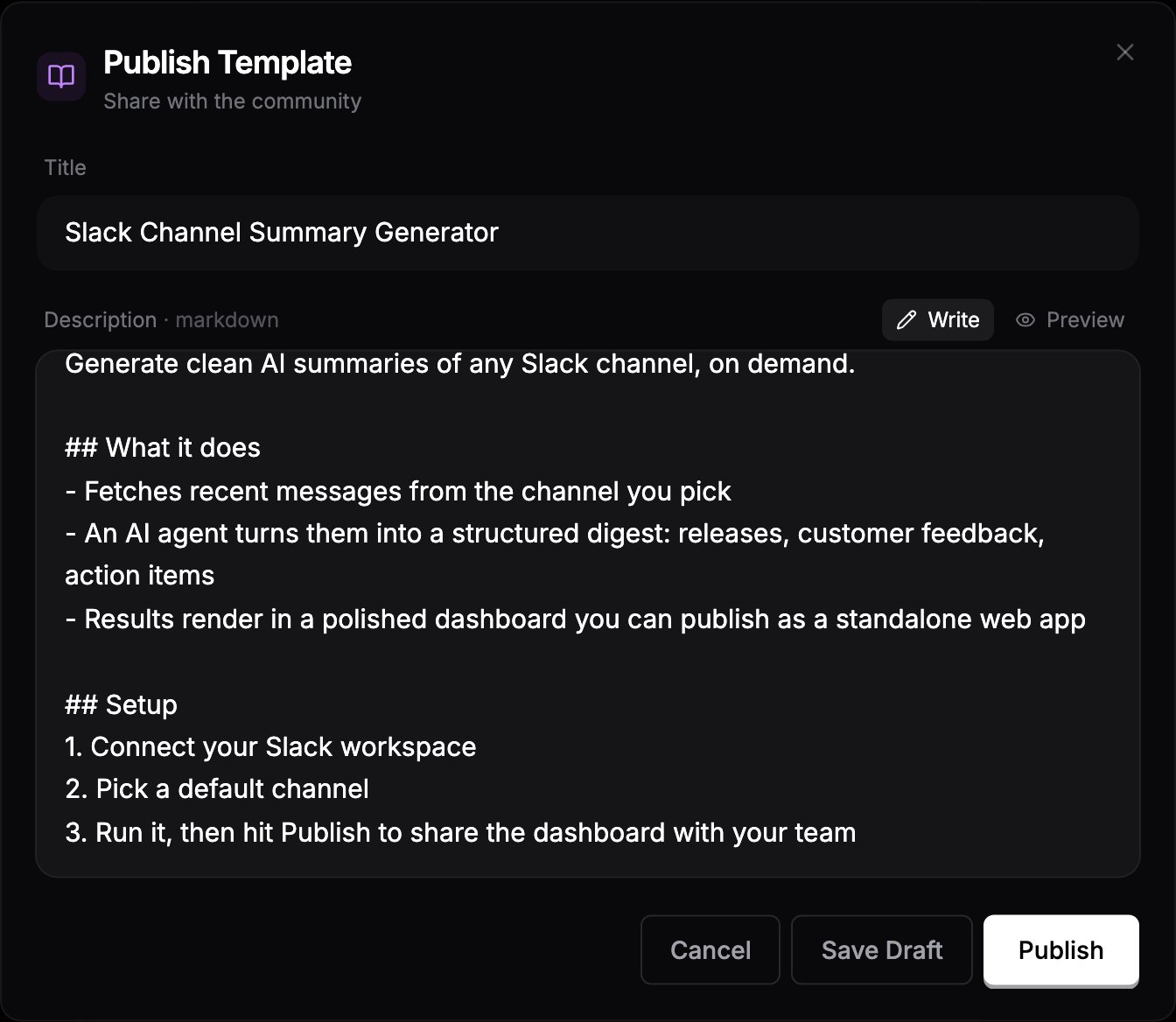 Click **Publish**. The dialog shows a **Live** badge and the template's public URL with a copy button. Your template now appears in the gallery and gets its own detail page.
## After publishing
* **Stats**: the gallery tracks view counts, fork counts, and votes for your template, shown on its card and detail page.
* **Workflow changes**: the template's preview and forks reflect your current workflow, so improvements you make carry through. Title and description are edited in the **Publish Template** dialog; click **Save** to apply changes.
* **Unpublish**: reopen the dialog and click **Unpublish** to remove the template from the library.
A published template exposes your workflow's structure and node configurations publicly. Credentials are never shared, but remove anything sensitive from node configs (API endpoints, internal IDs, prompt content) before publishing.
Click **Publish**. The dialog shows a **Live** badge and the template's public URL with a copy button. Your template now appears in the gallery and gets its own detail page.
## After publishing
* **Stats**: the gallery tracks view counts, fork counts, and votes for your template, shown on its card and detail page.
* **Workflow changes**: the template's preview and forks reflect your current workflow, so improvements you make carry through. Title and description are edited in the **Publish Template** dialog; click **Save** to apply changes.
* **Unpublish**: reopen the dialog and click **Unpublish** to remove the template from the library.
A published template exposes your workflow's structure and node configurations publicly. Credentials are never shared, but remove anything sensitive from node configs (API endpoints, internal IDs, prompt content) before publishing.