> ## Documentation Index
> Fetch the complete documentation index at: https://docs.noclick.com/llms.txt
> Use this file to discover all available pages before exploring further.
# Create Your Own MCP Server
> Turn a workflow into a hosted MCP server that Claude, ChatGPT, and Cursor can call
The MCP Server node can host its own MCP server. Wire integration nodes into it, pick the operations to expose, and NoClick mints a public URL that any MCP client can connect to. Calls run with the credentials connected in your workflow, so your assistant gets working Slack, Linear, or GitHub tools with zero setup on the client side.
## Build a hosted server
Add an **MCP Server** node to the canvas and leave its **Server URL** field empty. An empty URL puts the node in hosting mode.
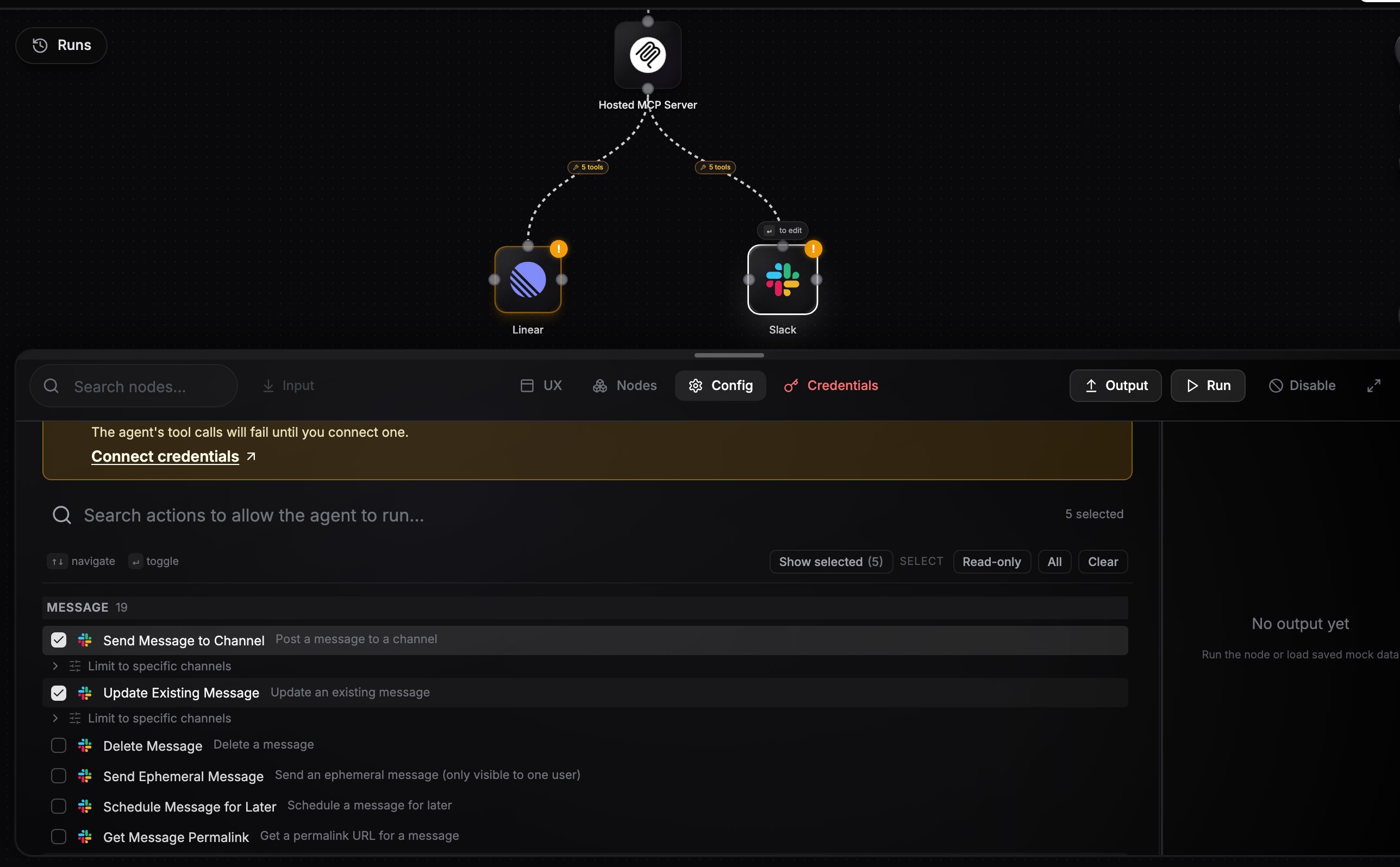
Drag from an integration node's top handle into the MCP Server node's bottom handle. You can wire in multiple nodes, each with its own credential.
Click a wired node. Its config panel switches to an operation allowlist; pick the actions the server should expose. Each becomes a tool named `{provider}__{operation}` (for example `linear__create_issue`), plus an automatic `{provider}__lookup_options` tool for resolving IDs.
 Select the MCP Server node and click **Connect externally** at the top of its config panel. The dialog mints your server URL and shows setup guides for each client:
```
https://mcp.noclick.app/s/{id}
```
Select the MCP Server node and click **Connect externally** at the top of its config panel. The dialog mints your server URL and shows setup guides for each client:
```
https://mcp.noclick.app/s/{id}
```
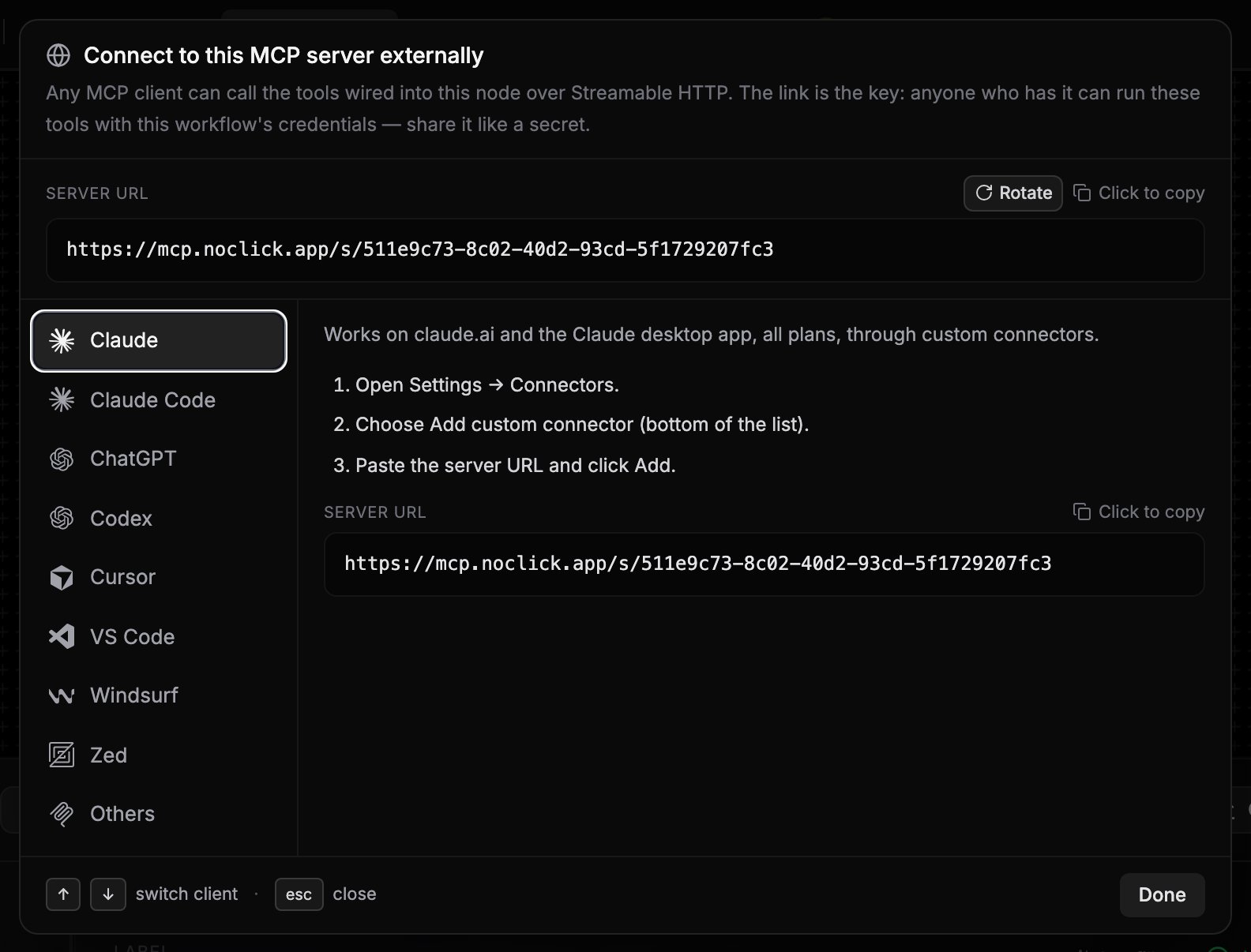 Paste the URL into any MCP client that speaks Streamable HTTP. No authentication step is needed; the URL is the key.
## Client setup
**Claude** (claude.ai and the desktop app): go to **Settings > Connectors**, choose **Add custom connector**, paste the server URL, and click **Add**.
**ChatGPT**: turn on **Developer mode** under **Settings > Apps & Connectors > Advanced settings**, then click **Create**, paste the URL as the MCP Server URL, and set Authentication to **No Authentication**.
**Cursor**: add the server to `.cursor/mcp.json` in your project (or `~/.cursor/mcp.json` for all projects):
```json theme={null}
{
"mcpServers": {
"noclick-my-server": {
"url": "https://mcp.noclick.app/s/{id}"
}
}
}
```
The **Connect externally** dialog also has guides for Claude Code, Codex, VS Code, Windsurf, Zed, and a generic config for other clients.
## Tools resolve live
The tool list is read from your workflow graph on every request. Adding a node, changing an allowlist, or swapping a credential applies on the client's next tool listing, with no publish step. Draft workflows serve too.
## Security model
The link is the capability. Anyone who has the URL can call the exposed tools as you, with the credentials connected in the workflow. Share it like a secret.
* To revoke access, click **Rotate** next to the URL in the **Connect externally** dialog. The old link stops working immediately; update every client that used it.
* Every call is audited, so you can review what was invoked and whether it succeeded.
* Only the operations you allowlist are exposed. Keep the list minimal.
## External mode
The same node has a second, mutually exclusive mode: set **Server URL** to an external MCP server endpoint and the node proxies that server's tools to AI agents in your workflow instead. External mode supports Streamable HTTP and SSE transports, API key or OAuth authentication, a tool name prefix, and a tool filter.
One node cannot do both. If it has a Server URL and wired tool nodes at the same time, it returns an error instead of picking a side. Use two MCP Server nodes if you need both.
## Next steps
Wire the same integrations directly into an AI agent instead.
Give your agents tools from external MCP servers.
Paste the URL into any MCP client that speaks Streamable HTTP. No authentication step is needed; the URL is the key.
## Client setup
**Claude** (claude.ai and the desktop app): go to **Settings > Connectors**, choose **Add custom connector**, paste the server URL, and click **Add**.
**ChatGPT**: turn on **Developer mode** under **Settings > Apps & Connectors > Advanced settings**, then click **Create**, paste the URL as the MCP Server URL, and set Authentication to **No Authentication**.
**Cursor**: add the server to `.cursor/mcp.json` in your project (or `~/.cursor/mcp.json` for all projects):
```json theme={null}
{
"mcpServers": {
"noclick-my-server": {
"url": "https://mcp.noclick.app/s/{id}"
}
}
}
```
The **Connect externally** dialog also has guides for Claude Code, Codex, VS Code, Windsurf, Zed, and a generic config for other clients.
## Tools resolve live
The tool list is read from your workflow graph on every request. Adding a node, changing an allowlist, or swapping a credential applies on the client's next tool listing, with no publish step. Draft workflows serve too.
## Security model
The link is the capability. Anyone who has the URL can call the exposed tools as you, with the credentials connected in the workflow. Share it like a secret.
* To revoke access, click **Rotate** next to the URL in the **Connect externally** dialog. The old link stops working immediately; update every client that used it.
* Every call is audited, so you can review what was invoked and whether it succeeded.
* Only the operations you allowlist are exposed. Keep the list minimal.
## External mode
The same node has a second, mutually exclusive mode: set **Server URL** to an external MCP server endpoint and the node proxies that server's tools to AI agents in your workflow instead. External mode supports Streamable HTTP and SSE transports, API key or OAuth authentication, a tool name prefix, and a tool filter.
One node cannot do both. If it has a Server URL and wired tool nodes at the same time, it returns an error instead of picking a side. Use two MCP Server nodes if you need both.
## Next steps
Wire the same integrations directly into an AI agent instead.
Give your agents tools from external MCP servers.