> ## Documentation Index
> Fetch the complete documentation index at: https://docs.noclick.com/llms.txt
> Use this file to discover all available pages before exploring further.
# LLM System Prompt Tuning Workflow
> Learn how to iterate and test different LLM system prompts using Google Sheets and NoClick
# LLM System Prompt Tuning Workflow
A well-tuned system prompt can be the difference between an LLM that gives generic responses and one that nails your use case. But finding the right prompt takes iteration: testing different instructions against real inputs and comparing outputs.
This guide shows you how to build a workflow that automates this process. Put your prompts and test cases in a Google Sheet, run the workflow, and get all responses written back automatically.
## What You'll Build
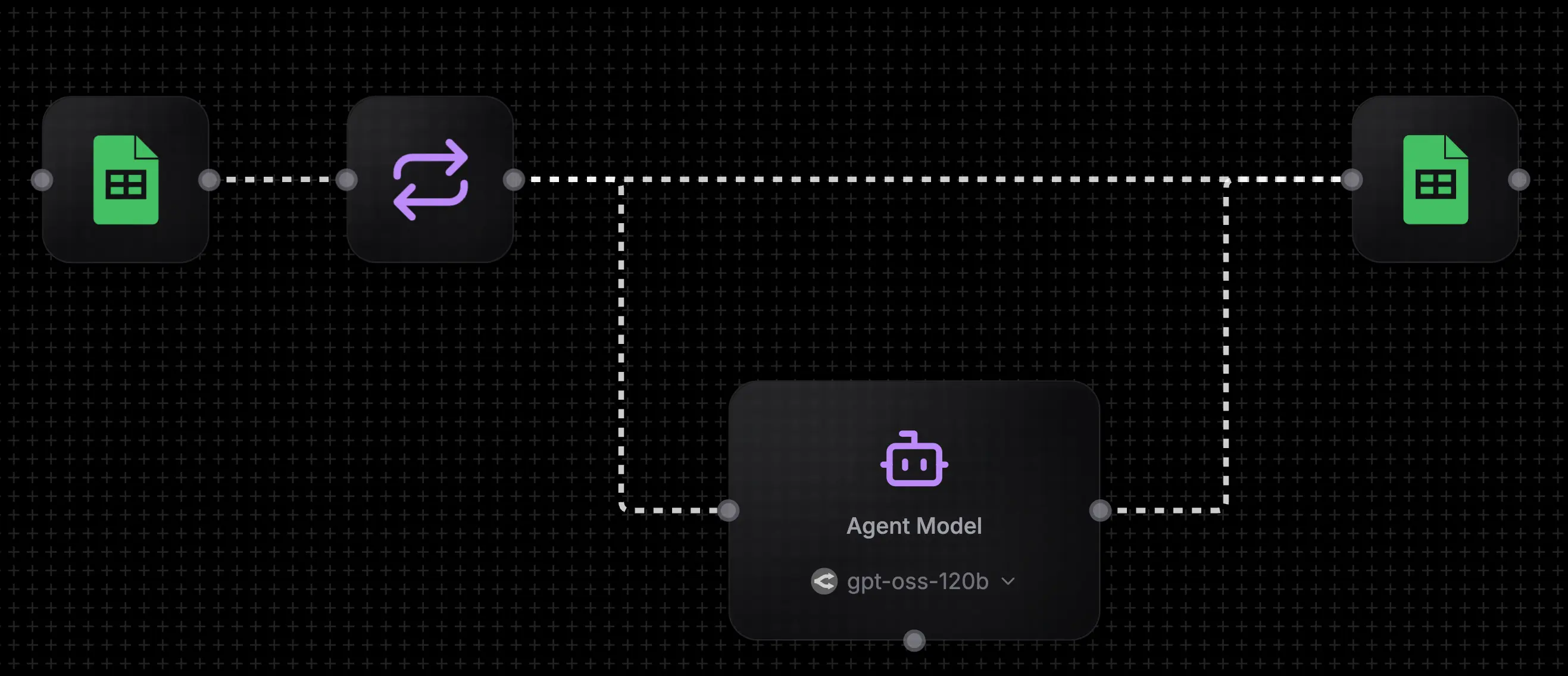 The workflow:
1. **Reads** system prompts and test messages from Google Sheets
2. **Iterates** through each row
3. **Sends** each message to an LLM with its system prompt
4. **Writes** the response back to your sheet
## Prerequisites
* A NoClick account ([sign up here](https://noclick.com))
* A Google account for Google Sheets access
## Step 1: Set Up Your Google Sheet
Create a Google Sheet with four columns:
| Column | Purpose |
| ------------------- | ------------------------------------------ |
| **System Prompt** | Your instructions for the LLM |
| **Message** | The test input |
| **Expected Answer** | What you're hoping to get (for comparison) |
| **Actual Answer** | Where results get written (leave blank) |
The workflow:
1. **Reads** system prompts and test messages from Google Sheets
2. **Iterates** through each row
3. **Sends** each message to an LLM with its system prompt
4. **Writes** the response back to your sheet
## Prerequisites
* A NoClick account ([sign up here](https://noclick.com))
* A Google account for Google Sheets access
## Step 1: Set Up Your Google Sheet
Create a Google Sheet with four columns:
| Column | Purpose |
| ------------------- | ------------------------------------------ |
| **System Prompt** | Your instructions for the LLM |
| **Message** | The test input |
| **Expected Answer** | What you're hoping to get (for comparison) |
| **Actual Answer** | Where results get written (leave blank) |
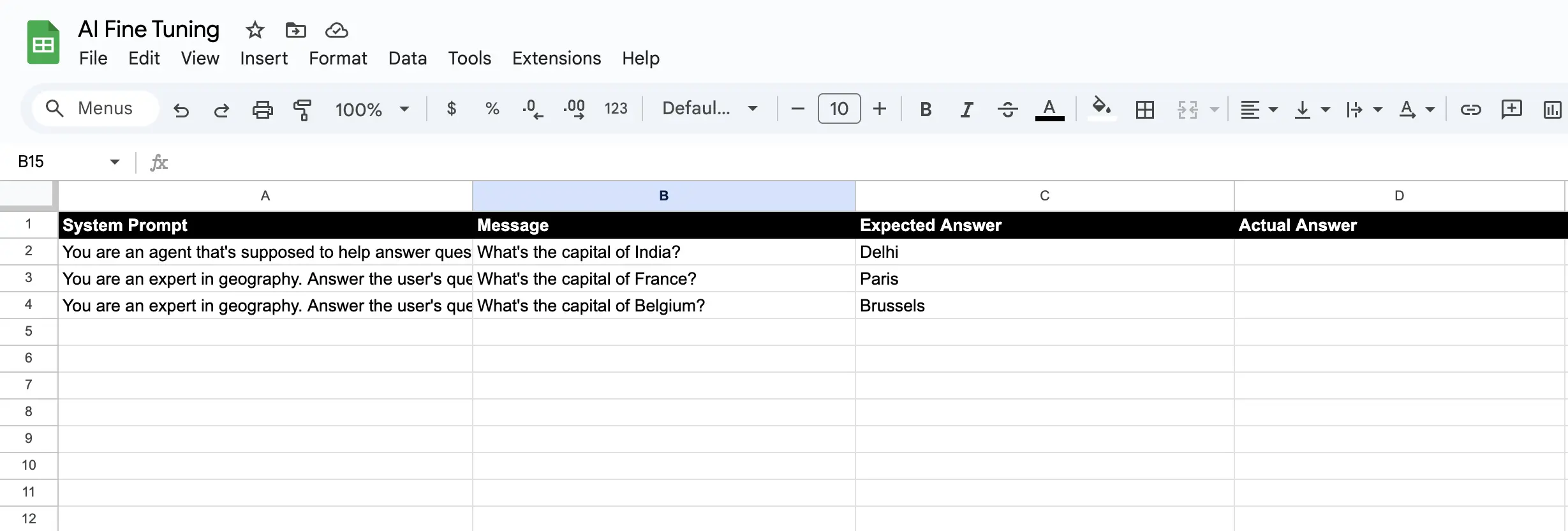 Add a few rows with different system prompts you want to test. For example:
| System Prompt | Message | Expected Answer | Actual Answer |
| ------------------------------------------------- | --------------- | ---------------------------------------- | ------------- |
| You are a helpful assistant. Be concise. | What is Python? | A programming language | |
| You are a coding expert. Always include examples. | What is Python? | A programming language with code example | |
## Step 2: Import the Workflow
Click the copy icon in the top-right corner of the code block below, then paste into NoClick.
```json theme={null}
{
"type": "noclick-workflow",
"version": "1.0",
"nodes": [
{
"id": "sheets_read",
"type": "automation-google-sheets",
"position": { "x": 200, "y": 285 },
"config": {
"operation": "read",
"sheet_name": "Sheet1"
}
},
{
"id": "iteration",
"type": "iteration",
"position": { "x": 380, "y": 285 },
"config": {
"items": "{{sheets_read.values}}",
"header_row": true,
"concurrency": 3
}
},
{
"id": "agent",
"type": "agent",
"position": { "x": 585, "y": 440 },
"config": {
"model": "openrouter/openai/gpt-4o-mini",
"message": "{{iteration.item.Message}}",
"system_prompt": "{{iteration.item.System Prompt}}"
}
},
{
"id": "sheets_write",
"type": "automation-google-sheets",
"position": { "x": 920, "y": 285 },
"config": {
"range": "D{{iteration.row_number}}",
"values": "{{agent.response}}",
"operation": "write",
"sheet_name": "Sheet1"
}
}
],
"edges": [
{ "source": "sheets_read", "target": "iteration" },
{ "source": "iteration", "target": "agent" },
{ "source": "agent", "target": "sheets_write" },
{ "source": "iteration", "target": "sheets_write" }
]
}
```
To import:
1. Create a new workflow in NoClick
2. Press `Cmd/Ctrl + V` to paste the JSON
3. The workflow will appear in your canvas
## Step 3: Connect Your Google Account
Click on either Google Sheets node and select **Connect Google Account**. This opens a new tab where you authorize NoClick to access your sheets.
Add a few rows with different system prompts you want to test. For example:
| System Prompt | Message | Expected Answer | Actual Answer |
| ------------------------------------------------- | --------------- | ---------------------------------------- | ------------- |
| You are a helpful assistant. Be concise. | What is Python? | A programming language | |
| You are a coding expert. Always include examples. | What is Python? | A programming language with code example | |
## Step 2: Import the Workflow
Click the copy icon in the top-right corner of the code block below, then paste into NoClick.
```json theme={null}
{
"type": "noclick-workflow",
"version": "1.0",
"nodes": [
{
"id": "sheets_read",
"type": "automation-google-sheets",
"position": { "x": 200, "y": 285 },
"config": {
"operation": "read",
"sheet_name": "Sheet1"
}
},
{
"id": "iteration",
"type": "iteration",
"position": { "x": 380, "y": 285 },
"config": {
"items": "{{sheets_read.values}}",
"header_row": true,
"concurrency": 3
}
},
{
"id": "agent",
"type": "agent",
"position": { "x": 585, "y": 440 },
"config": {
"model": "openrouter/openai/gpt-4o-mini",
"message": "{{iteration.item.Message}}",
"system_prompt": "{{iteration.item.System Prompt}}"
}
},
{
"id": "sheets_write",
"type": "automation-google-sheets",
"position": { "x": 920, "y": 285 },
"config": {
"range": "D{{iteration.row_number}}",
"values": "{{agent.response}}",
"operation": "write",
"sheet_name": "Sheet1"
}
}
],
"edges": [
{ "source": "sheets_read", "target": "iteration" },
{ "source": "iteration", "target": "agent" },
{ "source": "agent", "target": "sheets_write" },
{ "source": "iteration", "target": "sheets_write" }
]
}
```
To import:
1. Create a new workflow in NoClick
2. Press `Cmd/Ctrl + V` to paste the JSON
3. The workflow will appear in your canvas
## Step 3: Connect Your Google Account
Click on either Google Sheets node and select **Connect Google Account**. This opens a new tab where you authorize NoClick to access your sheets.
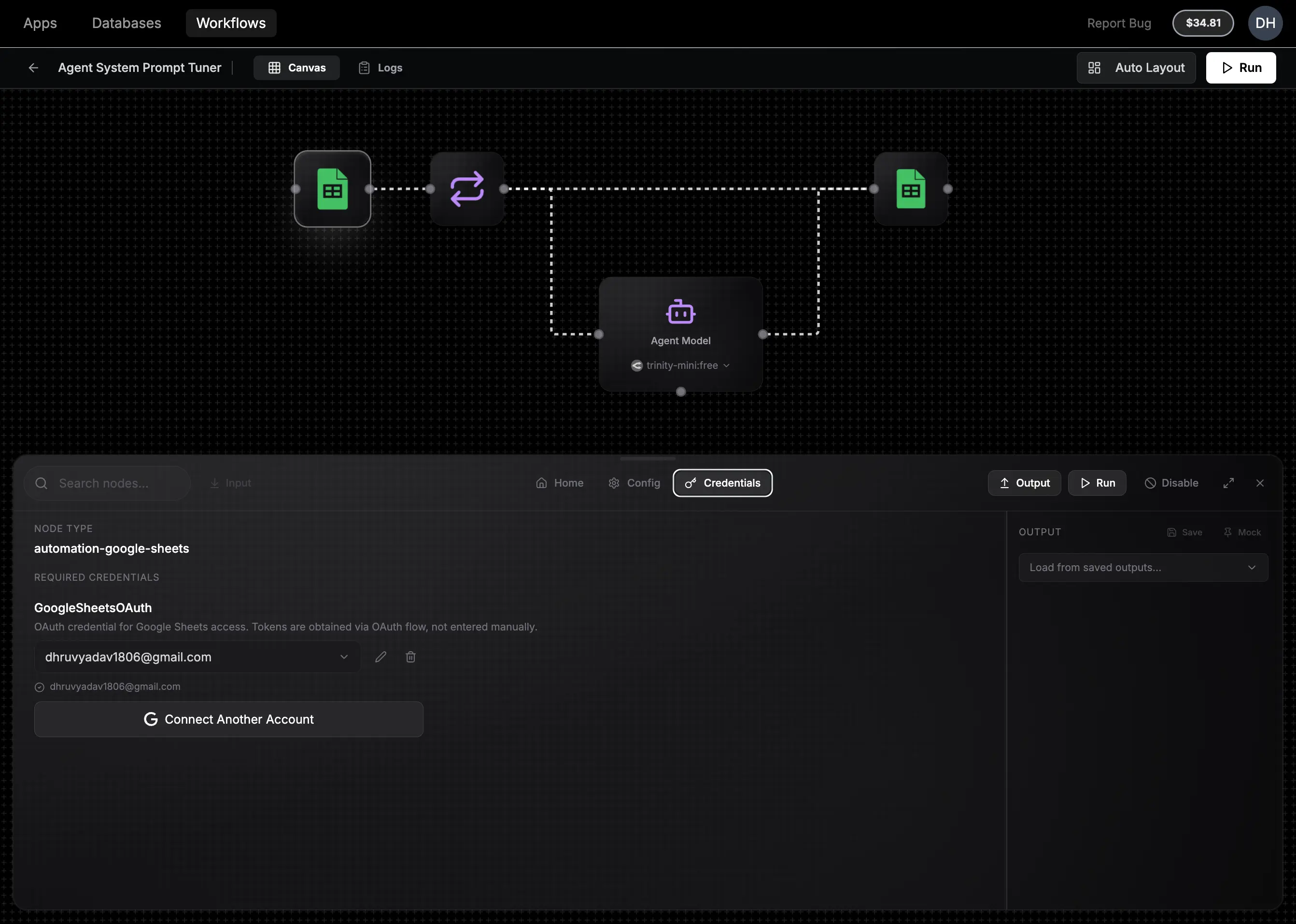 NoClick only accesses the specific sheets you select. We never store your Google credentials. We use secure OAuth tokens that you can revoke anytime.
## Step 4: Configure the Sheet Nodes
### Read Node (First Google Sheets Node)
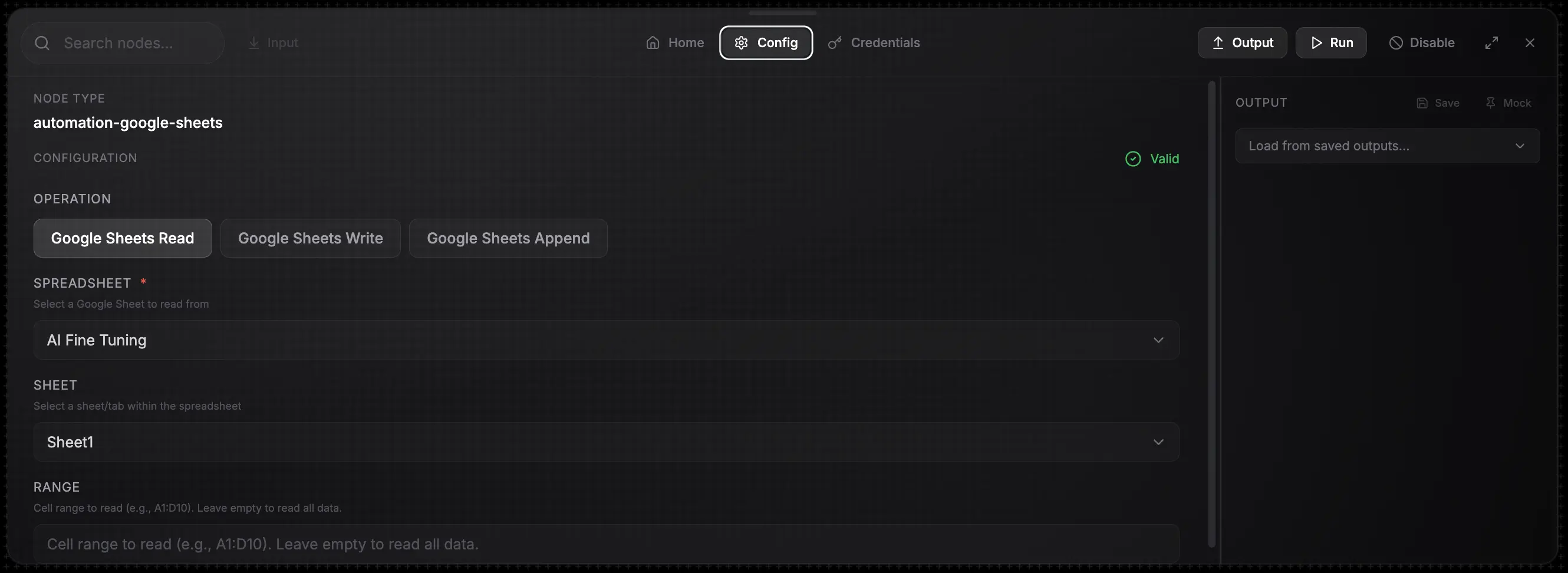
1. Click the first Google Sheets node
2. Select your spreadsheet from the dropdown
3. Verify "Sheet1" is selected (or change to your sheet name)
### Write Node (Second Google Sheets Node)
1. Click the second Google Sheets node
2. Select the same spreadsheet
3. The range `D{{iteration.row_number}}` writes to column D for each row
NoClick only accesses the specific sheets you select. We never store your Google credentials. We use secure OAuth tokens that you can revoke anytime.
## Step 4: Configure the Sheet Nodes
### Read Node (First Google Sheets Node)
1. Click the first Google Sheets node
2. Select your spreadsheet from the dropdown
3. Verify "Sheet1" is selected (or change to your sheet name)
### Write Node (Second Google Sheets Node)
1. Click the second Google Sheets node
2. Select the same spreadsheet
3. The range `D{{iteration.row_number}}` writes to column D for each row
 ## Step 5: Run the Workflow
Click **Run** in the top right corner. The workflow will:
1. Read all rows from your sheet
2. Process up to 3 rows concurrently (configurable in the iteration node)
3. Send each message with its system prompt to GPT-4o-mini
4. Write responses back to column D
## Step 6: Review Results
Go back to your Google Sheet. The **Actual Answer** column now has all your LLM outputs.
## Step 5: Run the Workflow
Click **Run** in the top right corner. The workflow will:
1. Read all rows from your sheet
2. Process up to 3 rows concurrently (configurable in the iteration node)
3. Send each message with its system prompt to GPT-4o-mini
4. Write responses back to column D
## Step 6: Review Results
Go back to your Google Sheet. The **Actual Answer** column now has all your LLM outputs.
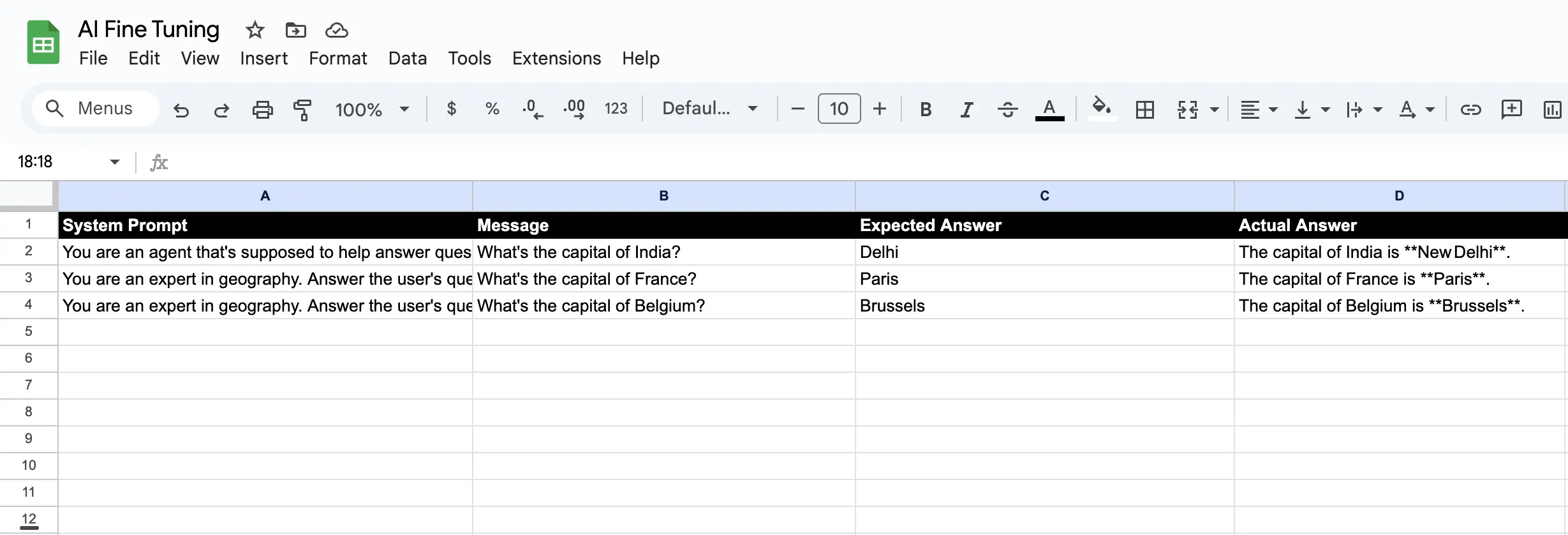 Compare against your expected answers, tweak your prompts, and run again. No more manual copy-pasting!
## Customization Options
### Change the LLM Model
Click the Agent node and select a different model:
* `openrouter/anthropic/claude-3-5-sonnet` - More capable, higher cost
* `openrouter/openai/gpt-4o` - OpenAI's flagship model
* `openrouter/google/gemini-pro` - Google's model
### Adjust Concurrency
In the Iteration node, change `concurrency` to control how many requests run in parallel:
* **1**: Sequential processing (slower, lower API costs)
* **3-5**: Balanced (default)
* **10+**: Fast but may hit rate limits
### Add More Test Data
Simply add more rows to your sheet, and the workflow processes all rows with data.
## Next Steps
* [Connect NoClick to your AI assistant](/mcp/setup) to build workflows conversationally
* Explore other workflow nodes like Slack notifications, email, or webhooks
* Schedule your workflow to run automatically on a timer
Compare against your expected answers, tweak your prompts, and run again. No more manual copy-pasting!
## Customization Options
### Change the LLM Model
Click the Agent node and select a different model:
* `openrouter/anthropic/claude-3-5-sonnet` - More capable, higher cost
* `openrouter/openai/gpt-4o` - OpenAI's flagship model
* `openrouter/google/gemini-pro` - Google's model
### Adjust Concurrency
In the Iteration node, change `concurrency` to control how many requests run in parallel:
* **1**: Sequential processing (slower, lower API costs)
* **3-5**: Balanced (default)
* **10+**: Fast but may hit rate limits
### Add More Test Data
Simply add more rows to your sheet, and the workflow processes all rows with data.
## Next Steps
* [Connect NoClick to your AI assistant](/mcp/setup) to build workflows conversationally
* Explore other workflow nodes like Slack notifications, email, or webhooks
* Schedule your workflow to run automatically on a timer