> ## Documentation Index
> Fetch the complete documentation index at: https://docs.noclick.com/llms.txt
> Use this file to discover all available pages before exploring further.
# Version history
> Save named snapshots of a workflow and restore any of them later.
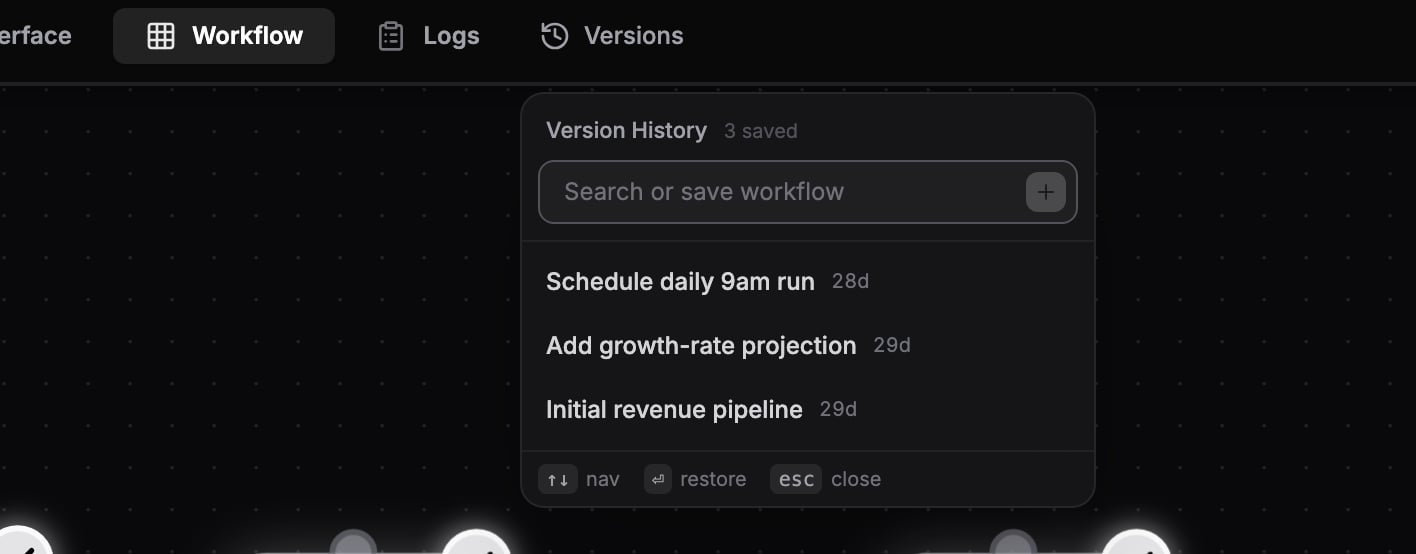
The **Versions** control (the History icon next to the top-bar tabs, shortcut `V`) keeps named snapshots of your workflow. Save one before a risky edit and you can always get back.
 ## Saving a version
Click **Versions** in the top bar or press `V`.
Type a name into the input ("Save current state...") and press `Enter`. The snapshot captures the current nodes and edges.
## Restoring a version
The same input searches existing versions as you type. Click a version (or arrow down to it and press `Enter`) and confirm in the **Restore version?** dialog. Restoring replaces your current workflow with the saved snapshot.
Save a snapshot of your current state before restoring an older one, so the restore itself is reversible.
## Deleting a version
Hover a version in the list and click the trash icon, then confirm in the **Delete version?** dialog.
## Limits per plan
| Plan | Version checkpoints per workflow |
| ---- | -------------------------------- |
| Free | 3 |
| Plus | 10 |
| Pro | Unlimited |
See [Plans](/billing/plans) for the full comparison.
## Saving a version
Click **Versions** in the top bar or press `V`.
Type a name into the input ("Save current state...") and press `Enter`. The snapshot captures the current nodes and edges.
## Restoring a version
The same input searches existing versions as you type. Click a version (or arrow down to it and press `Enter`) and confirm in the **Restore version?** dialog. Restoring replaces your current workflow with the saved snapshot.
Save a snapshot of your current state before restoring an older one, so the restore itself is reversible.
## Deleting a version
Hover a version in the list and click the trash icon, then confirm in the **Delete version?** dialog.
## Limits per plan
| Plan | Version checkpoints per workflow |
| ---- | -------------------------------- |
| Free | 3 |
| Plus | 10 |
| Pro | Unlimited |
See [Plans](/billing/plans) for the full comparison.