> ## Documentation Index
> Fetch the complete documentation index at: https://docs.noclick.com/llms.txt
> Use this file to discover all available pages before exploring further.
# Configuring nodes
> Choose an operation, fill in fields, load options from your connected accounts, and attach credentials.
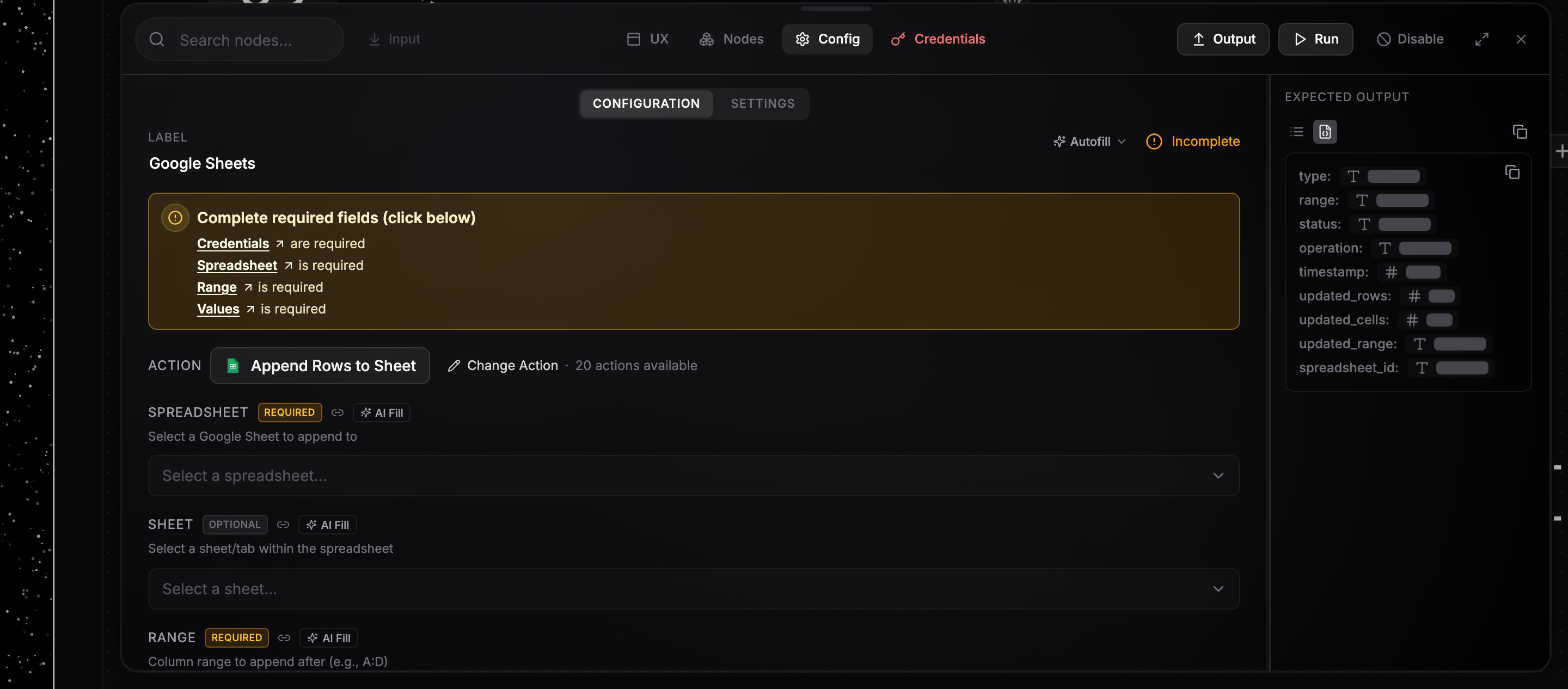
Click a node (or select it and press `Enter`) to open its config panel at the bottom of the canvas. The panel has a **Config** tab for the node's settings and a **Credentials** tab for connecting accounts.
 ## Choosing an operation
Integration nodes can do many things, so the config starts with an operation picker: type to search ("Search for an action this node should perform") and pick one. Search is fuzzy and ranked, so word order, abbreviations, and words from an operation's description all match, and the closest result moves to the top, highlighted so you can press Enter to select it. The fields below update to match the chosen operation.
## Filling fields
Each field carries a badge: **Required** fields show an amber badge until they are filled, **Optional** fields stay neutral. Any unfilled required field across the workflow also surfaces in the **Setup** tab in the top bar, so you can fix them all in one pass.
Text fields accept plain values or [references](/editor/data-references) to upstream output.
Multi-value fields, like a message's To, Cc, and Bcc or a list of feed URLs, save as you type. A new empty box appears as soon as you fill the last one, so you do not need to press Enter to add each value.
Media fields, like a video or image to upload, take a file three ways. Click **Upload** to send a file from your computer, paste a URL, or drag a reference to a file produced by an earlier step. Uploaded files are stored and turned into a link, and images and videos preview right in the field.
## Dynamic dropdowns
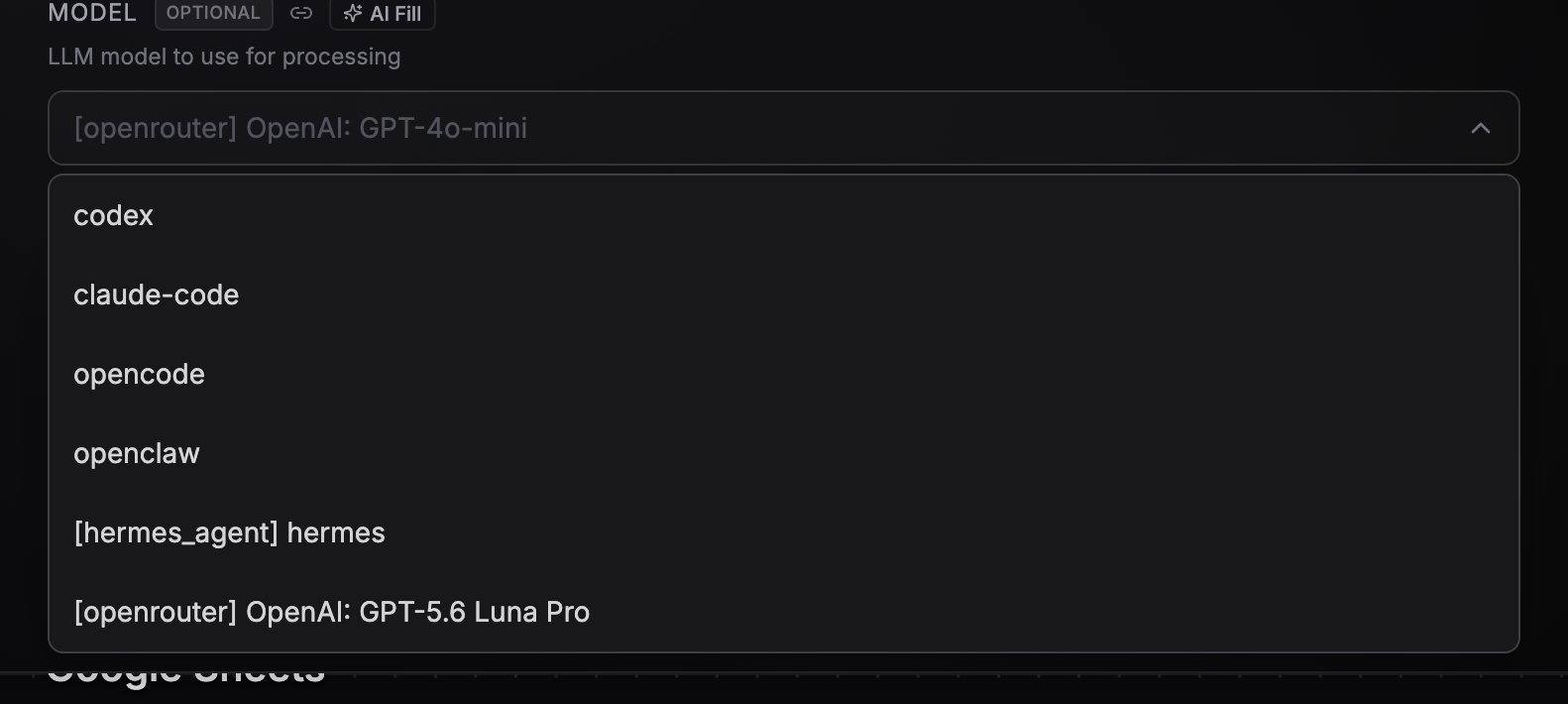
Fields that point at real resources, like a spreadsheet, a sheet tab, or a Slack channel, load their options live from your connected account. They are searchable, paginate for long lists, and dependent fields reload when their parent changes (pick a different spreadsheet and the sheet list refreshes). Many also accept a custom value or a dropped reference instead of a listed option.
## Choosing an operation
Integration nodes can do many things, so the config starts with an operation picker: type to search ("Search for an action this node should perform") and pick one. Search is fuzzy and ranked, so word order, abbreviations, and words from an operation's description all match, and the closest result moves to the top, highlighted so you can press Enter to select it. The fields below update to match the chosen operation.
## Filling fields
Each field carries a badge: **Required** fields show an amber badge until they are filled, **Optional** fields stay neutral. Any unfilled required field across the workflow also surfaces in the **Setup** tab in the top bar, so you can fix them all in one pass.
Text fields accept plain values or [references](/editor/data-references) to upstream output.
Multi-value fields, like a message's To, Cc, and Bcc or a list of feed URLs, save as you type. A new empty box appears as soon as you fill the last one, so you do not need to press Enter to add each value.
Media fields, like a video or image to upload, take a file three ways. Click **Upload** to send a file from your computer, paste a URL, or drag a reference to a file produced by an earlier step. Uploaded files are stored and turned into a link, and images and videos preview right in the field.
## Dynamic dropdowns
Fields that point at real resources, like a spreadsheet, a sheet tab, or a Slack channel, load their options live from your connected account. They are searchable, paginate for long lists, and dependent fields reload when their parent changes (pick a different spreadsheet and the sheet list refreshes). Many also accept a custom value or a dropped reference instead of a listed option.
 ## Credentials on the node
Open the **Credentials** tab (`K`) to attach an account to the node. Pick an existing one from **Select credential...**, or create one in place: **Connect new** starts an OAuth flow, **Create new** takes an API key. See [Connecting credentials](/credentials/connecting) for details and per-plan limits.
A node with a missing credential can't run; the Credentials tab shows a warning state until one is connected.
## Next steps
Pass upstream output into config fields.
Run a single node to verify its config.
## Credentials on the node
Open the **Credentials** tab (`K`) to attach an account to the node. Pick an existing one from **Select credential...**, or create one in place: **Connect new** starts an OAuth flow, **Create new** takes an API key. See [Connecting credentials](/credentials/connecting) for details and per-plan limits.
A node with a missing credential can't run; the Credentials tab shows a warning state until one is connected.
## Next steps
Pass upstream output into config fields.
Run a single node to verify its config.