> ## Documentation Index
> Fetch the complete documentation index at: https://docs.noclick.com/llms.txt
> Use this file to discover all available pages before exploring further.
# Share a workflow
> Share a workflow with a public view link, with specific people or organizations, or with a live collaboration invite link.
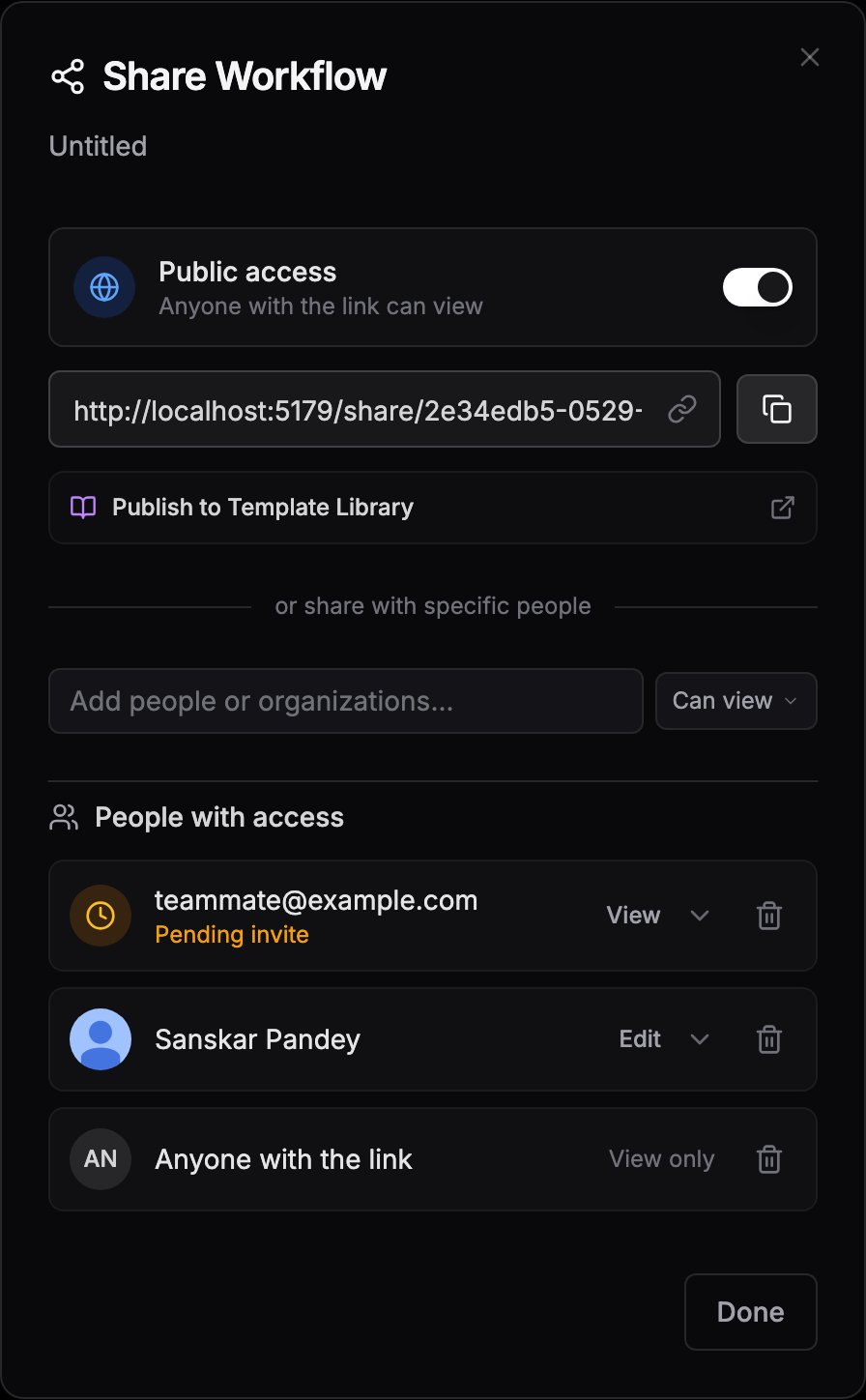
Click the **Share workflow** button (the share icon in the top-right of the canvas) to open the **Share Workflow** dialog. From here you can publish a public view link or grant access to specific people and organizations. A separate invite link brings collaborators into the flow to edit with you live.
 ## Public link
Turn on the **Public access** toggle ("Anyone with the link can view") to get a view-only link:
```
https://noclick.com/share/{workflow-id}
```
Use the copy button next to the link to share it. Visitors can view the workflow but not edit or run it. Turn the toggle off to revoke the link.
When public access is on, a **Publish to Template Library** option appears. See [Publishing templates](/templates/publishing).
## Specific people and organizations
Type in the **Add people or organizations...** field. Suggestions include your organizations (shared with "All members") and their members, or enter any email address.
Choose **Can view** or **Can edit** next to the input before adding. Editors can change the workflow; viewers can only look.
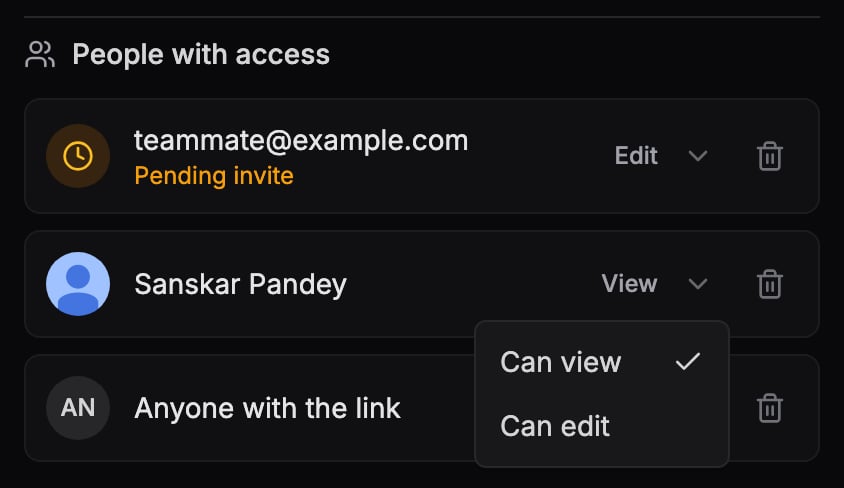
Everyone you've shared with appears under **People with access**. Use the dropdown next to a person to switch between **Can view** and **Can edit**, or click the trash icon to remove their access.
If you share with an email that doesn't have a NoClick account yet, the entry shows a **Pending invite** label. The share activates automatically when that person signs up with the same email.
## Public link
Turn on the **Public access** toggle ("Anyone with the link can view") to get a view-only link:
```
https://noclick.com/share/{workflow-id}
```
Use the copy button next to the link to share it. Visitors can view the workflow but not edit or run it. Turn the toggle off to revoke the link.
When public access is on, a **Publish to Template Library** option appears. See [Publishing templates](/templates/publishing).
## Specific people and organizations
Type in the **Add people or organizations...** field. Suggestions include your organizations (shared with "All members") and their members, or enter any email address.
Choose **Can view** or **Can edit** next to the input before adding. Editors can change the workflow; viewers can only look.
Everyone you've shared with appears under **People with access**. Use the dropdown next to a person to switch between **Can view** and **Can edit**, or click the trash icon to remove their access.
If you share with an email that doesn't have a NoClick account yet, the entry shows a **Pending invite** label. The share activates automatically when that person signs up with the same email.
 ## Invite links
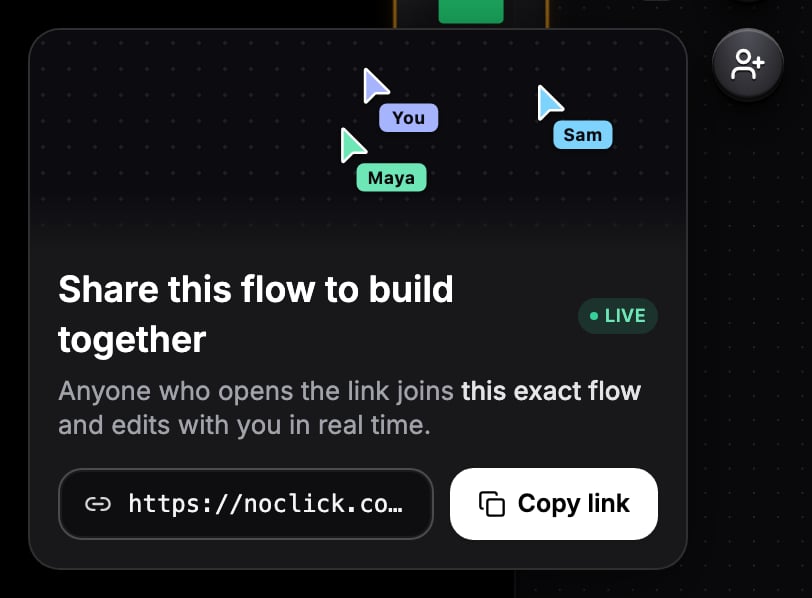
The fastest way to bring someone into a flow is the invite link. Click the **Invite collaborators** button (the round person-plus button on the right edge of the canvas) to open the invite card, then click **Copy link**.
## Invite links
The fastest way to bring someone into a flow is the invite link. Click the **Invite collaborators** button (the round person-plus button on the right edge of the canvas) to open the invite card, then click **Copy link**.
 The link looks like `noclick.com/i/{token}`. When someone opens it:
1. They land on an invite page showing who invited them and the workflow name.
2. They sign in or create an account on that page.
3. They join the same workflow as a collaborator with edit access. There is no copy or fork; you build together on one canvas.
Each workflow has one always-on invite link, and only the workflow owner can create it. Reopening the invite card shows the same link. To remove a collaborator who joined through the link, delete them from **People with access** in the Share dialog.
Invite links aren't available for organization workflows. Members of an [organization](/collaboration/organizations) already share access to its workflows.
## Next steps
Live cursors, presence avatars, and instant edit syncing.
How collaborators run nodes without copying your credentials.
The link looks like `noclick.com/i/{token}`. When someone opens it:
1. They land on an invite page showing who invited them and the workflow name.
2. They sign in or create an account on that page.
3. They join the same workflow as a collaborator with edit access. There is no copy or fork; you build together on one canvas.
Each workflow has one always-on invite link, and only the workflow owner can create it. Reopening the invite card shows the same link. To remove a collaborator who joined through the link, delete them from **People with access** in the Share dialog.
Invite links aren't available for organization workflows. Members of an [organization](/collaboration/organizations) already share access to its workflows.
## Next steps
Live cursors, presence avatars, and instant edit syncing.
How collaborators run nodes without copying your credentials.