> ## Documentation Index
> Fetch the complete documentation index at: https://docs.noclick.com/llms.txt
> Use this file to discover all available pages before exploring further.
# Skills
> Give the AI builder reusable instructions and reference material that it loads automatically when relevant.
Skills are reusable context for the builder: writing guidelines, domain knowledge, conventions your team follows, or a reference workflow to imitate. Once a skill is enabled, the builder considers it on every message and loads the ones relevant to your request, so you do not have to repeat yourself in every prompt.
## Creating a skill
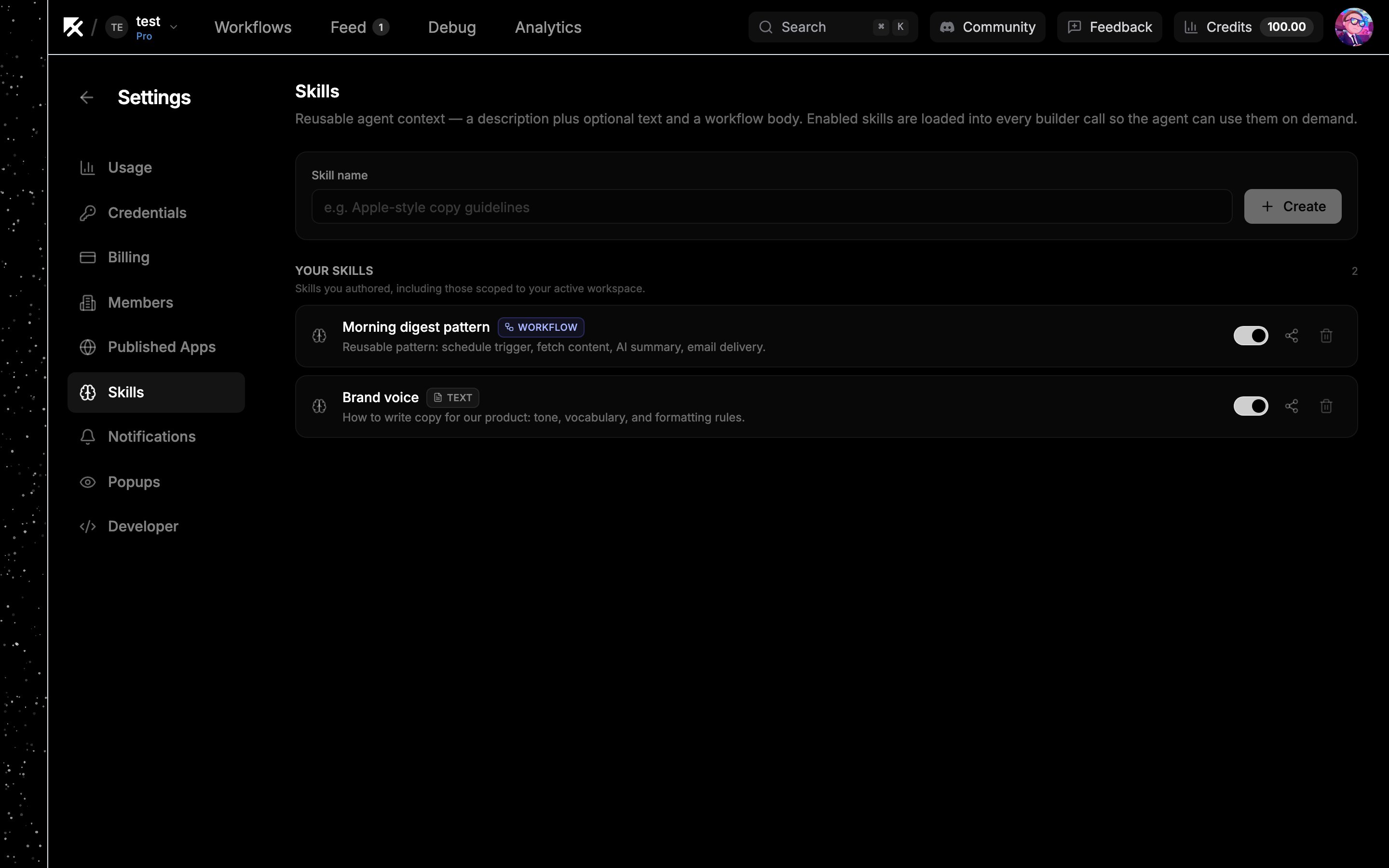
The **Skills** section lists your skills and any shared with you.
Enter a name (for example "Apple-style copy guidelines") and click **Create**. The editor opens immediately.
On the **Content** tab:
* **Description**: a few sentences on when and why the builder should use this skill. The builder reads descriptions to decide which skills to load, so make this specific.
* **Text body**: the instructions themselves. Prose, examples, code samples, anything the builder should follow.
The **Workflow** tab opens a canvas where you can build an example workflow into the skill. The builder studies it as a reference, including exact node configurations, when building something similar.
 ## Enabling and disabling
Each skill row has a toggle. Enabled skills are available to the builder; disabled ones are excluded entirely. Turn a skill off when you want to keep it around but stop it from influencing builds.
## Sharing skills
Click the **Share** button on a skill to share it with specific people or organizations. Skills shared with you appear in a "Shared with me" section. They are read-only, and their toggle mutes or unmutes them just for you without affecting the owner.
## Enabling and disabling
Each skill row has a toggle. Enabled skills are available to the builder; disabled ones are excluded entirely. Turn a skill off when you want to keep it around but stop it from influencing builds.
## Sharing skills
Click the **Share** button on a skill to share it with specific people or organizations. Skills shared with you appear in a "Shared with me" section. They are read-only, and their toggle mutes or unmutes them just for you without affecting the owner.