> ## Documentation Index
> Fetch the complete documentation index at: https://docs.noclick.com/llms.txt
> Use this file to discover all available pages before exploring further.
# AI builder
> Describe what you want in plain language and the AI builder assembles the workflow: nodes, connections, and configuration.
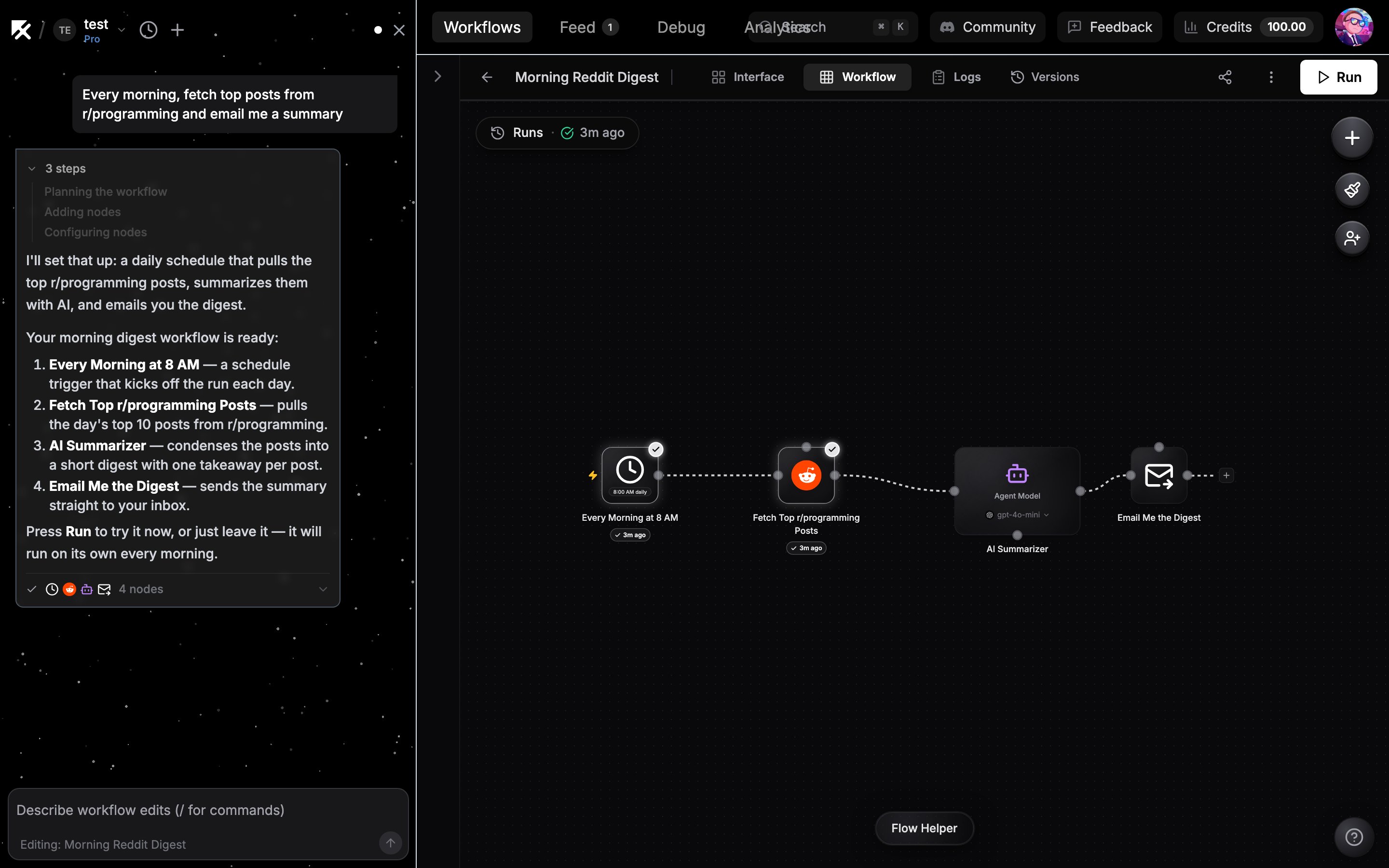
The AI builder is a chat that turns plain-language requests into working workflows. It lives in the chat sidebar, available from the dashboard and alongside the workflow canvas. Press `/` anywhere in the dashboard to open it.
 ## Describe what you want
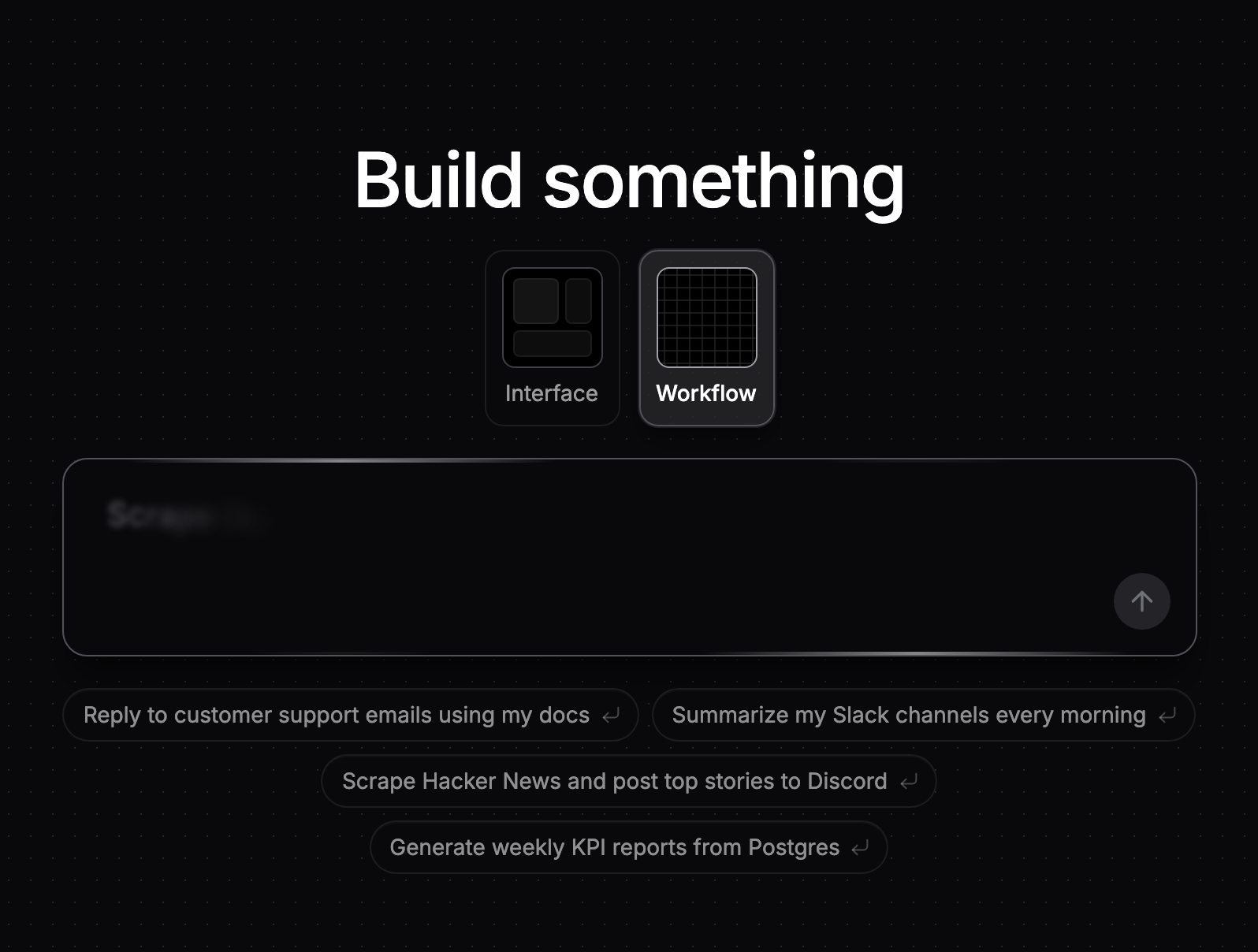
Type the outcome you are after, for example:
* "Reply to customer support emails using my docs"
* "Summarize my Slack channels every morning"
* "Scrape Hacker News and post top stories to Discord"
* "Generate weekly KPI reports from Postgres"
An empty canvas also shows a prompt box with suggestions. Submitting it hands your request to the builder in the sidebar.
## Describe what you want
Type the outcome you are after, for example:
* "Reply to customer support emails using my docs"
* "Summarize my Slack channels every morning"
* "Scrape Hacker News and post top stories to Discord"
* "Generate weekly KPI reports from Postgres"
An empty canvas also shows a prompt box with suggestions. Submitting it hands your request to the builder in the sidebar.
 ## What the builder does
From one request, the builder:
* Adds the right nodes and wires them together
* Picks each node's operation and fills in its configuration
* Attaches your credentials when the choice is unambiguous (if you have exactly one matching connected account, it is attached automatically)
* Pauses and asks you when it needs something only you can provide, like connecting an account or picking a specific spreadsheet (see [When the builder asks](/builder/asks))
While it works, the chat shows progress steps and cards for each node it touches, and the nodes appear on the canvas live. The builder also builds interfaces: with the Interface tab open, describing a form, dashboard, or chat UI produces an interface for the workflow.
The chat follows whichever workflow you have open, and each workflow keeps its own conversation. You can also ask the builder to find, open, or create workflows by name.
## Adding context to your message
You can paste content directly into the chat input:
* Pasted images attach inline (useful for sketches or reference screenshots)
* Long pasted text (more than 10 lines) collapses into a compact tag so it does not flood the input
* With a workflow open, drag a field from a node's output into the chat to reference that exact value in your request
## Next steps
Credential and input questions, and how to answer them.
Iterate on an existing workflow in plain language.
Reusable context the builder loads automatically.
What powers the builder and what it costs.
## What the builder does
From one request, the builder:
* Adds the right nodes and wires them together
* Picks each node's operation and fills in its configuration
* Attaches your credentials when the choice is unambiguous (if you have exactly one matching connected account, it is attached automatically)
* Pauses and asks you when it needs something only you can provide, like connecting an account or picking a specific spreadsheet (see [When the builder asks](/builder/asks))
While it works, the chat shows progress steps and cards for each node it touches, and the nodes appear on the canvas live. The builder also builds interfaces: with the Interface tab open, describing a form, dashboard, or chat UI produces an interface for the workflow.
The chat follows whichever workflow you have open, and each workflow keeps its own conversation. You can also ask the builder to find, open, or create workflows by name.
## Adding context to your message
You can paste content directly into the chat input:
* Pasted images attach inline (useful for sketches or reference screenshots)
* Long pasted text (more than 10 lines) collapses into a compact tag so it does not flood the input
* With a workflow open, drag a field from a node's output into the chat to reference that exact value in your request
## Next steps
Credential and input questions, and how to answer them.
Iterate on an existing workflow in plain language.
Reusable context the builder loads automatically.
What powers the builder and what it costs.