> ## Documentation Index
> Fetch the complete documentation index at: https://docs.noclick.com/llms.txt
> Use this file to discover all available pages before exploring further.
# Email notifications
> Email alerts for workflow failures, credit balance, and a weekly activity digest.
NoClick can email you about your account and workflows. Every alert goes to your account email, and you choose which types you receive in **Settings → Notifications**.
## Alert types
| Type | When you get it |
| ----------------- | ---------------------------------------------------------------------------------------------------------------------------------------------------------------------------- |
| Workflow failures | A workflow that runs on its own (from a schedule, webhook, inbound email, the API, or an MCP call) fails. The email names the workflow, the node that failed, and the error. |
| Credit balance | Your credits run low, or a run is blocked because your balance reached zero. |
| Weekly digest | A Monday summary of your runs, failures, and credits used over the past week. |
Manual runs do not send a failure email. Their errors show on the canvas while you work. Failure alerts cover only workflows that run without you watching.
## Managing your alerts
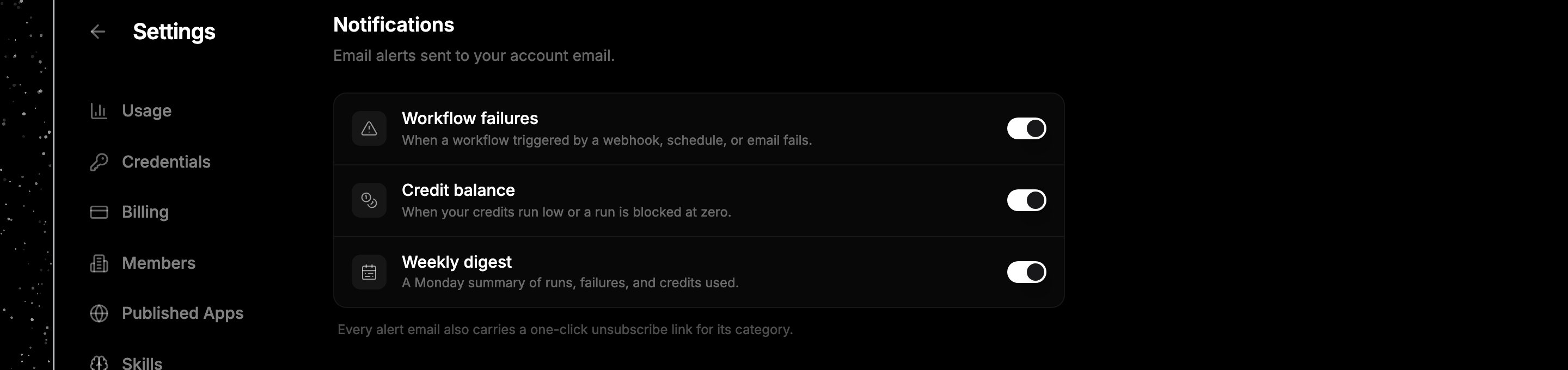 Go to **Settings → Notifications**. Each alert type has its own toggle.
Switch any type off to stop receiving those emails. Changes save as you toggle them.
Every alert email also carries a one-click unsubscribe link for its type, so you can opt out straight from your inbox.
## Next steps
* [What costs credits](/billing/costs)
* [Credit top-ups](/billing/top-ups)
* [Usage dashboard](/billing/usage-dashboard)
Go to **Settings → Notifications**. Each alert type has its own toggle.
Switch any type off to stop receiving those emails. Changes save as you toggle them.
Every alert email also carries a one-click unsubscribe link for its type, so you can opt out straight from your inbox.
## Next steps
* [What costs credits](/billing/costs)
* [Credit top-ups](/billing/top-ups)
* [Usage dashboard](/billing/usage-dashboard)