> ## Documentation Index
> Fetch the complete documentation index at: https://docs.noclick.com/llms.txt
> Use this file to discover all available pages before exploring further.
# AI agents overview
> Add an AI Agent node, give it instructions, and wire in tools and triggers so it can reason and act inside your workflow.
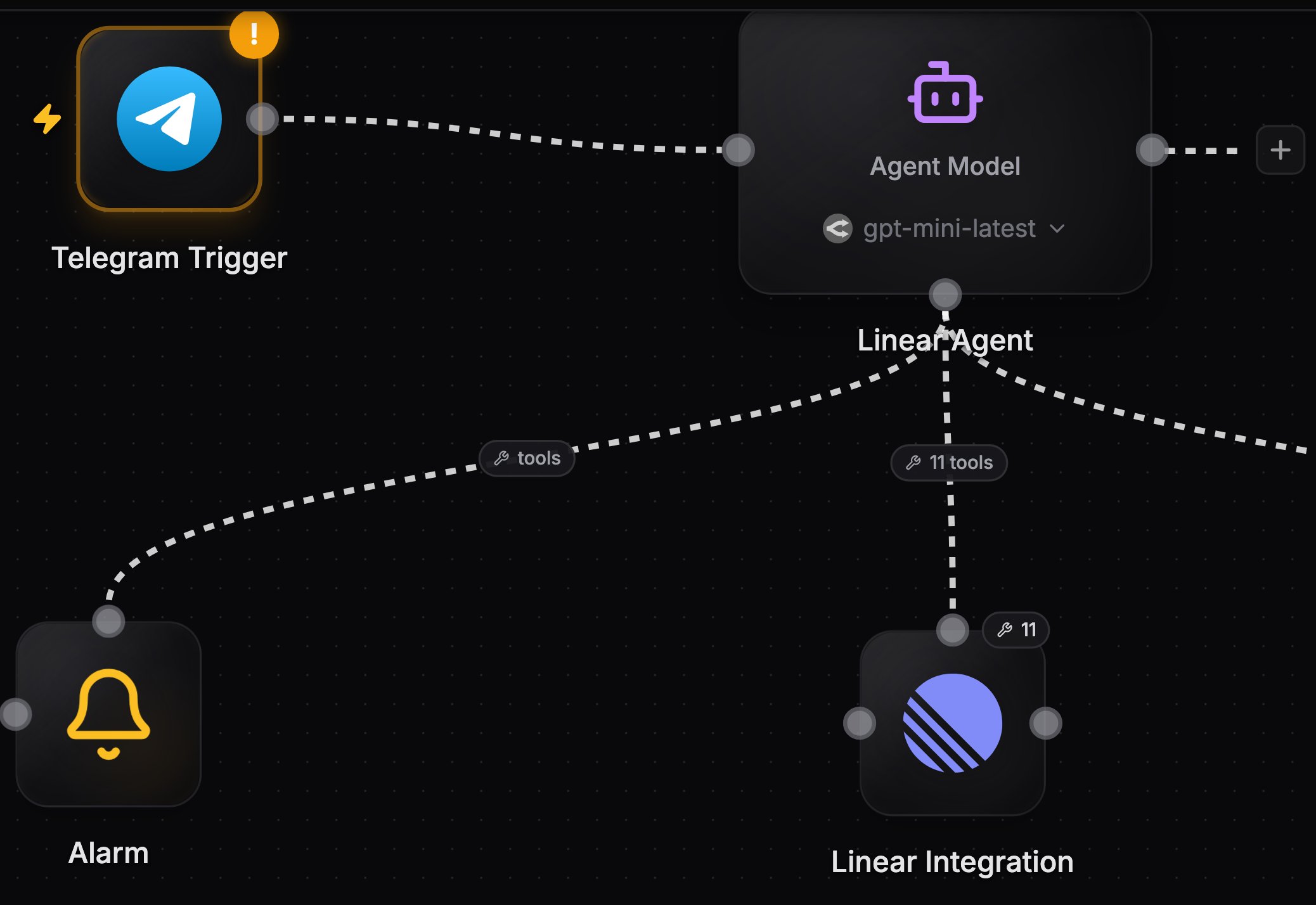
The AI Agent node runs a model that decides its own steps at run time. You write instructions in the **Message** field, wire in tools and triggers, and the agent reasons about the input and acts using the tools you allowed.
 ## Agent or deterministic nodes?
Use regular nodes when the steps are always the same: fetch a row, transform it, post a message. Use an agent when the steps depend on the input, for example triaging messages, deciding which records to update, or doing research that takes a variable number of tool calls.
Agents consume credits for model usage unless you [connect your own AI subscription](/agents/models). Deterministic integration nodes running on your own credentials cost nothing.
## The three handles
```
(input) ──▶ ┌──────────┐ ──▶ (output)
data + triggers │ AI Agent │ response to
└──────────┘ downstream nodes
▲
(tools)
integration nodes, MCP servers,
filesystem, alarms
```
| Handle | Direction | What connects there |
| ------ | --------- | ---------------------------------------------------------------------------------------------------------------------------------------------- |
| Left | Input | Output from upstream nodes, and triggers that fire the agent |
| Right | Output | The agent's final response, available to downstream nodes |
| Bottom | Tools | Tool providers: [integrations](/agents/tools), [MCP servers](/agents/mcp), [filesystem](/agents/files-and-repos), [alarms](/agents/scheduling) |
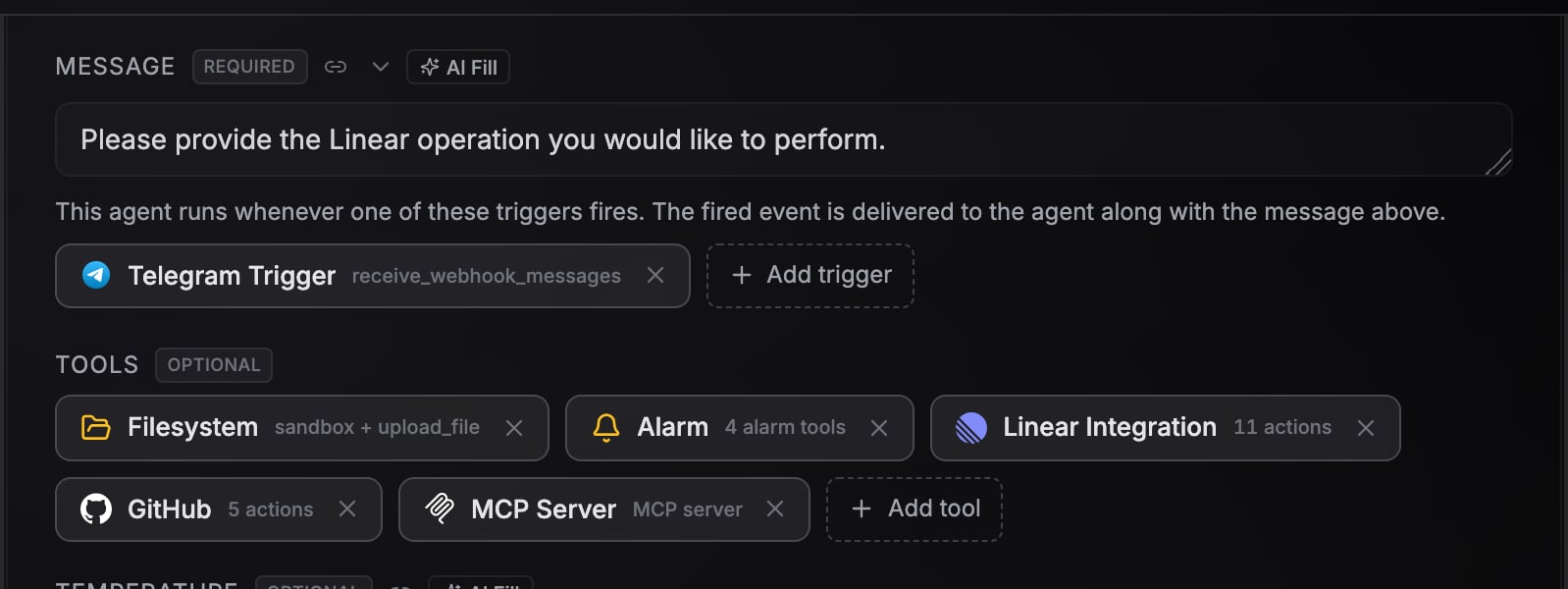
Tool providers connect from their own top handle into the agent's bottom handle. You can drag these edges yourself, or use the **Add trigger** and **Add tool** buttons in the agent's config panel, which open a searchable palette and handle the wiring for you.
## Agent or deterministic nodes?
Use regular nodes when the steps are always the same: fetch a row, transform it, post a message. Use an agent when the steps depend on the input, for example triaging messages, deciding which records to update, or doing research that takes a variable number of tool calls.
Agents consume credits for model usage unless you [connect your own AI subscription](/agents/models). Deterministic integration nodes running on your own credentials cost nothing.
## The three handles
```
(input) ──▶ ┌──────────┐ ──▶ (output)
data + triggers │ AI Agent │ response to
└──────────┘ downstream nodes
▲
(tools)
integration nodes, MCP servers,
filesystem, alarms
```
| Handle | Direction | What connects there |
| ------ | --------- | ---------------------------------------------------------------------------------------------------------------------------------------------- |
| Left | Input | Output from upstream nodes, and triggers that fire the agent |
| Right | Output | The agent's final response, available to downstream nodes |
| Bottom | Tools | Tool providers: [integrations](/agents/tools), [MCP servers](/agents/mcp), [filesystem](/agents/files-and-repos), [alarms](/agents/scheduling) |
Tool providers connect from their own top handle into the agent's bottom handle. You can drag these edges yourself, or use the **Add trigger** and **Add tool** buttons in the agent's config panel, which open a searchable palette and handle the wiring for you.
 ## Key settings
| Field | What it does |
| --------------------- | ---------------------------------------------------------------------------------------------------------------------------------------------------------------- |
| **System Prompt** | Instructions defining how the agent behaves |
| **Message** | The task or question. When a trigger is wired in, the fired event is delivered alongside this message, so write standing instructions here, not the event itself |
| **Temperature** | Creativity level, 0.0 (focused) to 2.0 (creative) |
| **Conversation Key** | Same key = same conversation across runs. See [Conversations](/agents/conversations) |
| **Show in Interface** | Surfaces the agent as a fullscreen chat in the workflow's Interface tab. On by default for new agents |
## Capabilities
Every agent chat has a **Settings** panel with a **Capabilities** section that controls two things the agent can do on its own. Both are on by default.
| Capability | What it does |
| ------------------ | -------------------------------------------------------------------------------------------------------------------------------------------------------------------------------------------------------------------------- |
| **Workflow edits** | The agent can propose a change to the workflow it runs in. In an interface chat the change arrives as a **Proposed workflow edit** card for you to approve or dismiss. On a trigger run it can make the change headlessly. |
| **Email updates** | When you are away, the agent can email you questions, links to connect an account, and failure reports at your account email. Reply to the email to answer it. |
Email updates go to your account email, up to 10 per day per agent. Every email includes a link to turn them off for that agent, and you can toggle the capability off any time in the chat **Settings**.
## Next steps
Choose between the built-in LLM agent and five CLI coding agents, or connect your Claude or ChatGPT subscription.
Turn any integration node into a set of agent tools with an operation allowlist.
Build chat-style agents on Slack, Telegram, WhatsApp, or email.
Keep context across runs with conversation keys.
## Key settings
| Field | What it does |
| --------------------- | ---------------------------------------------------------------------------------------------------------------------------------------------------------------- |
| **System Prompt** | Instructions defining how the agent behaves |
| **Message** | The task or question. When a trigger is wired in, the fired event is delivered alongside this message, so write standing instructions here, not the event itself |
| **Temperature** | Creativity level, 0.0 (focused) to 2.0 (creative) |
| **Conversation Key** | Same key = same conversation across runs. See [Conversations](/agents/conversations) |
| **Show in Interface** | Surfaces the agent as a fullscreen chat in the workflow's Interface tab. On by default for new agents |
## Capabilities
Every agent chat has a **Settings** panel with a **Capabilities** section that controls two things the agent can do on its own. Both are on by default.
| Capability | What it does |
| ------------------ | -------------------------------------------------------------------------------------------------------------------------------------------------------------------------------------------------------------------------- |
| **Workflow edits** | The agent can propose a change to the workflow it runs in. In an interface chat the change arrives as a **Proposed workflow edit** card for you to approve or dismiss. On a trigger run it can make the change headlessly. |
| **Email updates** | When you are away, the agent can email you questions, links to connect an account, and failure reports at your account email. Reply to the email to answer it. |
Email updates go to your account email, up to 10 per day per agent. Every email includes a link to turn them off for that agent, and you can toggle the capability off any time in the chat **Settings**.
## Next steps
Choose between the built-in LLM agent and five CLI coding agents, or connect your Claude or ChatGPT subscription.
Turn any integration node into a set of agent tools with an operation allowlist.
Build chat-style agents on Slack, Telegram, WhatsApp, or email.
Keep context across runs with conversation keys.