> ## Documentation Index
> Fetch the complete documentation index at: https://docs.noclick.com/llms.txt
> Use this file to discover all available pages before exploring further.
# Files and repositories
> Give agents persistent storage with the filesystem node and authenticated GitHub repo access in their sandbox.
The built-in LLM agent runs with an ephemeral disk: anything written during a run is wiped when the run ends. The five CLI harnesses keep a per-conversation `/workspace` folder that survives across runs on its own, so an agent's saved notes and files are still there when it wakes up again. The **Filesystem** node adds a named persistent volume to any agent, and a GitHub tool provider can clone repositories into the sandbox with authenticated git.
## The filesystem node
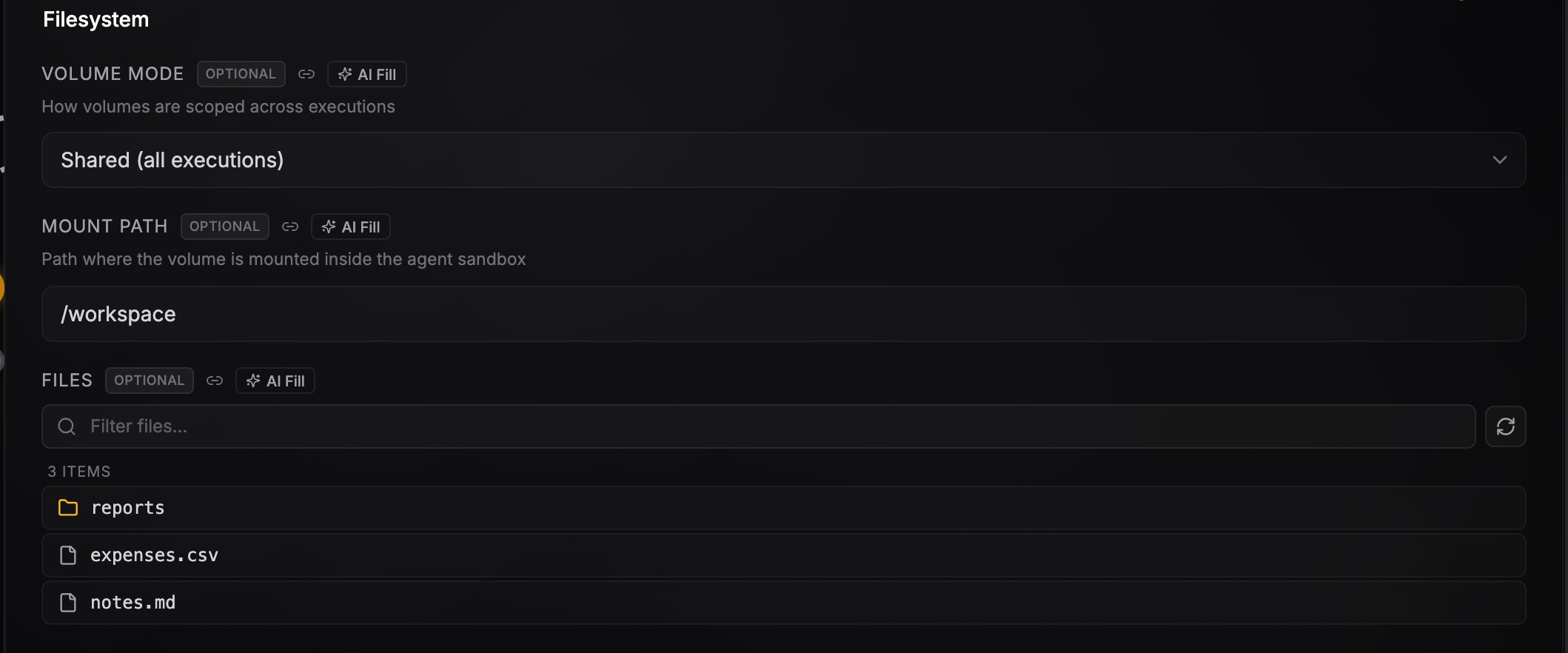
Wire a **Filesystem** node from its top handle into the agent's bottom handle, or add it from the agent's **Add tool** palette. The agent gets a bash tool and a mounted volume whose contents persist across runs. For the built-in LLM agent, wiring a filesystem node is also what enables bash in the first place; the CLI harnesses always have a sandbox shell.
| Setting | What it does |
| --------------- | -------------------------------------------------------------------------------------------------------------------------------------------------------------------- |
| **Volume Mode** | **Shared (all executions)**: one volume for every run. **Per Conversation Key (isolated per user)**: a separate volume per [conversation key](/agents/conversations) |
| **Mount Path** | Where the volume appears inside the sandbox (default `/workspace`) |
| **Files** | A browser in the node's config panel for inspecting what the agent has stored |
 ## What persists, what doesn't
* Files under the **Mount Path** persist across runs (and across harnesses, since the volume is keyed to the workflow and node).
* Everything outside the mount path is ephemeral and wiped after each run.
* The five CLI harnesses keep their `/workspace` folder across runs even without a filesystem node, so an agent's saved notes and files survive a restart. Wiring a filesystem node makes that storage explicit and lets you choose its volume mode and browse its files.
* For the built-in LLM agent, the whole sandbox disk is ephemeral without a filesystem node.
## Browse saved files from chat
Every agent chat has a **Files** menu that lists what the agent saved in the current conversation's workspace. Open a file to preview it in place (text, markdown, code, or an image) or download it with one click. Files the agent just wrote can take a few seconds to show up, and a refresh button reloads the list.
## What persists, what doesn't
* Files under the **Mount Path** persist across runs (and across harnesses, since the volume is keyed to the workflow and node).
* Everything outside the mount path is ephemeral and wiped after each run.
* The five CLI harnesses keep their `/workspace` folder across runs even without a filesystem node, so an agent's saved notes and files survive a restart. Wiring a filesystem node makes that storage explicit and lets you choose its volume mode and browse its files.
* For the built-in LLM agent, the whole sandbox disk is ephemeral without a filesystem node.
## Browse saved files from chat
Every agent chat has a **Files** menu that lists what the agent saved in the current conversation's workspace. Open a file to preview it in place (text, markdown, code, or an image) or download it with one click. Files the agent just wrote can take a few seconds to show up, and a refresh button reloads the list.
 ## Publish a file to a URL
Whenever an agent runs in a sandbox, it has an `upload_file` tool. Give it the path to any file the sandbox can read and it uploads the file to the workflow's resource storage and returns a public URL, so the agent can share a generated image, attach a report to an email, or pass the file to a downstream node. You do not need a filesystem node for this: the five CLI harnesses always run in a sandbox, and the built-in LLM agent runs in one whenever a filesystem node or a repository mount is wired.
## GitHub repository mounts
A GitHub node wired as a [tool provider](/agents/tools) has a **Mount repositories** section in its panel. Click **+ Add repository**, pick a repo from the dropdown (it lists what the connected credential can access), and optionally a branch.
## Publish a file to a URL
Whenever an agent runs in a sandbox, it has an `upload_file` tool. Give it the path to any file the sandbox can read and it uploads the file to the workflow's resource storage and returns a public URL, so the agent can share a generated image, attach a report to an email, or pass the file to a downstream node. You do not need a filesystem node for this: the five CLI harnesses always run in a sandbox, and the built-in LLM agent runs in one whenever a filesystem node or a repository mount is wired.
## GitHub repository mounts
A GitHub node wired as a [tool provider](/agents/tools) has a **Mount repositories** section in its panel. Click **+ Add repository**, pick a repo from the dropdown (it lists what the connected credential can access), and optionally a branch.
 At the start of every run, each repo is cloned into the agent's sandbox with push access. Inside the sandbox, both `git` and the `gh` CLI are authenticated with the node's credential, so the agent can commit, push, and open pull requests.
Repo working trees are wiped after the run unless a filesystem node is attached. Have the agent commit and push its work rather than leaving changes on disk.
Prefer the GitHub node's allowlisted API tools for issue and PR operations; they are audited per call. The authenticated `gh` CLI is the fallback for anything the tools don't cover. Use fine-grained personal access tokens to limit what a mounted credential can reach.
## Environment variables
You can give an agent its own environment variables so it can call APIs that NoClick has no node for. Open the agent's **Credentials** panel, expand **Advanced**, and under **Environment variables** create a set: name the set, then add each variable as a name and value (for example `STRIPE_KEY`). The set is saved as a reusable credential, so you can link the same one to more than one agent.
Each variable is available in the agent's sandbox shell, so the agent can reference it directly:
```bash theme={null}
curl -H "Authorization: Bearer $STRIPE_KEY" https://api.stripe.com/v1/charges
```
When you edit a set, the variable names are prefilled but the values are not. Saved values are never shown again, so re-enter a value to keep it and leave it blank only when you mean to remove that variable.
The AI builder can also request these for you. When it decides an agent needs a variable that is not set yet, it asks for it in the builder chat with the names it needs prefilled, and you enter the values there. It only asks when no node exists for the API the agent has to call.
Variable names are not written into the agent's prompt, but the agent can print a value by running a command in its sandbox. Scope each key to only what the agent needs, the same way you would a mounted repository token. For a secret the agent must never see, wire an HTTP Request node as a tool provider instead.
## Next steps
Pair per-conversation volumes with conversation keys.
See which harnesses run in a sandbox.
At the start of every run, each repo is cloned into the agent's sandbox with push access. Inside the sandbox, both `git` and the `gh` CLI are authenticated with the node's credential, so the agent can commit, push, and open pull requests.
Repo working trees are wiped after the run unless a filesystem node is attached. Have the agent commit and push its work rather than leaving changes on disk.
Prefer the GitHub node's allowlisted API tools for issue and PR operations; they are audited per call. The authenticated `gh` CLI is the fallback for anything the tools don't cover. Use fine-grained personal access tokens to limit what a mounted credential can reach.
## Environment variables
You can give an agent its own environment variables so it can call APIs that NoClick has no node for. Open the agent's **Credentials** panel, expand **Advanced**, and under **Environment variables** create a set: name the set, then add each variable as a name and value (for example `STRIPE_KEY`). The set is saved as a reusable credential, so you can link the same one to more than one agent.
Each variable is available in the agent's sandbox shell, so the agent can reference it directly:
```bash theme={null}
curl -H "Authorization: Bearer $STRIPE_KEY" https://api.stripe.com/v1/charges
```
When you edit a set, the variable names are prefilled but the values are not. Saved values are never shown again, so re-enter a value to keep it and leave it blank only when you mean to remove that variable.
The AI builder can also request these for you. When it decides an agent needs a variable that is not set yet, it asks for it in the builder chat with the names it needs prefilled, and you enter the values there. It only asks when no node exists for the API the agent has to call.
Variable names are not written into the agent's prompt, but the agent can print a value by running a command in its sandbox. Scope each key to only what the agent needs, the same way you would a mounted repository token. For a secret the agent must never see, wire an HTTP Request node as a tool provider instead.
## Next steps
Pair per-conversation volumes with conversation keys.
See which harnesses run in a sandbox.